
A white spot on a laptop screen is usually caused by pressure damage, a stuck pixel, dust trapped inside the display, or an uneven backlight. Start with a gentle cleaning and a display test before assuming the screen needs replacement.
Most white spots will not disappear on their own. The right fix depends on whether the spot is on the surface, limited to one pixel, or a larger glowing patch caused by the screen’s internal layers.

What a white spot on a laptop screen looks like
A white spot can appear as a tiny bright dot, a soft cloudy patch, or a bright area that is most visible on dark backgrounds. If the mark remains in the same place while you move windows or change screen colors, it is likely a hardware or panel issue rather than a software problem.
White spots are different from dead pixels, which usually appear black because they do not light up. A stuck pixel can stay white, red, green, or blue, while backlight bleed creates pale patches or glowing areas near the edges of an LCD panel.
Common causes of white spots on laptop screens
White spots on a laptop screen usually point to a physical issue with the display panel. Here are the most common culprits:
- Pressure damage
Pressure damage is one of the most common reasons for a permanent white spot. Closing the laptop lid on a pen, cable, headphone, or crumb can press against the LCD and deform the liquid-crystal layer.
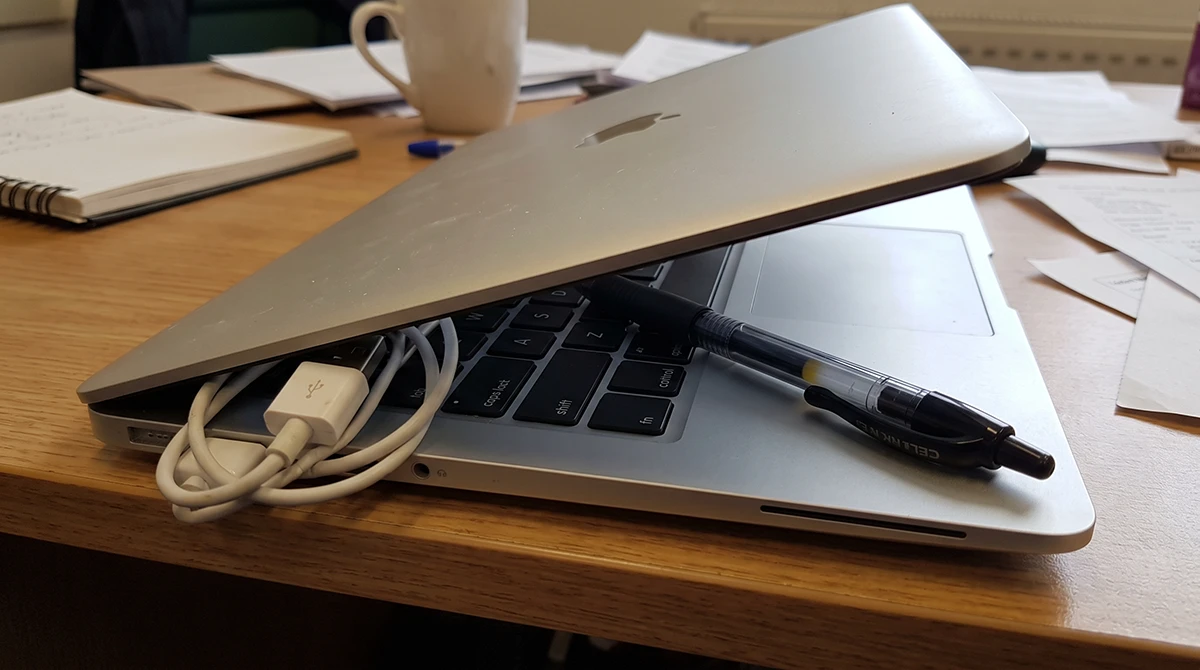
A swollen battery, tight backpack, or pressing too hard on the screen can cause the same problem. These marks often look like a soft white or gray blob and may become more noticeable on white or light-colored backgrounds.
- Stuck or dead pixels
A single tiny white dot may be a stuck pixel. Stuck pixels are frozen on one color, while dead pixels stop working entirely and usually look black.
Pixel issues can occur because of manufacturing defects, heat, age, or physical stress. They are usually small—often only one or a few pixels—and stay in exactly the same position.
- Dust or debris under the screen
Sometimes the “white spot” is simply dust, dirt, or debris trapped between display layers or beneath a screen protector. This is more likely if the spot appeared suddenly and looks like a small speck rather than a broad patch.
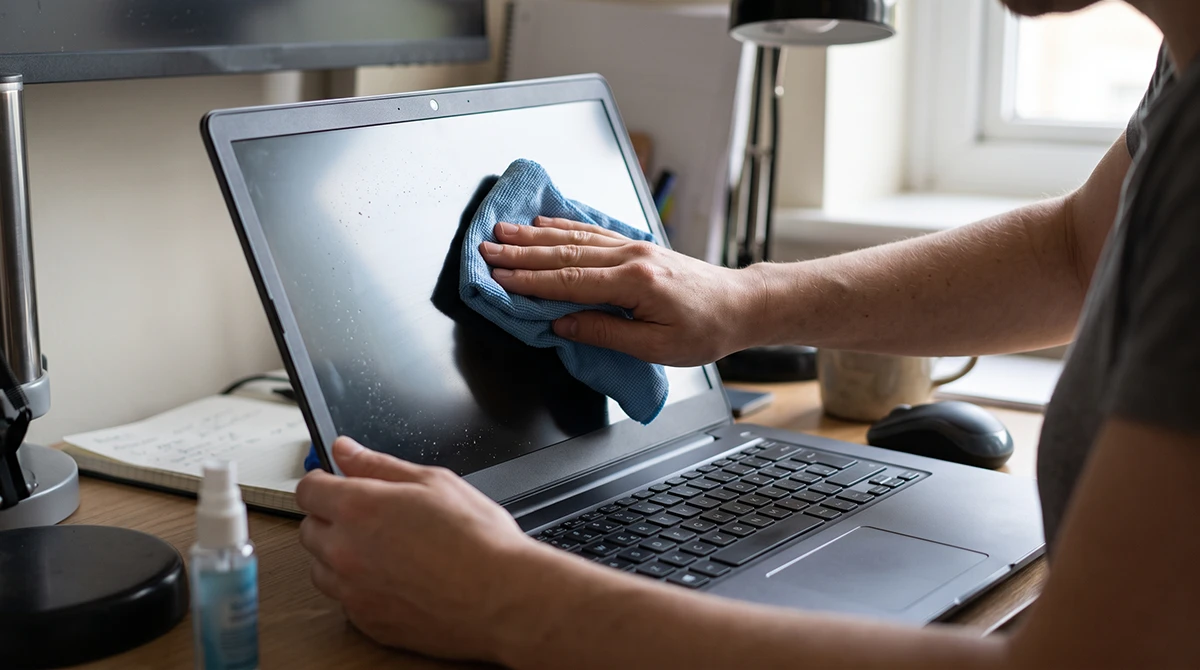
Cleaning the outer glass may remove surface dirt, but debris sealed inside the panel generally requires professional service. Do not try to open the display yourself unless you are experienced with laptop repairs.
- Backlight or panel defect
Uneven backlighting can create bright patches, especially around the center or edges of the screen. This may be caused by a backlight-lens problem, panel assembly issue, or normal LCD characteristics such as backlight bleed.
If the white area is large, soft, and more visible on a black screen, backlight bleed or a backlight defect is more likely than a stuck pixel.
- Heat, aging, or physical damage
Long-term heat exposure, component aging, drops, and cracked internal display components can also cause bright marks. If the spot appeared after a drop, impact, or visible screen damage, professional diagnosis is the safest option.
How to diagnose the white spot
Follow these steps before attempting any repair:
- Turn off the laptop and gently wipe the screen with a dry, clean microfiber cloth.
- Turn the screen back on and display a solid black image, then a solid white image. A pixel-testing tool can help you check whether the spot is a stuck pixel or a larger panel issue.
- Change the brightness and display settings. If the spot changes size or intensity with brightness, a backlight issue may be involved.
- Connect an external monitor. If the external display looks normal, the issue is isolated to the laptop screen rather than the graphics driver or operating system.
- Check for pressure points. Remove anything from the keyboard area, inspect the lid for dents, and avoid pressing the screen.
How to fix a white spot on a laptop screen
A white spot is usually a hardware issue—most often backlight bleed, pressure damage, or a stuck/dead pixel—so it may not be fully fixable with software. Start with safe diagnostics; if the spot persists, the LCD panel may need replacement.
1. Clean the screen gently
Use a soft, lint-free microfiber cloth. If needed, lightly dampen it with water or a cleaner made for electronics—never spray liquid directly onto the display.
This removes surface dust and smudges, but it will not fix pressure marks, stuck pixels, or internal backlight problems.
2. Try a pixel-fixing tool
If the white spot is a single stuck pixel, a pixel-repair tool such as JScreenFix may help by rapidly flashing colors over the affected area. Some guides suggest running it for roughly 10–30 minutes.
This method is not guaranteed. It works best for genuine stuck pixels and will not repair pressure damage or backlight defects.
3. Avoid pressure “repairs”
Some online guides recommend pressing on the screen with a cloth or stylus. Avoid this unless the manufacturer specifically instructs it: added pressure can worsen LCD damage and may void warranty coverage.
A safer approach is to stop using pressure-based methods and contact the manufacturer or an authorized repair center if the spot persists.
4. Update display drivers and reset color settings
Although rare, a display-driver or color-profile issue can make screen abnormalities more noticeable. On Windows, check for driver updates through Device Manager or your laptop maker’s support app, and reset the display color profile to default if available.
If the white spot remains after connecting an external monitor and testing solid colors, the problem is almost certainly the laptop panel, not software.h30434.www3.hp
5. Use warranty or professional repair
Check your warranty before paying for repair. A white spot that appears without a known drop or pressure event may qualify as a display defect, while pressure marks are often classified as physical damage and may not be covered.
For an out-of-warranty laptop, screen replacement is usually the most reliable fix for a persistent white spot. A qualified technician can determine whether the panel, backlight, or another internal component needs replacement.
White spot causes and best fixes
| Symptom | Likely cause | Best next step |
|---|---|---|
| Tiny permanent white dot | Stuck pixel | Run a pixel test and try a pixel-fixing tool. |
| Small black dot | Dead pixel | Use warranty support if eligible; replacement may be needed |
| Soft cloudy patch | Pressure damage | Stop pressing the screen; contact support or a repair center. |
| Bright edges or large glow | Backlight bleed or defect | Test on black background; seek warranty/repair if severe |
| Speck that moves after cleaning | Surface dust | Clean gently with a microfiber cloth. |
| Spot appears after a drop | Physical panel damage | Professional inspection or screen replacement. |
How to prevent white spots
- Never close the laptop lid with pens, cables, earbuds, paper clips, or other objects on the keyboard.
- Avoid pressing or tapping the screen, especially on touch-screen laptops.
- Use a padded laptop sleeve and avoid overpacking backpacks.
- Keep the laptop away from direct heat sources and avoid leaving it in a hot car.
- Clean the screen regularly with a dry microfiber cloth.
- If your battery is swelling or the keyboard deck is bulging, stop using the laptop and seek service immediately, because internal pressure can damage the display.
Frequently asked questions
Can a white spot on a laptop screen go away? Surface dust can go away after cleaning. A stuck pixel may sometimes respond to a pixel-repair tool, but pressure damage and backlight defects are usually permanent without panel repair or replacement.
Is a white spot covered by warranty? It depends on the cause and manufacturer policy. A defect that appears without physical damage may be covered, but pressure marks from objects, squeezing, or impacts are often excluded.
How much does it cost to fix a laptop screen white spot? Costs vary by laptop model and whether only the panel or additional components need replacement. If the laptop is under warranty, contact the manufacturer first; otherwise, request a quote from an authorized service center before approving a screen replacement.
Can I fix a white spot by pressing the screen? No. Pressing can worsen pressure damage and may void your warranty. Use gentle cleaning and software-based pixel tools only; leave internal repairs to a professional.
Final recommendation
If the white spot is tiny, run a pixel test and try a safe pixel-repair tool. If it is a cloudy patch, glowing area, or appeared after pressure or impact, avoid DIY pressure fixes and contact the manufacturer or an authorized repair technician—especially while the laptop is still under warranty.