
Whether you’re giving a presentation in a conference room, watching a movie on a larger screen, or troubleshooting a display issue, knowing how to mirror your laptop to a monitor is an essential skill. Mirroring (also called duplicating or cloning) shows the exact same image on your external monitor as on your laptop screen.
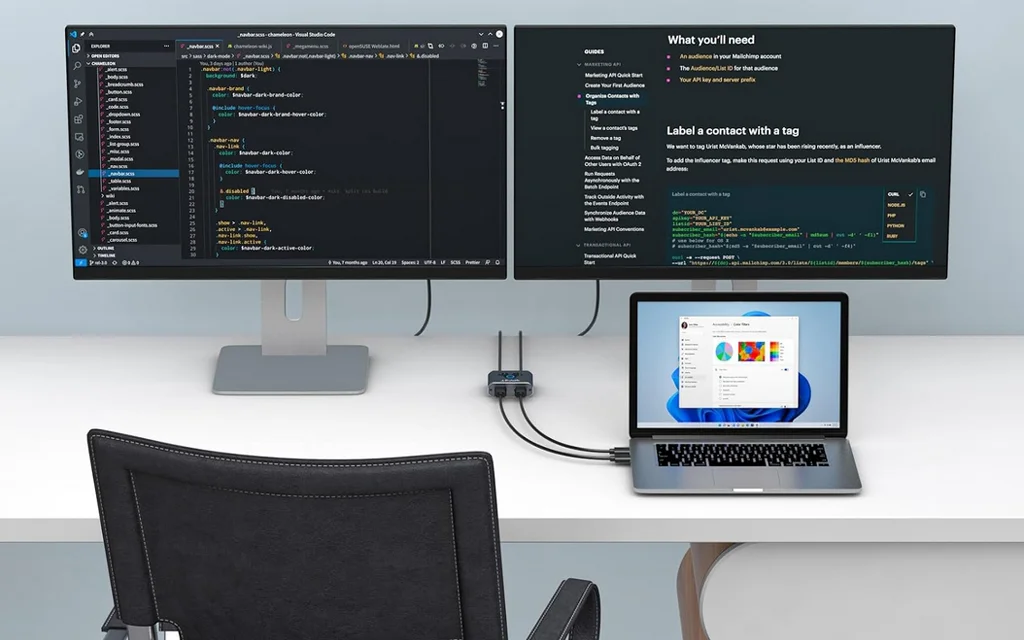
For hybrid work and remote teams, connecting to a monitor allows you to share presentations or collaborate more effectively. This guide walks you through the entire process—from checking your ports to configuring display settings on both Windows and macOS.
Understanding Mirror vs. Extend
Before you start, it helps to know the difference between the two main display modes:
- Mirror (Duplicate) Mode: Your external monitor shows an exact copy of your laptop screen. Every window, icon, and cursor movement is identical on both displays. This is ideal for presentations, training sessions, or when you need everyone to see the same thing.
- Extend Mode: Your external monitor acts as an extension of your laptop’s desktop, giving you more screen real estate. You can drag windows between screens—perfect for multitasking, coding, or editing video.
Pro tip: Use Extend mode for daily productivity work; save Mirror mode for presentations or troubleshooting.
Method 1: Mirror Laptop to Monitor Using an HDMI Cable (Windows & Mac)
This is the most straightforward and reliable method. An HDMI cable delivers both video and audio signals in a single connection.
For Windows Laptops:
- Connect the HDMI cable from your laptop’s HDMI port to your monitor’s HDMI input.
- Turn on the monitor and set it to the correct HDMI input source using the monitor’s input button.
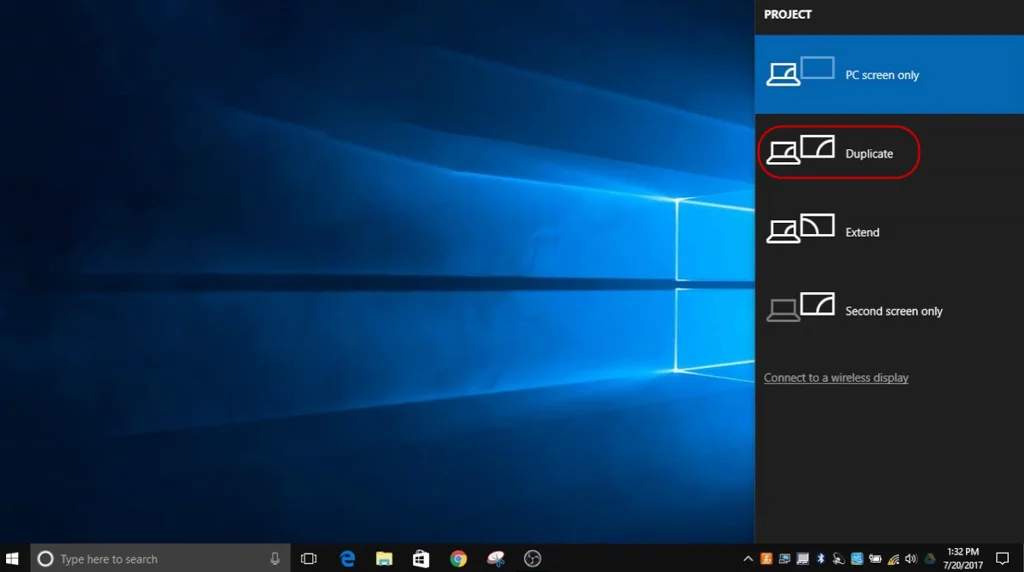
- Press Windows key + P on your keyboard to open the Project panel on the right side of your screen.
- Select “Duplicate” from the options listed (Duplicate, Extend, Second Screen Only, or PC Screen Only).
- Your laptop screen will now be mirrored on the external monitor.
Pro Tip: If your laptop only has a USB-C port, you will need a USB-C to HDMI adapter or a USB-C hub to connect the HDMI cable.
For Mac Laptops:
- Connect the HDMI or USB-C cable from your MacBook to the external monitor.
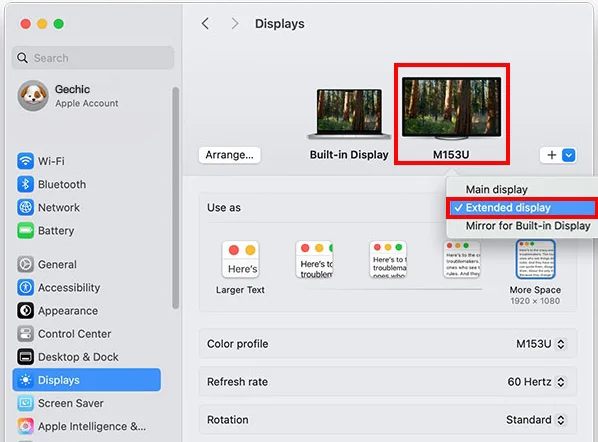
- Go to Apple Menu → System Settings → Displays.
- Click on the name of your external display.
- Click the “Use as” pop-up menu and select “Mirror [your Mac’s display]”.
- Your screens will now display identical content.
Method 2: Mirror Laptop to Monitor Wirelessly Using Miracast (Windows)
Miracast is a built-in wireless display standard available in Windows 10 and Windows 11 that lets you mirror your screen without any cables.
Step-by-Step Instructions:
- Ensure your monitor supports Miracast. Most smart monitors and TVs manufactured after 2015 include this feature. Look for “Screen Mirroring” or “Wireless Display” in your monitor’s settings.
- Connect both devices to the same Wi-Fi network if required by your monitor’s wireless display feature.
- On your Windows laptop, press Windows key + K to open the Cast panel.
- Your monitor’s name will appear in the list of available devices — click on it to connect.
- Follow any on-screen prompts to confirm the connection.
- Once connected, press Windows key + P and select “Duplicate” to mirror the display.
Installing the Wireless Display Feature (If Needed)
If the wireless display option is missing, you may need to install it manually:
- Go to Settings → System → Display.
- Scroll down and click “Connect to a wireless display”.
- If prompted, navigate to Settings → System → Optional Features.
- Click “Add a feature”, search for “Wireless Display”, and install it.
Method 3: Mirror MacBook to External Monitor Using AirPlay
For MacBook users with Apple TV or AirPlay 2-compatible smart displays, wireless mirroring is seamless.
- Ensure your MacBook and the AirPlay-compatible display are on the same Wi-Fi network.
- Click the Control Center icon in the menu bar (top right of your screen).
- Click “Screen Mirroring”.
- Select your AirPlay-compatible display from the list.
- Your MacBook screen will immediately mirror to the external monitor.
Alternatively, go to Apple Menu → System Settings → Displays and use the “Mirror Displays” checkbox after connecting your external screen.
Method 4: Use DisplayPort or USB-C for High-Resolution Mirroring
For professionals who need a sharper, higher-resolution mirrored display — especially for 4K monitors — DisplayPort and USB-C connections are superior options.
- DisplayPort: Supports higher refresh rates and resolutions than HDMI. Connect a DisplayPort cable between your laptop and monitor, then follow the same Windows key + P → Duplicate steps.
- USB-C / Thunderbolt: Most modern laptops support video output over USB-C. Use a USB-C to DisplayPort or USB-C to HDMI cable for a clean, single-cable setup.
How to Adjust Display Settings After Mirroring
Once mirrored, you may want to fine-tune the display settings for the best visual experience.
On Windows:
- Right-click on the desktop and select “Display Settings”.
- Under “Multiple Displays,” confirm the setting is “Duplicate these displays”.
- Adjust Resolution and Refresh Rate to match your monitor’s native specs.
- Click Apply to save your changes.
On Mac:
- Go to Apple Menu → System Settings → Displays.
- Select the mirrored display and adjust resolution, brightness, and color profile as needed.
- Use Arrangement settings to configure the orientation of your mirrored display.
Closing Your Laptop While Using an External Monitor
Many users want to close their laptop lid and continue using just the external monitor. Here’s how to set that up:
On Windows:
- Open Control Panel > Hardware and Sound > Power Options.
- Click Choose what closing the lid does from the left sidebar.
- Next to “When I close the lid,” change both the On battery and Plugged in settings to Do nothing.
- Click Save changes.
On macOS:
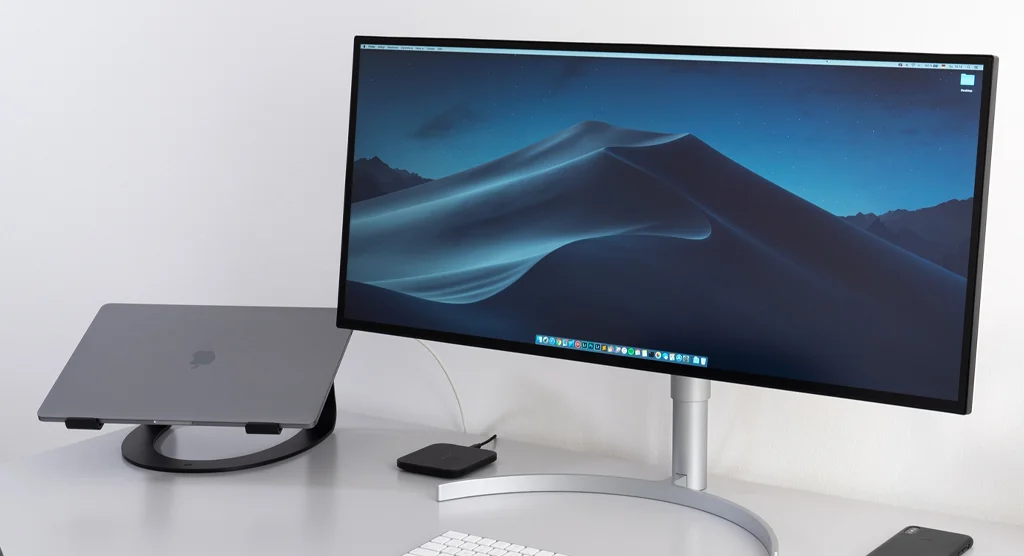
- Connect your Mac to power (this is required for closed-display mode).
- Connect your external monitor, keyboard, and mouse.
- Close the laptop lid while the external monitor is active—the external display should remain on.
Troubleshooting: Common Laptop Mirroring Problems
Even with a straightforward setup, mirroring issues do occur. Here are the most common problems and how to fix them:
“No Signal” on the Monitor
This is the most common issue when connecting a laptop to a monitor.
Quick fixes:
- Make sure the monitor is powered on and the correct input source is selected (HDMI 1, HDMI 2, DisplayPort, etc.).
- Press Windows Key + P and select Duplicate to ensure the laptop is sending a signal to the external display.
- Disconnect and reconnect the cable while both devices are on.
- Try a different cable or port on your monitor.
Monitor Not Detected at All
- On Windows, go to Settings > System > Display > Multiple displays > Detect.
- Update your graphics drivers via Device Manager (right-click Start > Device Manager > Display adapters).
- Restart your laptop with the monitor connected.
Resolution or Aspect Ratio Problems
When mirroring, both screens must use the same resolution. If the external monitor has a different aspect ratio, you may see black bars or stretching. To fix this:
- Go to Display Settings and manually set a resolution that works for both screens.
- Consider using Extend mode instead of Mirror if the resolutions are significantly different.
Tips for a Better Mirroring Experience
Applying these best practices will help you get the most out of your mirrored display setup:
- Use a high-speed HDMI 2.0 or 2.1 cable for 4K content to avoid lag or color distortion.
- Keep your display drivers up to date — outdated drivers are one of the most common causes of display detection failures.
- Position the monitor at eye level and calibrate brightness to reduce eye strain during extended sessions.
- Use a USB-C hub if your laptop has limited ports — it can consolidate power, display, and data connections in one device.
- Restart both the laptop and monitor if the connection is unstable, especially after a Windows update.
By following this guide, you can confidently mirror your laptop screen to any external monitor — whether through a cable or wirelessly — and enjoy a larger, more comfortable viewing experience for work, study, or entertainment.