
Learning basic keyboard commands is key to staying productive on a Mac. Mistakes are common when writing or editing images. Knowing the right keys can quickly fix these errors. This guide covers how to undo and redo on mac for everyone. We’ll look at simple shortcuts and more advanced menu options.
Mastering these tools helps you fix mistakes without stopping your work. You’ll learn how to keep your tasks smooth and mistake-free. Let’s explore the best ways to manage your digital space confidently.
Mastering the Keyboard Shortcuts to Undo on Mac
Being efficient on a Mac means fixing mistakes fast. Learning a few key shortcuts can save you time every day. These commands help you stay focused and keep your creative flow going.
Using the Standard Undo Command
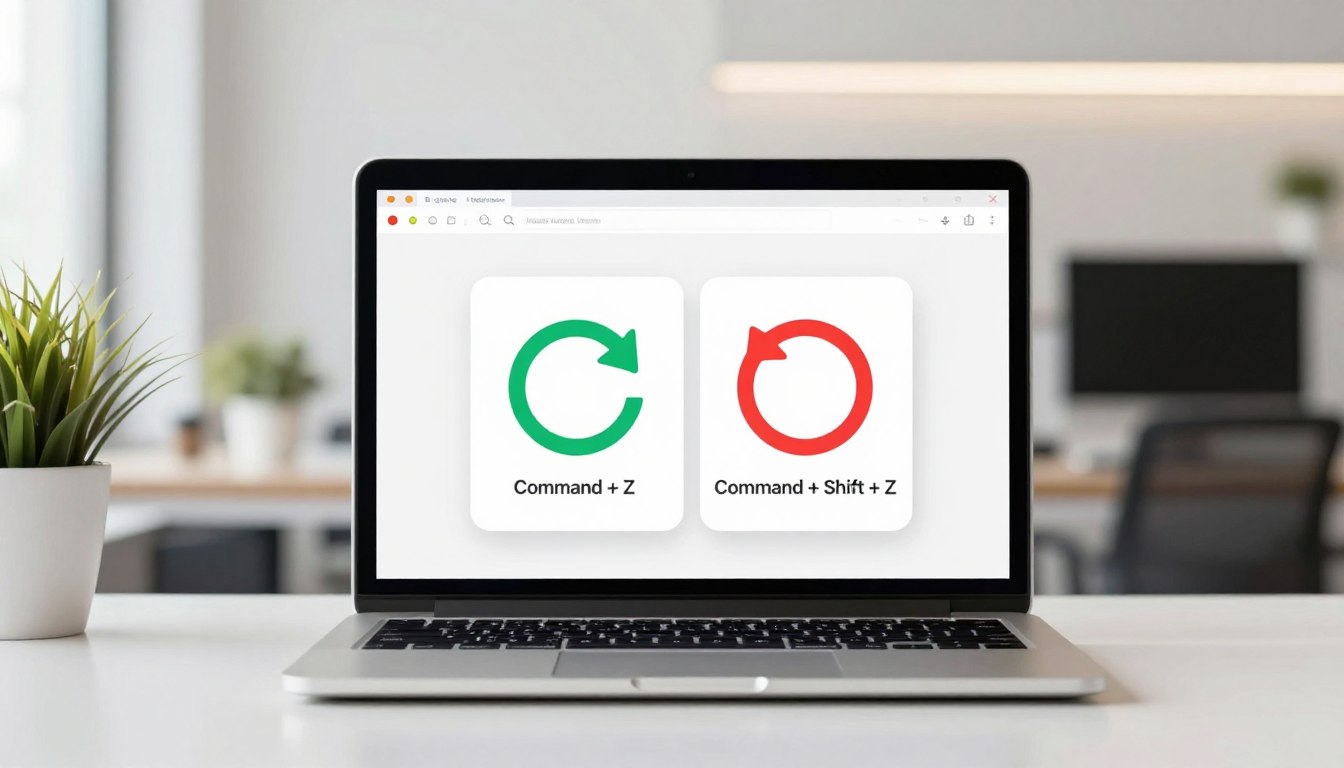
The standard way to undo a change is by pressing Command + Z. This instantly reverses your last action. It works in almost every app on your Mac.

Executing the Redo Command
Maybe you accidentally undo something you wanted to keep. To fix this, use Shift + Command + Z. This command brings back the action you just removed, helping your workflow.
Understanding the Limitations of Undo History
The undo feature on Mac is very useful but has limits. Most apps only keep track of a certain number of changes. When you reach this limit, the oldest actions are deleted to make room for new ones.
Some apps, like graphic design or video editing tools, have a longer history than text editors. Check your app settings if you need to change how many steps you can undo. Knowing these limits helps you work better and avoid losing important data.
Step-by-Step Guide on How to Undo on Mac via Menus
Editing visually? The macOS menu bar is your friend. It’s a solid way to fix mistakes. Shortcuts are quick, but menus are always there to help.
Navigating the Edit Menu in macOS Applications
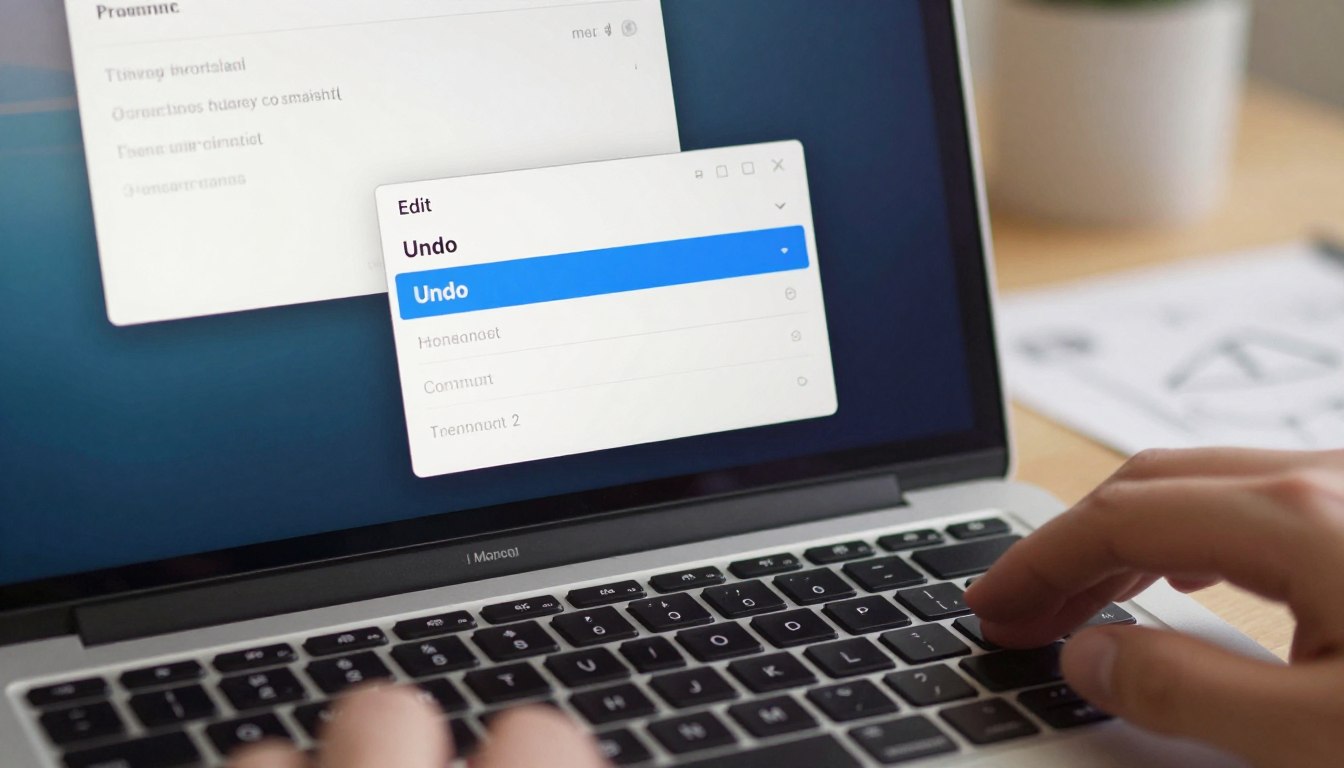
Every app on your Mac has an Edit menu at the top. Click “Edit” to see options. The undo command is usually the first choice.
Choosing it undoes your last action. It’s great for new apps where shortcuts are unknown.
Utilizing Right-Click Context Menus for Quick Reversions
Right-clicking in a text field or on an image is quicker. It often shows a menu with undo. This is perfect for small fixes.
It keeps you focused on your work. No need to leave your spot to undo.
Handling Undo Actions in Native Apple Apps
Apps like Notes and Mail work well with macOS undo. They help keep your writing clean and professional.
In these apps, the Edit menu is always there. It helps you make changes without losing your work.
Advanced Techniques for Managing Undo and Redo
When you work in professional creative suites, managing changes gets more complex. These programs offer more control than basic text editors. They help you handle complex projects easily.
Managing Undo History in Professional Creative Software
Software like Adobe Creative Cloud or Final Cut Pro handles changes differently. They have a history panel for jumping back to specific states. This is key for redoing on a Mac after trying out complex effects or audio layers.
These history panels show every change made to your project. This is more flexible than the standard undo command. You can revert specific steps without losing other progress.
Using Version History in Pages, Numbers, and Keynote
Apple’s productivity suite has a great feature called Version History. It saves snapshots of your documents as you work. This is better than manual undo.
This tool lets you compare current drafts with past versions side-by-side. If you made a mistake, you can go back to a previous state. It’s a strong alternative to manual undo for long reports or complex spreadsheets.
Recovering Deleted Files Using Trash and Time Machine
For recovering deleted files, the Trash is your first stop. Open the Trash icon in your Dock, find your item, and choose “Put Back” to restore it.
For more serious data loss, Time Machine is a backup solution. It creates snapshots of your system, letting you go back in time to recover files. This keeps your data safe, even if you can’t undo a big mistake.
Troubleshooting Common Issues with Undo Commands
Fixing a non-working mac undo shortcut needs a careful plan. If the undo key on Mac stops working, check if it’s a problem with your whole system or just one app.
What to Do When the Undo Shortcut Stops Responding
If your keyboard seems to ignore you, try force-quitting the app you’re using. Sometimes, a quick glitch stops the undo command from working right.
Make sure your keyboard is plugged in or the battery isn’t dead. A simple reboot can fix issues caused by background processes.
Checking for Application-Specific Shortcut Conflicts
Many apps let you change hotkeys. If you’ve installed new software, it might have taken over the undo shortcut.
Look in the app’s settings to see if it changed the shortcut. If it did, you can change it back to the usual keys.
Resetting Keyboard Shortcuts in System Settings
If the problem is in many apps, check your macOS settings. Go to the Keyboard section in System Settings to see your shortcuts.
Resetting all shortcuts to their defaults can fix the issue. This makes sure the undo command works everywhere, solving most problems.
Conclusion
Learning to use undo and redo commands changes how you work with Apple devices. These tools act as a safety net for your projects and everyday tasks.
Using these shortcuts makes you faster. With practice, they become second nature. This makes your digital space more reliable.
Try these functions in apps like Pages or Adobe Creative Cloud. Small changes can greatly improve your work speed. Now, you can use your Mac with confidence.
Share your favorite shortcuts with coworkers to boost their productivity. Your tips can help others unlock hidden features. Keep exploring your Mac to find more ways to improve your work.