
Do you know the best way to back up your iPhone 17? Losing your photos, messages, and app data can be a disaster. But, it’s easy to prevent with the right steps.
Creating a regular backup habit gives you peace of mind. This guide will show you how to back up your iPhone 17 safely. You’ll learn professional methods to keep your data safe.

By following these steps, you can avoid losing your digital life. We’ll cover reliable ways to keep a perfect copy of your device data. This way, you’ll always have your important information safe.
Understanding Your iPhone 17 Backup Options
When you back up your iPhone 17, you have two main choices. These options help keep your data safe. Knowing about these choices is key to managing your device well.
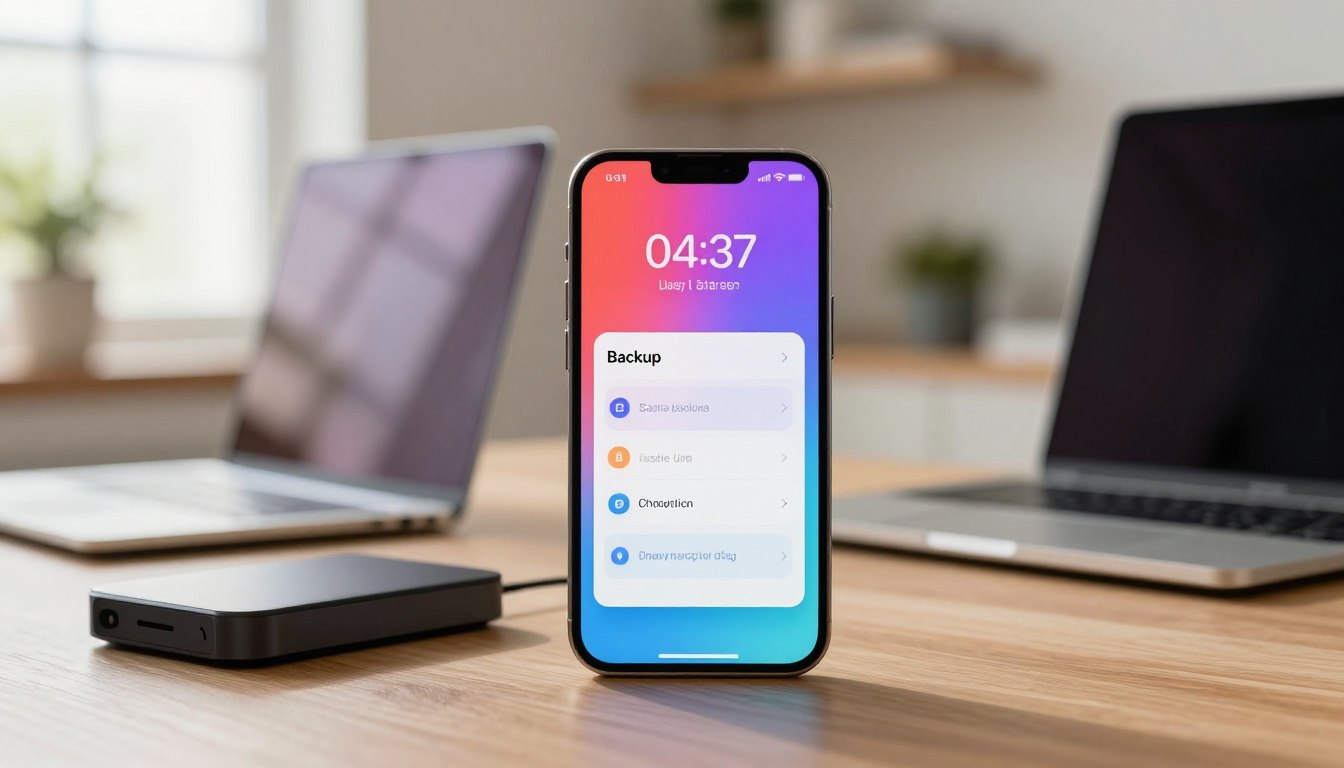
Comparing iCloud and Local Storage
iCloud makes backing up easy and wireless. It syncs your data to Apple servers automatically. This method is great because you don’t need to connect your phone to a computer.
Local storage, on the other hand, saves your data to a Mac or PC. This method gives you a physical copy of your data. Some people like it for extra security and control.
Determining Which Method Suits Your Needs
Choosing the right backup method depends on your setup. If you have fast internet, iCloud is often the best choice for updates.
But, if you’re short on cloud storage or prefer offline files, local backup is better. Think about your computer’s space and your comfort with syncing before you decide.
How to Back Up iPhone 17 to iCloud
Backing up your iPhone 17 data is easy with iCloud. It keeps your photos, documents, and settings in sync across all Apple devices. This makes it a great choice for those who want easy access and security.
Configuring Automatic iCloud Backups
To save data automatically, your device needs to be plugged in, locked, and connected to Wi-Fi. Open the Settings app and tap your name at the top. Then, select iCloud and tap iCloud Backup to turn it on.
After it’s on, your phone will sync every day on its own. This means your latest data is always safe in the cloud. It’s a simple way to back up your iPhone 17 every day.

Performing a Manual iCloud Backup
At times, you might want to save your data right before a big update or cleaning up space. To do this, go to the iCloud Backup menu in your settings. Tap Back Up Now to start saving your data.
Keep your device connected to the internet until the backup is complete. This method ensures your data is safely backed up. It’s a fast and reliable way to protect your files when you need it most.
How to Back Up iPhone 17 Using a Mac
Backing up your iPhone 17 on a Mac is a solid choice. It keeps your files safe on your own device, not just in the cloud. This way, you have more control and can get your data back quicker.
Connecting Your Device via Finder
First, plug your phone into your Mac with a good USB cable. Open Finder and find your device in the sidebar under Locations. If it’s your first time, you’ll need to say “Trust” on both your phone and computer.
Selecting Backup Preferences
When your device shows up, go to the General tab in Finder. Look for the backup section to save your data on your Mac. For extra security, check “Encrypt local backup” to lock your files with a password.
After setting up, hit “Back Up Now” to start the backup. This will save everything on your phone, like photos and messages. Doing this often keeps your digital life up to date.
How to Back Up iPhone 17 Using a Windows PC
Want full control over your files? A local backup on your computer is the best choice. This method stores your info directly on your hard drive. It doesn’t rely on cloud services. This iPhone 17 backup tutorial will help keep your data safe and easy to access.
Installing Apple Devices App or iTunes
First, make sure your computer has the right software. Modern Windows systems use the Apple Devices app for managing mobile devices. If your Windows is older, you’ll need to download and install iTunes from the Microsoft Store.
After installing the software, connect your device to your PC with a good USB cable. The app should find your device and show an icon in the sidebar. This is key for a successful backup.
Initiating the Backup Process
When your computer sees your device, click the icon to open the summary page. Find the Backups section and pick the option to save data to your computer. You can also encrypt your files with a password for extra security.
Hit the Back Up Now button to start the backup. Keep your device plugged in until the progress bar is done. This easy step keeps your mobile info safe on your local machine.
Best Practices for Managing Your iPhone 17 Data Backup
Keeping your digital life safe needs a proactive plan. A regular routine helps protect your files. A good backup plan for your iPhone 17 saves time and reduces stress when your device fails.
Scheduling Regular Backups
Consistency is key in data protection. Automate your backups so your device does the work for you. This way, your latest photos, messages, and documents stay safe.
If you like to control things yourself, set a weekly backup reminder. This habit stops data loss if your device gets lost, stolen, or broken. A regular schedule keeps your digital history up to date.
Cleaning Up Unnecessary Data Before Backing Up
Before syncing, check your storage. Get rid of files you don’t need, big email attachments, and unused apps. This makes your next backup faster.
Look at your settings to find out which apps use the most space. Deleting old videos or duplicate photos can instantly free up space. A clean device means better performance and efficient storage for years.
Troubleshooting Common iPhone 17 Backup Issues
Even the most advanced technology can sometimes have problems. If you’re learning how to back up your iPhone 17, you might face some issues. Stay calm and follow a step-by-step plan to fix these problems fast.
Resolving Connection Errors
Connection problems often come from bad hardware or shaky network signals. If you’re using a cable, try a different one or a different port on your computer. A broken cable is a common reason your device won’t be seen by your software.
For wireless backups, make sure your device and computer are on the same Wi-Fi. Sometimes, restarting your router or phone can solve communication issues. Always check that your software is up to date for the best compatibility.
Managing Insufficient Storage Space
Running out of space is a common issue when backing up your iPhone 17. If your cloud storage is full, you’ll get a warning that stops the backup. To fix this, delete old backups, remove unused apps, or get a bigger storage plan.
If you’re using local storage, make sure your computer has enough space for the new files. Clearing out big videos or high-res photos can make a lot of room. Regularly checking your data helps keep your backups smooth and without errors.
Conclusion
Your personal data needs a safe place, away from hardware problems. A good backup plan keeps your photos, messages, and documents safe, no matter what.
You know how to back up your iPhone 17 now. You can use iCloud for easy access or a local computer for more control. Either way, your digital life is protected.
Remember this tutorial for future reference. Keeping your files in order prevents loss and keeps your device working well.
Check your settings and make sure your backup is up to date today. Good habits make backing up easy. If you have questions or need help, feel free to ask.