
Managing your local account security doesn’t have to be hard. Many users prefer a straightforward way to keep their systems safe. By using specific terminal commands, you can control your computer easily without the usual graphical interface. This guide will show you how to change your Windows computer password using CMD. You’ll learn how to do it fast and securely. This method saves time and keeps your password safe from hackers.
Learning these skills makes you more confident in managing your account. Whether you’re fixing issues or updating security, the command-line tool is a solid choice. Follow these steps to improve your workflow and manage your system better today.
Understanding the Command Prompt Environment
The Command Prompt is a powerful tool for accessing your Windows operating system’s core settings. It offers a direct interface that goes beyond the standard graphical user interface. This allows for precise control over your system.
When you choose to change password cmd, you’re using a tool made for efficiency and deep system interaction.
Why Use the Command Line for Account Management
Many power users prefer the command line to change password because it’s fast. You can update security credentials with just one command. This is very useful when you need to change passwords for many profiles quickly.
This method is also great for troubleshooting. If your graphical interface is unresponsive or locked, knowing how to change password with cmd helps you stay in control. It’s a reliable way to manage multiple user accounts without the hassle of traditional settings windows.
Prerequisites for Administrative Access
Before you try to change password in command prompt, make sure you have the right access. The system needs elevated privileges to change security settings for any user account. Without these, your commands won’t work because of security reasons.
To succeed, always open the terminal with full administrator rights. This confirms you have the authority to do sensitive tasks. Once you’ve checked your access level, you can manage your system configurations with confidence.
Preparing Your System for Password Changes
Getting your system ready is the first step in managing your Windows passwords. It’s crucial to prepare well before changing your password command prompt settings.
Launching Command Prompt as an Administrator
First, learn how to open the terminal with admin rights. You need admin access to change user security data.
To open the terminal, type “cmd” in the Windows search bar. Right-click the result and choose “Run as administrator.” This ensures you have the right permissions for your task.
Identifying Your Current User Account Name
Finding your exact account name is key. The command to change your password needs the right syntax for your user profile.
Type “whoami” in the terminal window to check your identity. This step helps you change your password correctly and apply changes to the right account.
How to Change Windows Computer Password using CMD
Learning to change your computer password using CMD is easy. This method skips the usual graphical interface, making it quicker to update your login details. It’s great for anyone who likes to manage their system directly.
Listing Existing User Accounts
To change a password, first find the account you want to update. Open the command prompt and type “net user” and press Enter. This shows a list of all user profiles on your computer.
Look at the list to make sure you pick the right username. If you choose the wrong one, the command won’t work. Once you’re sure, you can update the password.
Executing the Net User Command
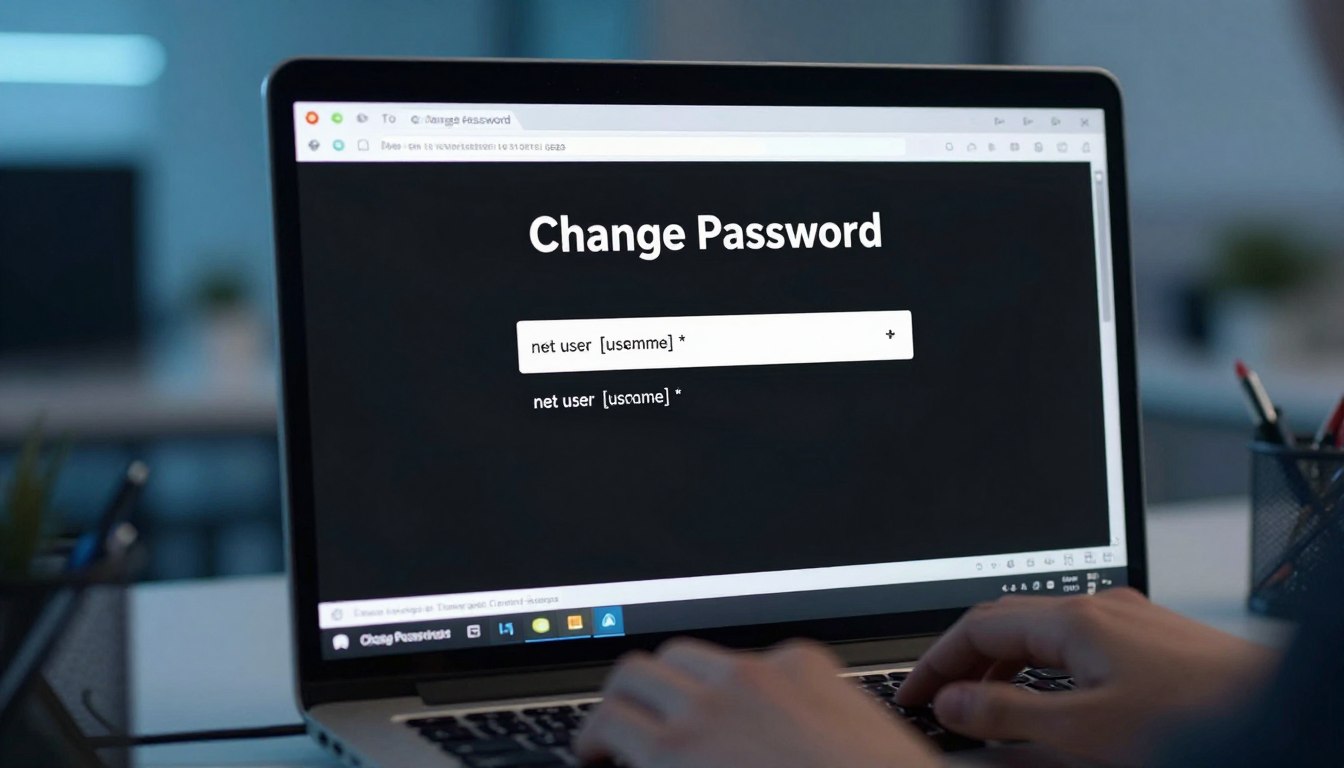
To reset a password, use a specific command in the terminal. Type “net user [username] [newpassword]” and replace the brackets with your details. This is the best way to change a password using net user.
If your username has spaces, put it in quotes. For example, “net user ‘John Smith’ MyNewPassword123” will work. This method sets your new password right away.
Verifying the Password Change Success
After running the command, you’ll see a success message. If you get this, your new password is active. Try locking your computer and then signing back in to test it.
Learning to change passwords in CMD is efficient for keeping your system safe. By following these steps, you can manage your profiles easily without complex menus. Knowing how to change passwords from CMD gives you full control over your Windows setup.
Managing User Accounts via Command Line
The command line is more than just for changing passwords. It’s a powerful tool for managing Windows user accounts. It offers features that go beyond simple password resets. Learning to use these tools keeps your computer safe and organized.
Creating New User Profiles
Adding new users is easy with the command prompt. Just type “net user” followed by the username and “/add”. This is great for setting up accounts for family or work.
After creating an account, you should change the password. This makes sure each user has a unique login. Keeping your user list up to date keeps your system tidy.
Deleting Unnecessary User Accounts
It’s important to remove old accounts to keep your system safe. Use the “/delete” parameter to delete an account. This removes the account completely, which helps prevent security risks.
Make sure to back up important data before deleting an account. Changing or deleting a password is immediate and can’t be undone. Always check the username to avoid mistakes.
Disabling or Enabling User Accounts
Sometimes you might need to limit access to an account without deleting it. Use the “/active” switch to disable or enable accounts. This is useful for managing guest accounts or during maintenance.
Knowing how to change passwords in the command line is key to managing your system. By controlling who can access your system, you maintain a strong security posture. These techniques offer a reliable way to manage your Windows security.
Troubleshooting Common Command Prompt Errors
Even experienced users sometimes hit roadblocks when managing user accounts from the command line. The process is usually simple, but unexpected problems can pop up. Knowing how to solve these issues helps keep your system safe without downtime.
Handling Access Denied Messages
The “Access Denied” error is a common problem. It happens when you try to change a password using net user without the right permissions. Always open your terminal as an administrator to modify accounts.
If you’re already an admin and still get this error, check your account’s permissions. Sometimes, security software or other tools can block password changes. Try disabling them to see if it helps.
Resolving Syntax Errors in Commands
Syntax errors are common when setting up password commands. A small mistake, like a missing space or a wrong character, can stop the command. Always double-check your command to make sure it’s right.
Make sure you use the correct format for the user account name and the new password. If you’re not sure, check the official documentation or look at your input again. Being precise is crucial for success in command prompt environments.
Dealing with System-Specific Restrictions
In workplaces or managed networks, admins often set up group policies to limit command-line access. These rules are to prevent unauthorized changes to user profiles. If your commands are blocked, you might need to ask your IT department for help.
These restrictions are in place to keep data safe. They might seem like a problem, but they’re key to a secure network. Understanding these rules helps you manage accounts in your specific system environment better.
Security Best Practices for Windows Passwords
Knowing how to change user password from cmd is just the start. Your digital safety also depends on good habits. By mixing technical skills with strong security practices, you can protect your Windows computer well.
Creating Strong and Memorable Passwords
A strong password is your first defense against hackers. Use a mix of letters, numbers, and symbols. Stay away from easy guesses like birthdays or pet names.
Try a passphrase, a long string of random words. It’s easy for you to remember but hard for hackers. Make sure your passwords are unique for each account to keep your identity safe.
Implementing Regular Password Rotation
Changing your password often keeps hackers guessing. Learn to change it from cmd to keep your system safe. Always choose a new, different password each time.
Regular password changes are like a safety net. Set reminders to change your password every few months. This keeps your accounts clean and secure.
The Importance of Multi-Factor Authentication
Even with a strong password, adding a second check is key. Multi-factor authentication uses a code or key, making it harder for hackers. This extra step gives you peace of mind, even when changing passwords.
By following these best practices, you keep your Windows environment safe. Combining technical skills with security awareness protects your personal and work information.
Conclusion
Learning to control your digital space is key to keeping your system safe. You now know how to handle user profiles and protect your Windows machine from the command line.
Having admin access is a big deal in your daily tasks. It’s important to use these powers wisely to keep your data safe from hackers. Keeping your login details up to date is crucial. Use strong passwords and multi-factor authentication to fight off cyber threats.
Being able to fix problems and manage accounts from the terminal makes you stand out. Keep learning these tools to keep your system running well and safe. Share your experiences with these command line tips on social media like LinkedIn or Twitter. Your stories help others learn to manage Windows security better.