
Keeping your home network fast and reliable is key for your daily online activities. Over time, your networking gear can collect temporary data that slows things down. Many people wonder how to handle these system files to keep their internet fast. Learning how to clear cache on Eero router systems is easy and effective. It refreshes your connection without needing advanced tech skills.
This guide offers a professional way to optimize your home network. By following these steps, you can fix common connection problems. This ensures your devices stay stable all day.
You don’t have to be a tech expert to boost your network. We’ll show you how to keep your hardware running at its best.
Understanding the Eero Cache Refresh Process
Many users are curious about how their Eero router handles temporary data. It’s designed to be easy to use, keeping your network running smoothly without needing constant checks. This way, your home network stays at its best all the time.

How Eero Manages System Memory
Your Eero device uses smart software to manage memory. It watches traffic and background tasks to keep important data ready. This smart handling lets the router focus on what’s most important and clear out old files on its own.
This means you usually don’t have to worry about your network slowing down. The router’s design stops memory problems that older systems often face. This keeps your internet fast and dependable.
Why Manual Cache Clearing is Not a Standard Feature
You might have looked for a way to clear the cache on your Eero router but found none. This is because the makers focus on keeping your network stable rather than letting you clear it manually. Adding a manual option could mess with the network’s complex workings.
If you’re looking to clear cache on your Eero, remember it’s designed to fix small issues itself. By letting the Eero handle cache refreshes, you keep your network safe and secure without needing to get involved.
How to Clear Cache on Eero Router via Power Cycling
Your Eero system doesn’t have a software button for cache management. A manual power cycle is the best solution. This method clears temporary data stored in the device memory. It does this without deleting your custom network settings.
By following these steps, you can make your router like new again. This helps fix small performance issues.

Step-by-Step Guide to Performing a Soft Reset
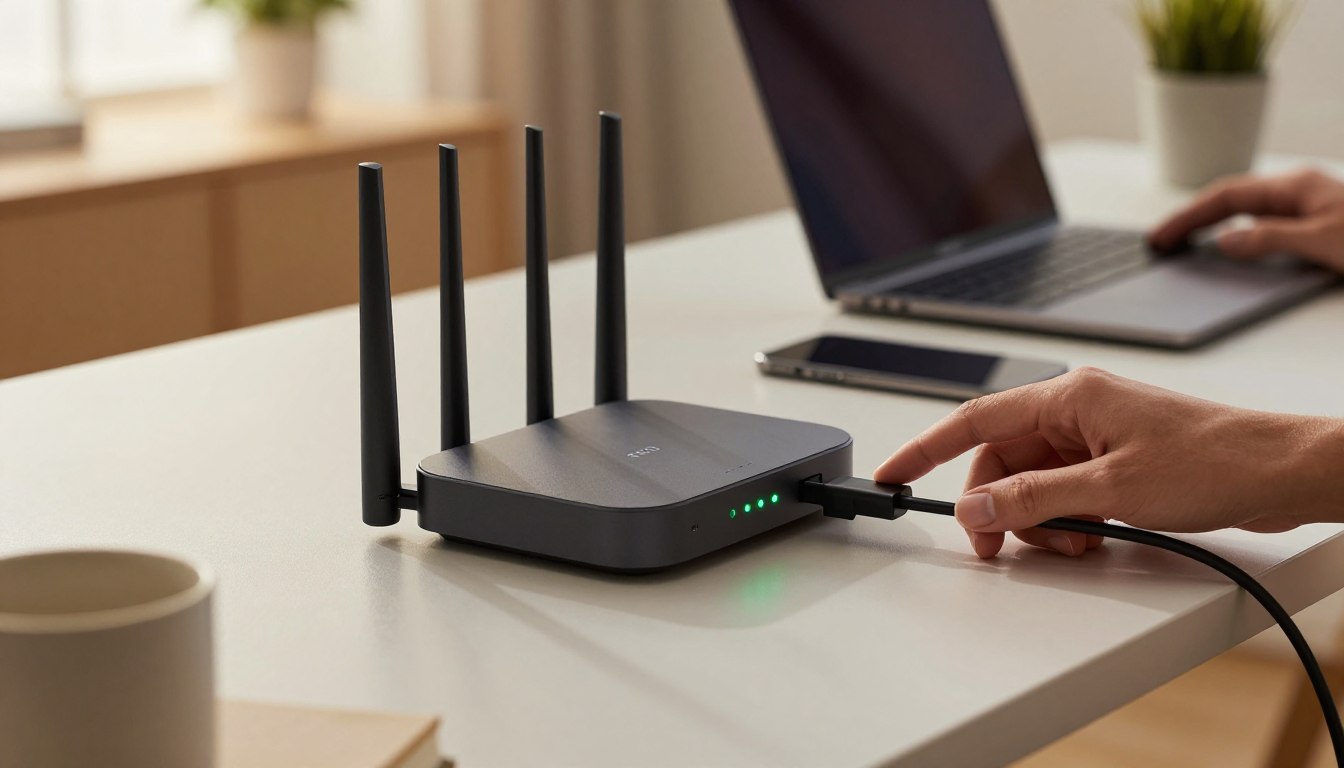
First, find the power cable at the back of your Eero. Carefully unplug it from the power outlet or the device. This step ensures the device turns off completely before you restart it.
The Importance of Waiting Between Power Cycles
Let the device stay unplugged for 30 to 60 seconds. This waiting time is crucial. It lets the internal capacitors discharge fully.
If you plug it back in too fast, the memory might not clear. This means the temporary files could stay.
Verifying Network Connectivity After a Refresh
After waiting, plug the power cable back in. Look at the LED light on your Eero. It will blink white as it boots up and then turn solid white when it’s connected.
Open the Eero app on your phone. Check that all devices are connected. Also, make sure your network speed is back to normal.
Advanced Troubleshooting for Network Performance
At times, your home network needs more than just a restart to work well. If a simple reboot doesn’t fix your issues, you might need to try more advanced steps. This guide will help you explore your settings to find and fix ongoing problems.
Checking for Firmware Updates in the Eero App
Old software can cause performance issues. Make sure to check the Eero app for updates regularly. This ensures your system is running with the latest firmware.
Optimizing Placement for Better Signal Distribution
Physical barriers can affect your internet connection. Place your Eero nodes in open spaces, away from walls and metal objects. This improves your signal and cuts down on troubleshooting.
When to Perform a Factory Reset
A factory reset is a strong option, but it should be a last choice. If you’ve tried everything else, it can fix deep software issues. Think of it as a way to completely reset your router’s cache.
Identifying Persistent Network Issues
Before you reset, check if the problem isn’t something outside your control, like an ISP issue. If devices keep dropping connections, it might be a software conflict. Keeping a record of these issues helps you decide if a reset is needed.
Backing Up Your Network Settings
Always save your network data before doing a factory reset. The Eero app stores most settings online, but it’s good to have your network name and password ready. This makes it easier to set everything back up after clearing your router’s cache.
Conclusion
Your home network needs regular habits to stay fast and reliable. Keeping your connection stable is easy with firmware updates and smart device placement. These steps often mean you won’t need to fix things often.
Even though you might look for a direct eero router cache clean up button, it’s not needed. The system manages memory on its own. Power cycling is your go-to for clearing temporary data and refreshing your connection. This simple step makes your devices run smoothly again.
Make it a habit to check the Eero app often. This way, you can keep an eye on your signal strength and device health. Doing this ensures your internet works well every day. It also stops many common problems before they slow you down.
Learning these maintenance tips lets you manage your home network with ease. You now know how to do an effective eero router cache clean up with simple power management. Share your experiences with others to help them improve their home networks too.
1 thought on “How to Clear Cache on Eero Router for Optimal Performance”