
learning how to connect Xbox to computer monitor is surprisingly simple and can dramatically improve your gaming experience, offering faster response times and smoother visuals than most standard televisions. Whether you are using an Xbox Series X, Series S, or an older Xbox One, this guide will walk you through every step to get you gaming in no time.

Connecting your Xbox to a computer monitor is one of the best ways to enhance your gaming experience with better refresh rates and sharper visuals. Whether you have an Xbox Series X, Series S, or an older Xbox One, the process is simple if you follow the right steps.
How to Connect Xbox to Computer Monitor: The Direct Method
This is the most straightforward and reliable way to connect. Most modern PC monitors have at least one HDMI port, making them instantly compatible with Xbox consoles. Here is the step-by-step process:
Step 1: Position Your Hardware
Place your Xbox and monitor on a stable surface. Microsoft recommends placing the console in a freestanding position with 10 to 15 cm (4-6 inches) of space around it for proper ventilation. Never hide it in a closed cabinet.
Step 2: Connect the HDMI Cable
Take the HDMI cable that came with your Xbox. Plug one end into the HDMI Out port on the back of your console. Plug the other end into the HDMI In port on your monitor.
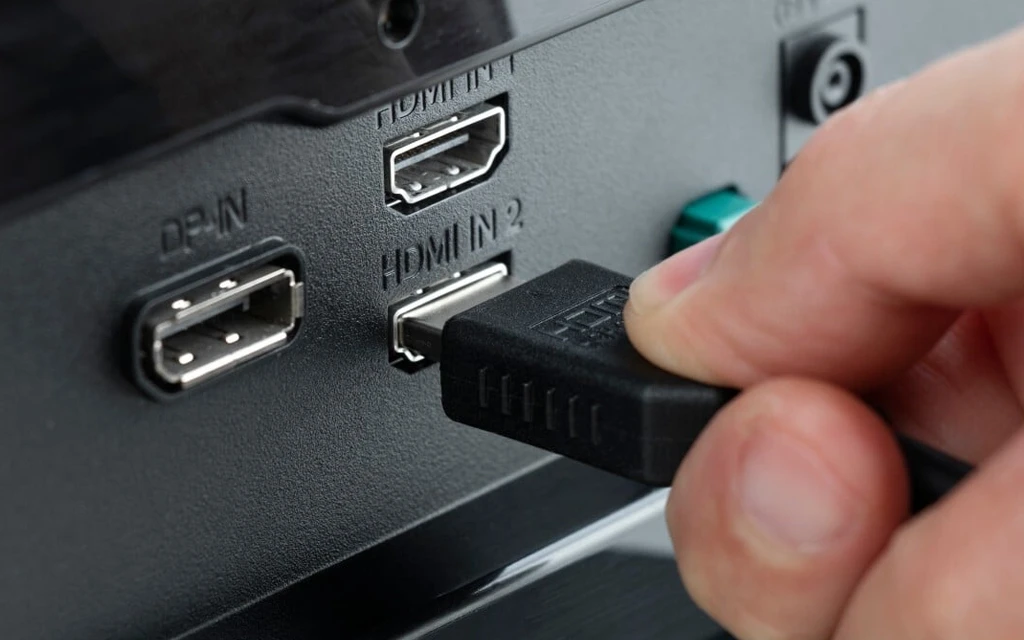
Step 3: Select the Correct Source
Turn on your monitor first. If the screen stays black, use the buttons on your monitor to open the On-Screen Display (OSD) menu. Select the correct Input Source—usually the HDMI port you just plugged the cable into.
Step 4: Power On and Configure
Turn on your Xbox. Press the Xbox button on your controller. Navigate to Profile & system > Settings > General > TV & display options. Here, select the Resolution that matches your monitor (e.g., 1080p, 1440p, or 4K UHD).
Pro Tip: Unlocking 120Hz on Your Monitor
If you have a high-refresh-rate monitor (120Hz or higher) and want to use it with your Xbox:
- Go to Settings > General > TV & display options.
- Select Refresh Rate and change it from 60Hz to 120Hz.
Note that Xbox consoles cap at 120Hz; they do not support higher rates like 240Hz.
How to Connect Xbox to Laptop Monitor (Alternative Methods)

Perhaps your goal is to use your laptop as a screen. This is trickier because most laptops have HDMI output ports, not inputs. You cannot simply plug an Xbox into a laptop with a standard cable and expect it to work. Here are two clever workarounds:
Method A: Wireless Streaming (Xbox App)
This is the easiest method. Ensure your Xbox and Windows 10/11 laptop are on the same Wi-Fi network. On your laptop, open the Xbox App, click the Connection icon on the left sidebar, select your console, and hit Stream to start playing.
Method B: HDMI Capture Card
For a wired connection with minimal lag, buy a USB video capture card. Plug the Xbox HDMI cable into the capture card’s HDMI-In port, then connect the capture card to your laptop via USB. Use software like OBS Studio to view the gameplay.
Solving the No-Sound Problem: Audio Solutions for Monitor Gaming
A very common frustration when connecting Xbox to a computer monitor is the lack of audio. Many high-performance gaming monitors do not have built-in speakers. Do not worry—here is how to get sound:
- Option 1 (Easiest): Plug your gaming headset directly into the 3.5mm jack on your Xbox controller. The console will automatically route all audio there.
- Option 2 (External Speakers): If your monitor has a 3.5mm headphone jack, you can plug external computer speakers directly into the monitor.
- Option 3 (HDMI Audio Extractor): If you want to use a surround sound system, purchase an HDMI audio extractor. This device sits between your Xbox and the monitor to separate the video and audio signals.
Troubleshooting Common Connection Issues
Even with a perfect setup, you might encounter a blank screen or signal loss. Try these fixes:
- “No Signal” Error: Double-check that both ends of the HDMI cable are fully inserted. Confirm the monitor is set to the correct HDMI input source.
- Flickering or Poor Resolution: Go to Settings > General > TV & display options > Video fidelity & overscan. Change the display to Auto-detect to ensure your Xbox reads your monitor’s capabilities correctly.
- Intermittent Connection: Check your HDMI cable for kinks or damage. A bent cable can cause a weak signal.
Recommended Monitors for Xbox Series X|S
To get the most out of your console, look for these specs in a monitor:
- For Xbox Series X: 4K resolution, 120Hz refresh rate, and an HDMI 2.1 port.
- For Xbox Series S: QHD (1440p) resolution, 120Hz refresh rate, and an HDMI 2.0 port.
- Extras to look for: Features like AMD FreeSync or VRR (Variable Refresh Rate) will eliminate screen tearing and make your gameplay buttery smooth.
Frequently Asked Questions (FAQ)
Can I connect my Xbox to a monitor without HDMI?
If your monitor is older and lacks HDMI, you can use an HDMI-to-DVI or HDMI-to-VGA adapter. However, note that DVI does not carry audio, and VGA significantly reduces image quality.
Is it better to play Xbox on a TV or a monitor?
For competitive gaming, monitors are generally better because they have lower input lag, faster response times, and higher refresh rates. If you prefer cinematic, single-player experiences on a larger screen, a TV might be the better choice.
Why is my monitor not getting a signal from my Xbox?
This is almost always a source issue. Make sure the monitor is powered on and set to the correct HDMI input. You can also try a different HDMI port or cable.
Do I need a special cable for the Xbox Series X?
No, the console comes with the correct cable. The Xbox Series X includes an HDMI 2.1 cable to support 4K at 120Hz. The Series S comes with a standard HDMI 2.0 cable.
Final Thoughts
Connecting your Xbox to a computer monitor is often a superior experience to using a TV, especially if you value speed and clarity over sheer screen size. By following this guide, you should now know exactly how to get the picture working, how to solve the audio issue, and how to optimize your settings for the best possible performance.
Whether you want to use a laptop as a monitor via streaming or plug directly into a dedicated gaming screen, the process is straightforward. Now, power up your console, grab your controller, and enjoy your games in stunning clarity.