
Connecting a SteelSeries headset to Xbox is usually easy, but the exact steps depend on your headset model. Some SteelSeries headsets connect through the Xbox controller’s 3.5mm jack, while others use Xbox Wireless or a USB-C dongle.
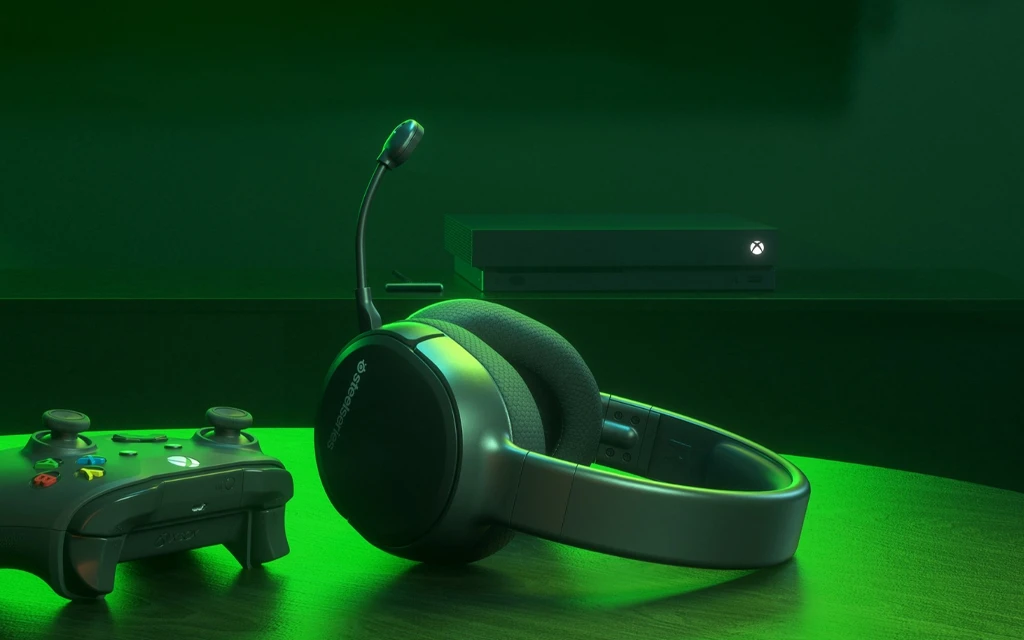
If you have a wired headset, setup takes only a few seconds. If you have an Arctis 9X, Arctis 7X, or a headset with a wireless dongle, you’ll need to follow the correct pairing steps for your model.
Which SteelSeries headset you have
Before you start, check whether your headset is:
- Wired with a 3.5mm cable.
- Wireless with Xbox Wireless support.
- Wireless with a USB-C dongle.
- A special setup like Arctis Pro Wireless or GameDAC.
- This matters because Xbox handles each type differently. Wired models are the simplest, while wireless models may require pairing or a mode switch on the dongle.
How to connect a wired SteelSeries headset
If your SteelSeries headset has a 3.5mm audio plug, connect it directly to the Xbox controller. Xbox should detect the headset automatically as soon as the cable is inserted.
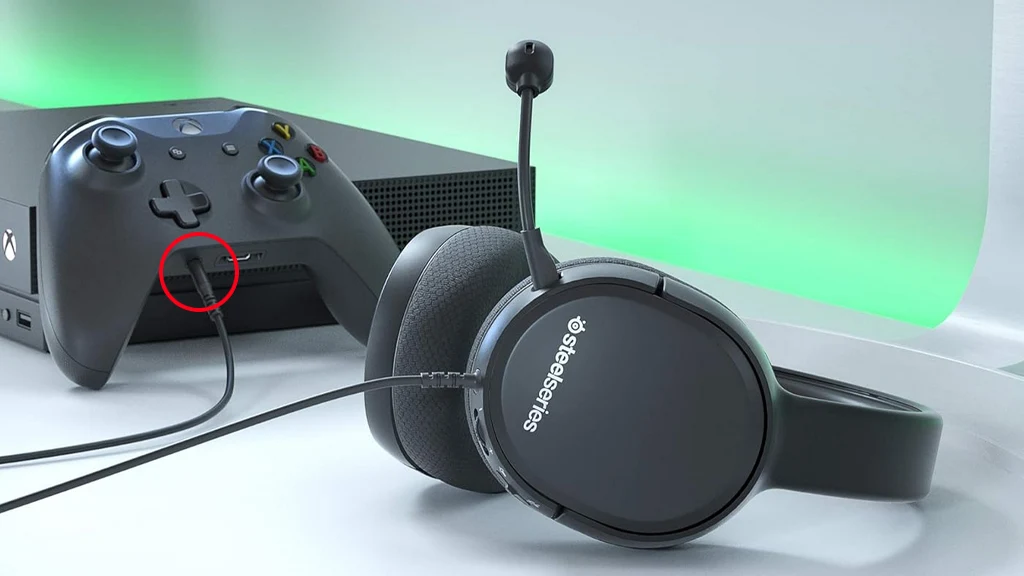
Steps:
- Turn on your Xbox.
- Plug the headset into the controller’s 3.5mm jack.
- Make sure the connection is fully seated.
- Test game audio and voice chat.
- Adjust volume and chat balance in Xbox audio settings if needed.
This method works well with wired SteelSeries models and Xbox-compatible versions such as the Arctis Nova 1X.
How to connect an Arctis 9X wirelessly
The Arctis 9X connects through Xbox Wireless, so it pairs directly with the console without a dongle. SteelSeries says to press the console’s connect button, then hold the headset power button for about 6 seconds until it pairs.
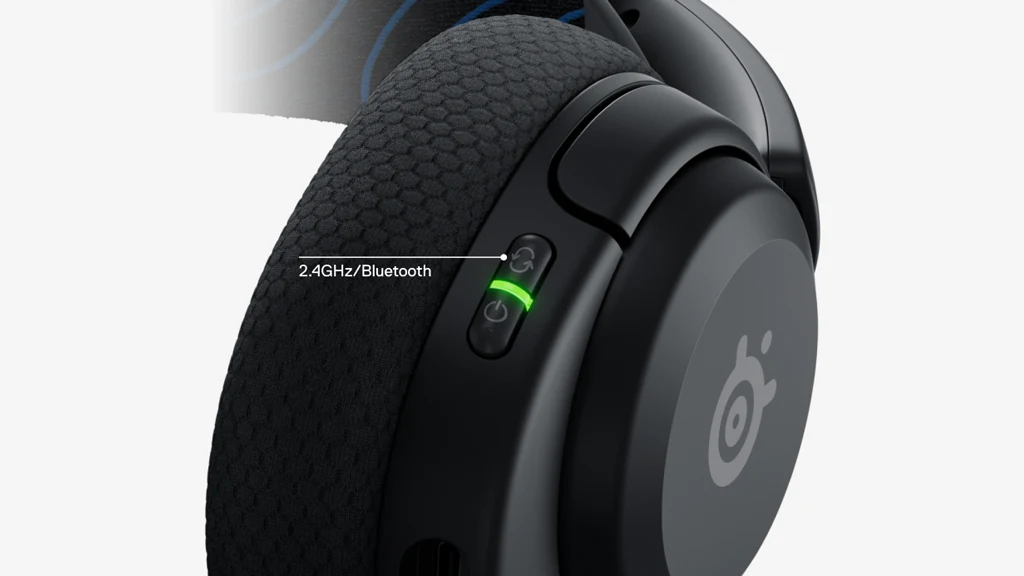
Steps:
- Press and release the connect button on your Xbox.
- Wait for the Xbox logo to start blinking.
- With the headset off, press and hold the Arctis 9X power button for 6 seconds.
- Wait for the “Headset Assigned” message to appear.
If the headset has been paired to another Xbox before, unpair it first by holding the power button until the LED blinks white. That step is often the fix when the headset refuses to connect.
How to connect an Arctis 7X or dongle model
Some SteelSeries headsets use a USB-C wireless dongle instead of Xbox Wireless. For these models, the dongle usually needs to be set to Xbox mode before pairing. SteelSeries instructions for the Arctis 7X say to switch the dongle to Xbox, then connect it to the console.
Steps:
- Set the dongle’s mode switch to Xbox.
- Plug the dongle into the Xbox USB port.
- Turn on the headset.
- Wait for the connection to complete automatically.
If your Xbox only has USB-A available, use the included adapter if your model provides one. This setup is common for Xbox-specific wireless headsets like the Arctis 7X.
How to set Xbox audio correctly
After the headset connects, check Xbox audio settings to make sure sound and chat work properly. SteelSeries notes that special setups like Arctis Pro Wireless may require optical audio and specific Xbox output settings. For many users, volume, chat mix, and output format are the main settings to review.
- Check these settings
- Headset volume.
- Chat mixer balance.
- Output device.
- Spatial audio or stereo mode.
For Arctis Pro Wireless, SteelSeries recommends using the optical cable for game audio and setting Xbox optical output to Bitstream out with Dolby Digital. That setup is different from a simple controller connection and is important for proper audio routing.
Fix common connection problems
If your SteelSeries headset does not connect, start with the basics. Restart the headset and Xbox, then check whether the headset is actually compatible with your Xbox model. For wireless headsets, re-pairing from scratch often solves the issue.
Try these fixes:
- Charge the headset fully.
- Reconnect the cable or dongle.
- Switch the dongle to Xbox mode.
- Unpair the headset from any previous console.
- Restart the Xbox and try pairing again.
If you are using an Arctis 9X and it still will not pair, SteelSeries recommends holding the power button for 15 seconds until the LED blinks white, which clears the old pairing. That is the most common fix for repeated pairing failures.
SteelSeries Xbox connection FAQ
Do all SteelSeries headsets work with Xbox?
No. Xbox works best with wired 3.5mm SteelSeries headsets, Xbox Wireless models like the Arctis 9X, and supported dongle models like the Arctis 7X.
Do I need an adapter?
Usually not for wired 3.5mm headsets. Some wireless or special audio setups may need a dongle, optical cable, or model-specific adapter.
Why is my mic not working?
Check the headset connection, confirm Xbox chat settings, and make sure the headset is using the correct connection mode. For special setups, verify that the audio routing is correct.
Can I use SteelSeries headsets on Xbox Series X|S?
Yes, many SteelSeries Xbox-compatible headsets support Xbox Series X|S, including the Arctis 9X and Arctis 7X.
Final though
Connecting your SteelSeries headset to Xbox is quick and straightforward once you know the right steps, whether you’re using a wireless adapter, Xbox-compatible model, or wired connection.
By following this guide, you can enjoy immersive audio, clear in-game communication, and a seamless gaming experience on your console. If you run into any issues, double-check compatibility and settings to ensure optimal performance. Now you’re ready to get the most out of your SteelSeries headset on Xbox and elevate your gameplay.
1 thought on “How to Connect SteelSeries Headset to Xbox: Wired, Wireless, and Setup Fixes”