
Whether you want to play Steam titles, Xbox Game Pass games, or classic PC games, learning how to connect Xbox controller to laptop setups is essential for a comfortable gaming experience.
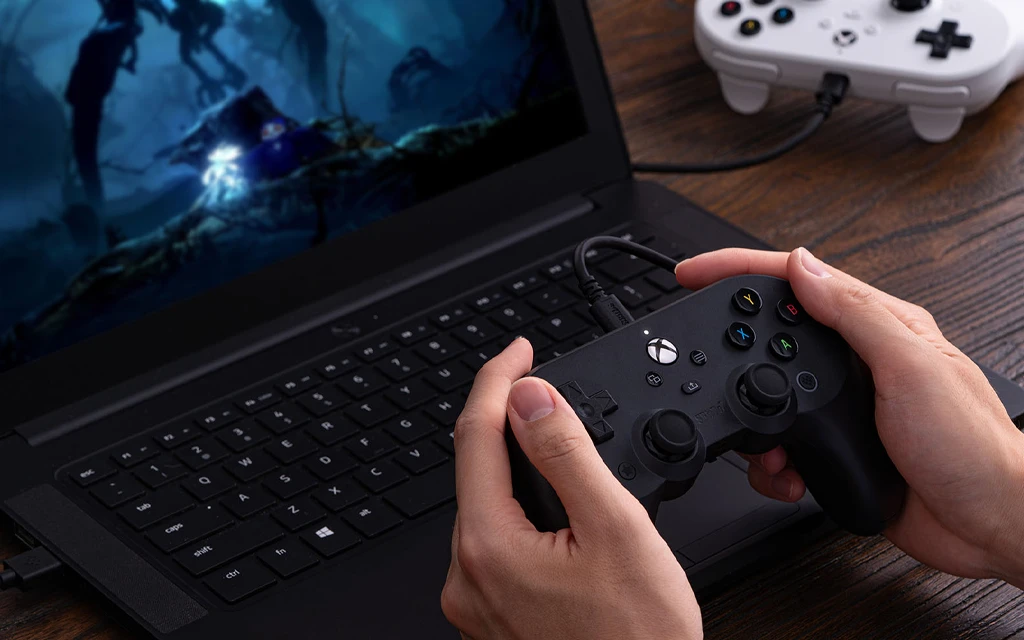
Microsoft designed Xbox controllers to work seamlessly with Windows, giving you multiple connection options depending on your hardware.
Methods to Connect Xbox Controller to your Laptop
This guide covers three proven methods to connect Xbox controller to PC or laptop: Bluetooth wireless, USB wired, and Xbox Wireless protocol.
We’ll also cover troubleshooting steps if your controller won’t connect.
Method 1: Connect via USB Cable – The Most Reliable Option
The wired USB connection is the easiest and most stable way to use an Xbox controller on a laptop. Windows 10, Windows 11, and later versions have native Xbox controller drivers built in, so the controller works immediately after you plug it in.
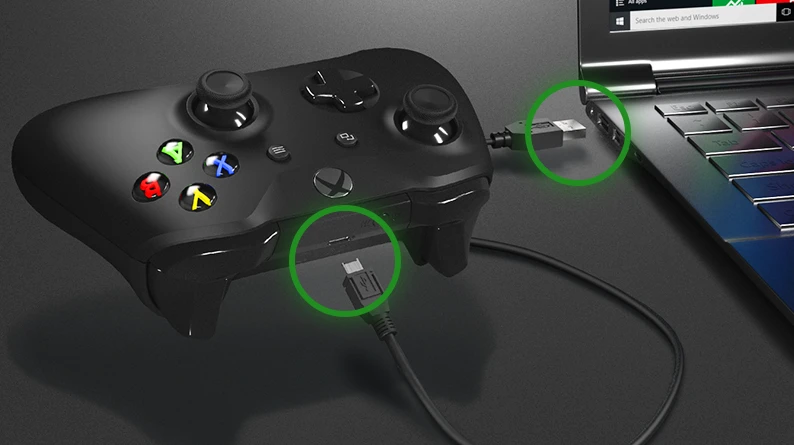
Step‑by‑Step:
- Find the correct USB cable:
- Xbox Series X|S → USB‑C cable.
- Xbox One (all models) → Micro‑USB cable.
- Xbox 360 (wired) → Built‑in USB cable.
- Plug one end into the controller and the other end into a USB port on your laptop. (USB 3.0 ports are recommended for lower latency.)
- Turn on the controller by pressing the Xbox button.
- Windows automatically installs the driver within 3–5 seconds. You’ll know it’s ready when the Xbox button stops flashing and stays lit solid.
Critical: If your cable is a “charge‑only” cable (often sold for phones), it will not pass data and your controller will not work. Use a cable rated for data transfer or the one that came with your controller.
Bonus tip: If you game from your couch, use a longer USB extension cable or a USB hub placed conveniently near your seating area.
Method 2: Connect via Bluetooth – The Clean Wireless Option
Bluetooth is the most convenient choice if you want to go completely wireless. However, this method works only with Xbox Series X|S and Xbox One S/X controllers (Model 1708 or later).
Step‑by‑Step for Windows 11
On your laptop:
- Open Settings (press Windows + I).
- Navigate to Bluetooth & devices.
- Turn Bluetooth ON.
- Click Add device → Bluetooth.
On your controller:
- Press the Xbox button to turn it on.
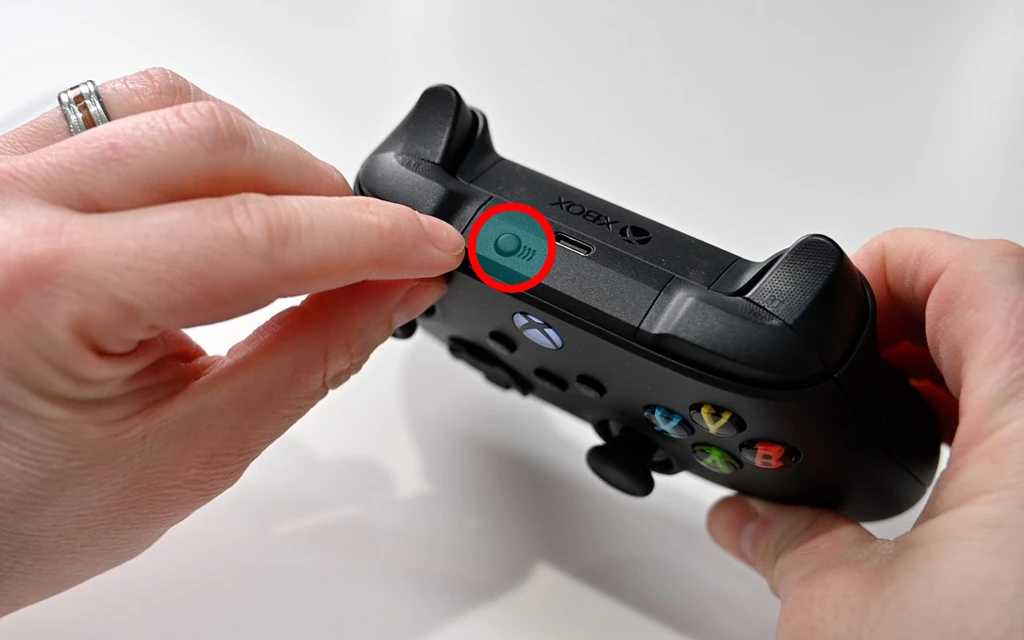
- Press and hold the Pair button (small circular button on the top edge, near the USB port) for roughly 3 seconds. The Xbox button will start flashing rapidly — this means the controller is in pairing mode.
Back on your laptop:
- Wait for “Xbox Wireless Controller” to appear in the list of available devices.
- Click it to pair. Once connected, the Xbox button will stop flashing and stay lit solid.
Step‑by‑Step for Windows 10
The process is nearly identical:
- Start → Settings → Devices → Bluetooth & other devices.
- Turn Bluetooth ON, then select Add Bluetooth or other device → Bluetooth.
- Follow the same controller pairing steps above. When the controller appears, click it to connect.
Important: Your laptop must have Bluetooth 4.0 or higher (preferably 5.0). Most laptops from the last 5–7 years meet this requirement. To check: open Device Manager → expand Bluetooth → right‑click your Bluetooth adapter → Properties → Details tab → look for “LMP 8.x” or higher (that’s Bluetooth 4.0+).
Method 3: Xbox Wireless Adapter – The Premium Wireless Experience
For the best possible wireless performance, the official Xbox Wireless Adapter for Windows is the gold standard. It offers lower latency than Bluetooth (as low as 8ms vs. ~10–15ms for Bluetooth), better stability, and supports up to 8 controllers simultaneously.
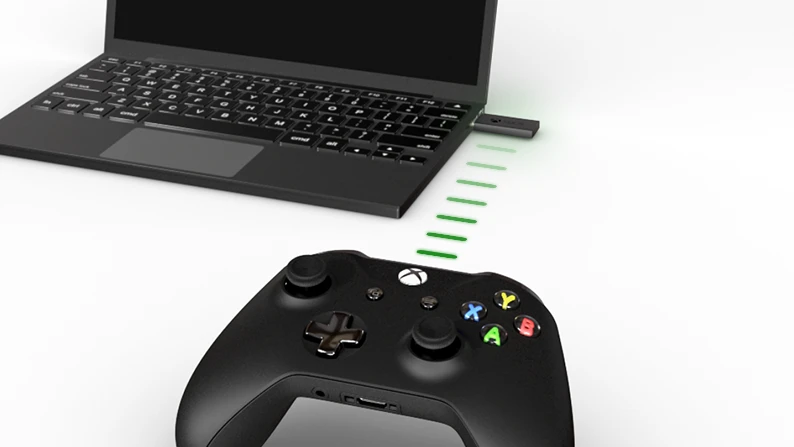
What you’ll need: The official Xbox Wireless Adapter (sold separately; about $25–$30). Note: Bluetooth‑only controllers will not work with this adapter unless specifically designed for it.
Step‑by‑Step:
- Plug the Xbox Wireless Adapter into a USB port on your laptop.
- Windows automatically installs the necessary drivers. The adapter’s light will turn on when ready.
- Turn on your Xbox controller by pressing the Xbox button.
- Press and hold the Pair button on the adapter until its light starts flashing.
- Press and hold the Pair button on your controller for 3 seconds (until the Xbox button flashes quickly).
- When the Xbox button on the controller and the adapter’s light both become solid, the connection is successful.
Pro tip: The Xbox Wireless Adapter is particularly useful if your laptop’s Bluetooth is unstable, you want to connect multiple controllers for local co‑op gaming, or you need the lowest possible input lag for competitive titles like Halo Infinite or Call of Duty.
Troubleshooting: When Your Xbox Controller Won’t Connect
Even with straightforward steps, occasional issues arise. Here are the most common problems and solutions, drawn from top search results and Microsoft’s own support documentation.
- Controller won’t turn on: Check or replace the batteries. For rechargeable controllers, charge for at least 10 minutes before retrying.
- Bluetooth not finding the controller: Ensure the controller is in pairing mode (Xbox button flashes rapidly). Move the controller within 1–2 feet of the laptop during pairing. Close other Bluetooth apps.
- USB not recognized: Use a data‑transfer USB cable (not a charge‑only cable). Try a different USB port. Uninstall and reinstall the driver via Device Manager.
- Connection drops randomly: Update controller firmware via the Xbox Accessories app (download free from Microsoft Store). Update Bluetooth or USB drivers via Device Manager or your laptop manufacturer’s website.
- Controller paired but not working in games: Test in Windows “Set up USB game controllers” (search in Start menu). Configure button mapping in the Xbox Accessories app. Ensure the game supports Xbox controllers.
Advanced Fixes for Stubborn Connection Issues
- Reinstall the controller driver: Open Device Manager → expand Human Interface Devices or Universal Serial Bus controllers → right‑click “Xbox Controller” → Uninstall device → restart your PC. Windows will reinstall the driver automatically upon reboot.
- Update controller firmware via Xbox Accessories: Connect the controller with a USB cable (temporarily), open the Xbox Accessories app, and apply any available firmware updates. This resolves many pairing issues.
- Turn off Windows Fast Startup: Go to Control Panel → Power Options → Choose what the power buttons do → uncheck Turn on fast startup → restart. This setting can sometimes interfere with driver loading.
Frequently Asked Questions
Does Steam support Xbox controllers?
Yes. Steam has native support for Xbox controllers. Once connected, most Steam games will detect the controller instantly. You can also use Steam’s built‑in controller configuration tool to remap buttons.
Can I use an Xbox 360 controller on a laptop?
Yes. For a wired connection: plug it in directly. Windows installs the drivers automatically. For wireless: you need a special Xbox 360 Wireless Gaming Receiver (a USB dongle) because the 360 controller does not use standard Bluetooth.
Can I connect multiple Xbox controllers to one laptop?
Yes.
- Bluetooth: 1 controller (officially), though some users report success with 2 via generic Bluetooth stacks.
- Xbox Wireless Adapter: Up to 8 controllers simultaneously.
- USB: As many as you have USB ports (via a hub).
My laptop doesn’t have Bluetooth. Can I still connect wirelessly?
Yes. Use the Xbox Wireless Adapter for Windows (works with Xbox Series X|S and Xbox One controllers). For Xbox 360 controllers, use the Xbox 360 Wireless Gaming Receiver. Both plug into a USB port and add wireless functionality without built‑in Bluetooth.
Summary: Choose Your Connection Method
Connecting your Xbox controller to laptop setups is straightforward once you know which method works for your hardware. For most users, Bluetooth offers the best balance of convenience and performance. Serious gamers should consider USB or Xbox Wireless for the most responsive experience.
Now that your controller is connected, explore Xbox Game Pass for PC to access hundreds of games optimized for controller play. Let the games begin!