
Ever wondered why your computer seems full, even with few files? Many Windows users face hidden data clusters that eat up gigabytes on their main drives. A big virtual memory file is often overlooked by most people. Learning to delete pagefile.sys can free up a lot of space on your drive. This lets you manage your system better without harming your operating system.

Knowing about this hidden part helps you control your computer’s performance. We’ll show you how to safely remove it. This will make your computer run faster and smoother.
Key Takeaways
- Identify hidden virtual memory files taking up disk space.
- Understand the impact of removing system-managed memory files.
- Follow safe procedures to maintain operating system integrity.
- Optimize your storage for better performance on SSDs and HDDs.
- Learn professional techniques for managing Windows memory settings.
Understanding the Role of pagefile.sys and Risks of Removal
Many users want to clear pagefile.sys to save disk space. But, this action has technical implications. Before changing your system files, it’s important to know how Windows manages memory. This helps you make a smart choice about your storage setup.
What is the Paging File?
The paging file is like extra memory for your computer. When you run out of real memory, Windows moves unused data to this file on your hard drive. This keeps your system running smoothly, even with many apps open.
Why You Might Want to Remove It
Users often want to remove pagefile.sys to save space on their main drive. If you have a small solid-state drive, every bit of space matters. Removing pagefile.sys can give you more room for your files and programs.
Potential Performance Impacts and System Stability
Removing pagefile.sys might seem appealing, but it comes with risks. Without enough RAM and a paging file, apps might crash or show “out of memory” errors. In severe cases, your whole system could become unstable or fail to run demanding software.
Think carefully before deciding to remove pagefile.sys. If you have lots of RAM, you might face fewer problems. But, the risk is still there, mainly for heavy tasks. Always check if your system can handle the load before making a final choice.
Step-by-Step Guide to delete pagefile.sys
Managing your virtual memory settings is key to deleting pagefile.sys on Windows. Follow these steps to free up space and keep your system running smoothly.
Accessing Virtual Memory Settings in Windows
Navigating to System Properties
Start by pressing the Windows key and typing “View advanced system settings” in the search bar. Choose the result to open System Properties. Go to the Advanced tab and find the Performance section.
Locating Performance Options
Click the Settings button under Performance to open a new menu. Then, click the Advanced tab again. Look for the Virtual Memory section at the bottom and click Change.
Disabling the Automatic Paging File Management
Unchecking Automatically Manage Paging File Size
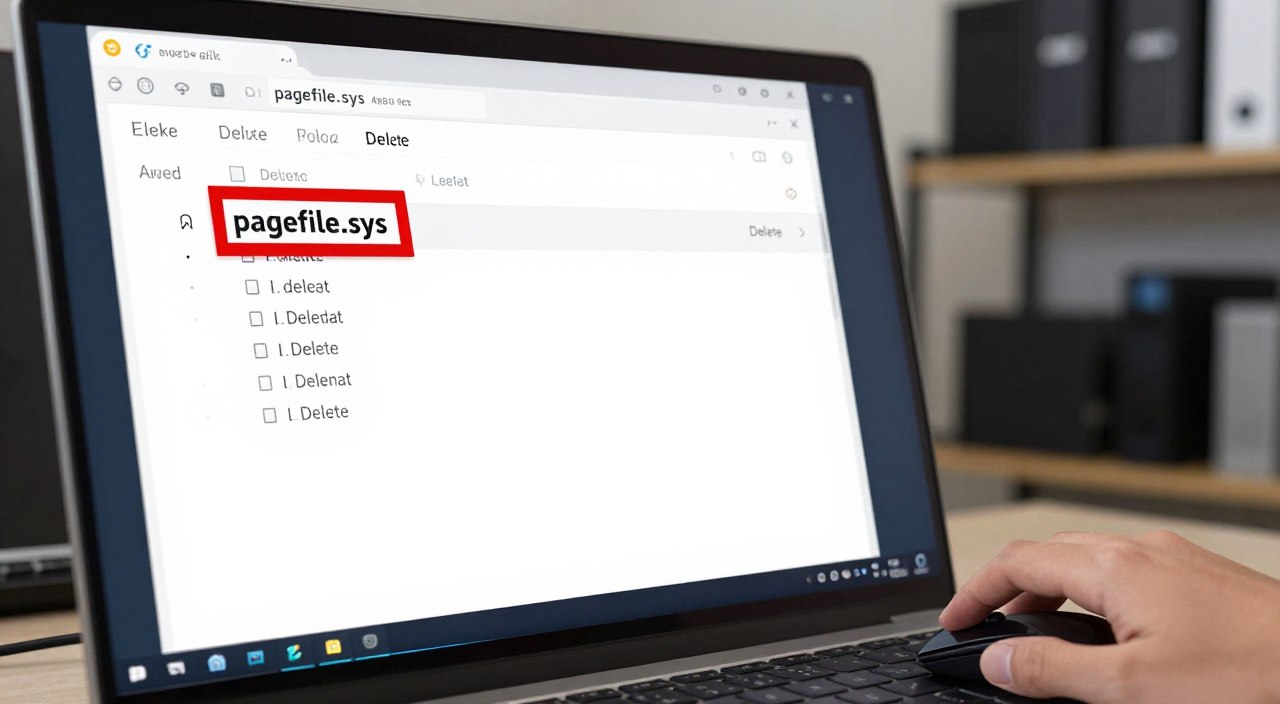
In the Virtual Memory window, uncheck “Automatically manage paging file size for all drives.” This lets you control your system files manually.
Selecting No Paging File
Choose your primary drive from the list. Pick the “No paging file” option and click Set. This is a crucial step in deleting pagefile.sys.
Applying Changes and Restarting Your PC
Verifying the Deletion of the File
Click OK on all windows to save your changes. You’ll need to restart your computer. After rebooting, check your C: drive to see if the file is gone.
Troubleshooting Common Errors After Removal
If you see system warnings or memory errors after deleting pagefile.sys, you might need to re-enable it. Some apps need a paging file to work. If problems occur, try setting a smaller paging file size instead of removing it.
Conclusion
Reclaiming disk space on your computer is rewarding if you know how. Cleaning up pagefile.sys gives you more room for important files and apps. This is great for those who have more physical RAM to handle big tasks.
Watch how your system works after deleting pagefile.sys. If you see errors or slow performance, you can go back to Windows defaults. Keeping your system running well is key for any tech-savvy user.
Take charge of your computer’s resources today. Managing virtual memory makes your computer faster and cleaner. Share your success with others to help them boost their computer’s performance.
2 thoughts on “How to Delete pagefile.sys in Easy Steps to Free Up Space”