
Do you struggle to find your laptop’s hardware details when you need help? Finding your Chromebook model number is key to solving problems and managing your device well.
Many people get lost in complex settings or labels. This guide shows you how to find your Chromebook model number easily and quickly.
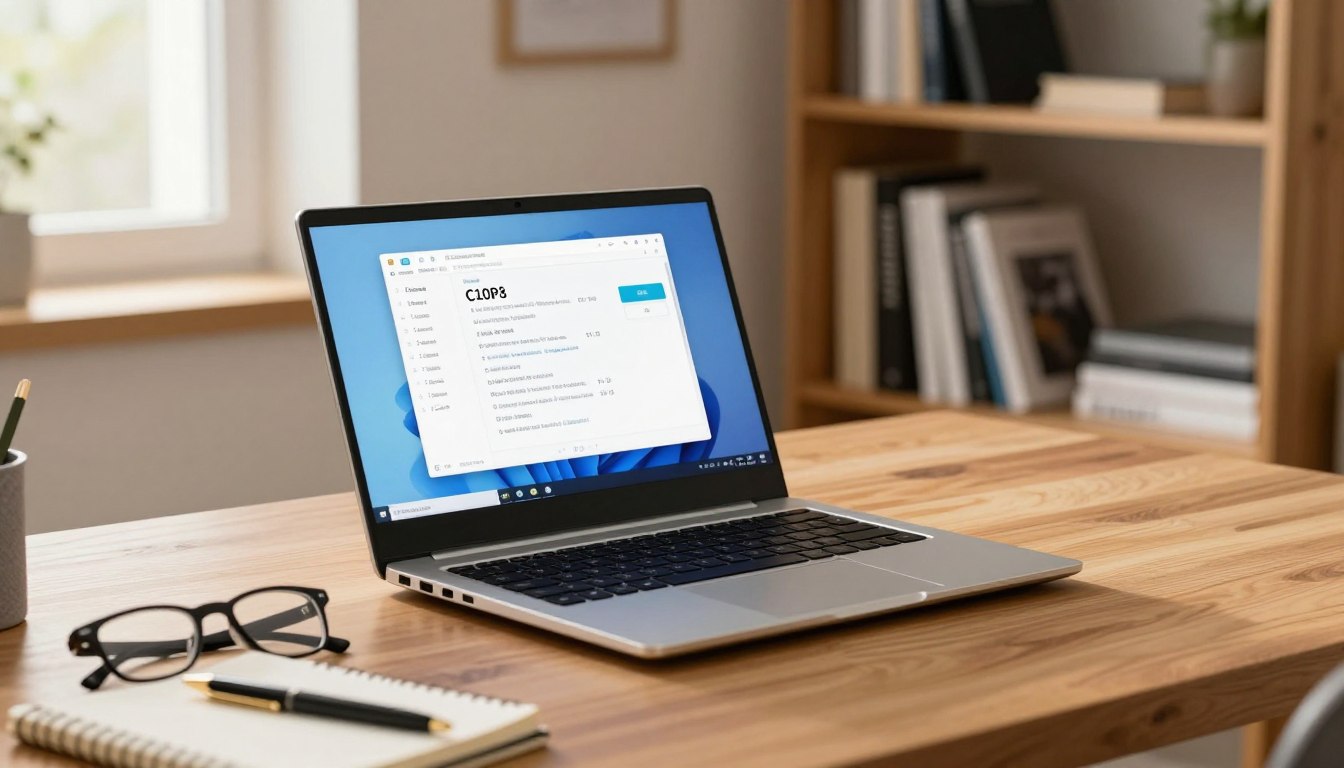
We’ll show you both physical and digital ways to identify your device. By following these steps, you’ll avoid common mistakes in identifying devices. Knowing your Chromebook model number helps you get the right updates and repairs.
Key Takeaways:
- Learn to locate your device identifier using physical labels.
- Discover digital methods to retrieve system information.
- Understand why accurate identification is vital for hardware management.
Why Identifying Your Device Matters
Knowing what your device is helps manage it better over time. It makes talking to tech support easier. You get help that fits your exact machine.

Understanding Chromebook Specs for Repairs
It’s key to know your laptop’s exact details for repairs. If you don’t, you might get parts that don’t fit. This can harm your device or void its warranty.
Ensuring Compatibility with Software Updates
Keeping a record of your device’s history is important. It shows if your Chromebook will get updates. Google supports certain models for a few years.
Assessing Resale Value and Chromebook Pricing
Knowing your model helps when you want to upgrade. You can see how much your Chromebook is worth. This helps you make smart money choices when selling or trading.
How to Find Your Chromebook Model Number via Software
Using software is the quickest way to find your Chromebook’s details. You can get this info through the ChromeOS interface. You won’t need to look at your laptop’s physical parts.
Using the ChromeOS System Diagnostic Tool
The diagnostic tool gives a detailed look at your hardware. Just type “Diagnostics” in the app launcher search bar.
When the app opens, you’ll see a summary of your system’s health and hardware. It’s a great way to check your Chromebook model number. You can also see your battery and CPU performance.
Accessing the About ChromeOS Page
For the exact identifier for support, use the settings menu. Click on the time in the bottom right corner to open the quick settings panel.
Then, select the gear icon to go to the main Settings menu. Click on “About ChromeOS” at the bottom of the left sidebar.
This page shows your OS version and Chromebook model number. These digital methods are very reliable. They ensure you get the exact string for manufacturer verification.
Checking the Physical Exterior for Identification
If your device won’t turn on or has major boot problems, a physical check is your best bet. You don’t need to start it up to find the model number. Just look at the outside of your laptop to spot the Chromebook model number.
Inspecting the Bottom Chassis Labels
Most laptops have a sticker on the bottom with important info. Flip your laptop over and search for a sticker with serial codes and model number. This sticker is usually easy to find and has all the tech specs you need.
If the sticker is old or hard to read, shine a light on it. Sometimes, the model number is printed on the plastic if the sticker is gone. Make sure you’re looking at the main label, not a third-party tag.
Finding Model Information Under the Battery
For some older or business laptops, the model details might be under the battery. If you can’t find it on the outside, you might need to take out the battery. This involves opening a latch or unscrewing a panel at the bottom.
After removing the battery, look for a printed code on the inside frame or the battery area. This spot usually has the Chromebook model number and other key info. Be gentle when handling the inside parts to avoid breaking anything.
Using the ChromeOS Recovery Utility for Precise Specs
The ChromeOS Recovery Utility is more than just for system restoration. It’s a precise tool for identifying hardware. This powerful app gives you a clear view of your internal components. Using it ensures your system data stays accurate and safe.
Installing the Recovery Extension from the Chrome Web Store
First, go to the Chrome Web Store to find the recovery extension. Installing it from a trusted source keeps your device safe. Once installed, the extension makes managing system recovery easy.
Entering the Model Number to Verify Hardware
When you open the utility, you’ll need to identify your device. Enter your Chromebook model number to get detailed configuration info. This step is crucial for those who want to confirm their hardware before a clean install.
The utility checks your Chromebook model number against the right recovery image. This avoids common errors from generic software. Verifying your model number through this utility ensures your system works perfectly.
Navigating the Settings Menu for System Information
Your Chromebook settings menu is key to unlocking hidden system data. It offers a wealth of information about your device’s health and internal components. By exploring these menus, you can make sure your hardware works as it should.
Accessing the Diagnostics App
The ChromeOS platform has a dedicated Diagnostics app to monitor your system in real time. You can find it by opening your settings and going to “About ChromeOS” or searching for “Diagnostics” in your app launcher.
Once you open it, the app shows live data on your battery, CPU, and memory. This helps you spot issues early, before they affect your work.
Viewing Detailed Hardware Specifications
Reviewing your system data lets you understand your Chromebook’s unique features. You can see detailed specs about your processor, storage, and network right on your screen.
These detailed specs are crucial when checking if software is compatible with your hardware. Keeping this info up to date helps you maintain your device and enjoy a better computing experience.
Comparing Your Device Against Top Chromebook Models
Finding your model number lets you see how your device compares to the latest Chromebooks. With this info, you can do a detailed comparison. This helps you see if your device is still up to date with the best models out there.
Evaluating Features of the Newest Chromebook Model
When checking out the latest Chromebooks, focus on key features like processor speed and display quality. Compare your battery life and software support to these new standards. This tells you if your device is still up for the task or if it’s time for an upgrade.
Newer devices often have better security and cloud service integration. By looking at these specs, you can see if it’s worth switching to a newer model. Knowing these differences helps you avoid spending on features you already have.
Using Your Model Number for Chromebook Reviews
Your model number is key to finding the right Chromebook reviews online. Tech sites sort their reviews by model number to help you find what you need. Searching with your exact model ensures the feedback matches your device.
Reviews often point out what works well and what doesn’t for other users. By reading these, you can decide if your Chromebook still meets your needs. This research helps you choose whether to stick with your current laptop or move to a more advanced one.
Conclusion
Knowing your Chromebook model number gives you control over your device. You can now easily find your way through system settings and physical labels. These steps help you stay ready for any tech issue. Whether you have a Google, HP, or Lenovo Chromebook, knowing your model ensures it works best.
Keep your model info in a digital note or a folder. This habit saves time when you need support or look for new accessories. By being proactive with your device, you protect your investment for a long time. Share your tips with others to help them keep their laptops in top shape.