
Seeing Green Screen Of Death (GSOD) error might worry you, but don’t panic. It’s a sign of a system problem, not a permanent damage to your hardware. There’s a way to fix the GSOD issue with some troubleshooting steps. By following a clear plan, you can find the problem and fix the Green Screen Of Death (GSOD) Error on your Windows. This will make your computer work smoothly again.
This guide will give you the tools to take back control of your computer. We’ll show you how to solve the Green Screen Of Death problem. You’ll be back to work quickly.
Understanding the Green Screen of Death
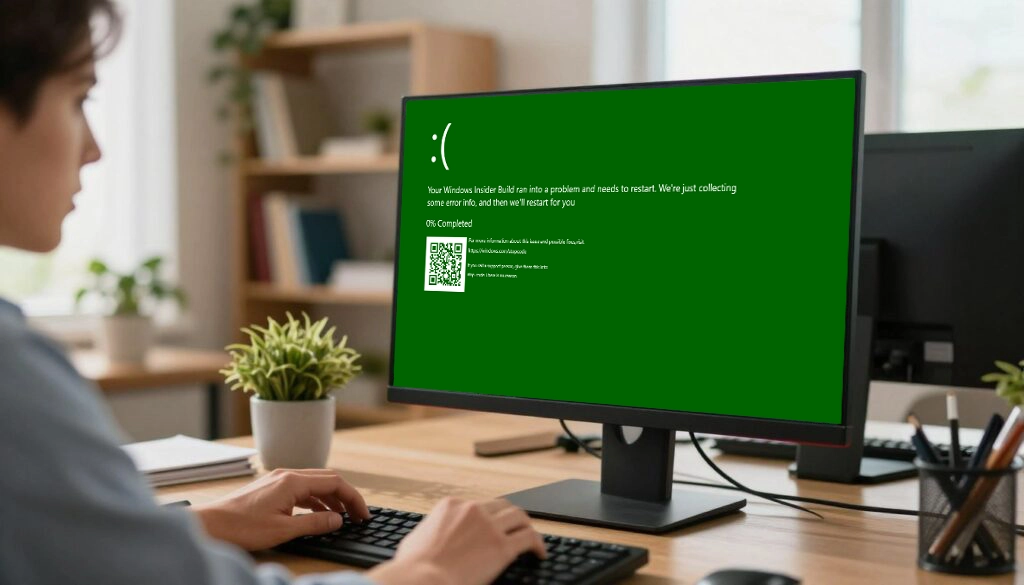
Seeing a green screen on your computer means something special is happening. It’s a sign that you’re helping test new Windows software. This knowledge helps you fix Green Screen Of Death problems better.
What is the GSOD in Windows Insider Builds
The Green Screen of Death, or GSOD, is only for Windows Insider Preview users. Microsoft uses green to mark errors in testing versions. These versions are still being worked on and can be unstable.
If you’re in the Insider program, you might see system problems. These issues help developers make Windows better before it’s released to everyone. It’s a normal part of testing.
Distinguishing GSOD from the Blue Screen of Death
The main difference is where these screens show up. The Blue Screen of Death (BSOD) happens in the regular Windows version. But the GSOD is for testing versions. Both screens mean your system has a serious problem.
When you try to fix green screen errors, remember they often come from testing drivers or new features. Knowing which screen you see helps you find the right fix. This knowledge makes sure you fix your Windows version correctly.
Initial Steps to Troubleshoot the Green Screen Error
Often, a system crash can be fixed with a few quick checks. These steps help figure out if the problem is small or big. Finding a green screen fix early can save a lot of time and stress.
Performing a Hard Restart of Your PC
A hard restart is a good first step to clear memory. If your system won’t respond, press the power button until it turns off. This resets the hardware and clears RAM data that might be causing the crash.
Wait thirty seconds before turning it back on. This lets the capacitors discharge. If it boots up right, you’ve fixed a temporary error.
Disconnecting Non-Essential Peripheral Devices
Hardware conflicts can cause system problems. Remove all non-essential devices like external hard drives and printers. These can cause driver issues during boot.
Try restarting without these devices. If it works, one of them was the problem. This simple step helps find faulty hardware without needing complex tools.
Booting into Windows Safe Mode
Safe Mode is a clean environment for fixing green screen errors. It loads only basic system files and drivers. This helps avoid crashes caused by third-party software.
It’s a good way to get back to your desktop when regular boots fail.
Accessing the Advanced Startup Menu
To get into Safe Mode, first, you need the Advanced Startup menu. If your computer can’t boot normally, it might go to Automatic Repair. Or, you can force the menu by holding Shift while choosing Restart from the power menu.
When the menu shows up, pick Troubleshoot. Then, choose Advanced options to see all recovery tools. This is key for finding a green screen fix.
Navigating to Startup Settings
In Advanced options, find the Startup Settings icon. This lets you change how Windows boots. Click Restart to get to a special screen.
After restarting, you’ll see a list of options. Press F4 to start in Safe Mode. For internet access, press F5 for Safe Mode with Networking.
Identifying Faulty Drivers in Safe Mode
In Safe Mode, your system uses minimal resources. It’s great for finding green screen errors from bad drivers. Open the Device Manager by right-clicking the Start button.
Look for devices with a yellow exclamation mark. These often mean driver problems. You can disable or uninstall these to see if your system gets better.
How to Fix Green Screen of Death via Driver Updates
Many system crashes come from old or wrong hardware drivers. When your OS can’t talk to your hardware, it often stops working. Fixing this can make your computer stable again.

Using Device Manager to Update Display Adapters
The display adapter often causes graphics problems. Start by opening the Device Manager from the Start menu. Look for “Display adapters” and expand it to find your graphics card.
Right-click your graphics device and choose “Update driver.” Let Windows find the latest software for your hardware. This simple step can fix frequent crashes.
Rolling Back Recently Installed Drivers
At times, a new driver update can cause problems. If issues started after an update, rolling back is best. Go to the Device Manager menu again.
Right-click your device and pick “Properties,” then go to the “Driver” tab. If you can roll back, do it to go back to the old version. This fixes problems from new software versions.
Reinstalling Corrupted Hardware Drivers
If updates or rolls back don’t work, the driver files might be broken. A clean install can fix these deep issues. In the Device Manager, right-click your hardware and choose “Uninstall device.”
After uninstalling, restart your computer. Windows will reinstall the drivers. This ensures your hardware and OS talk right. These steps are key to fixing green screen errors.
Resolving Software Conflicts and Recent Updates
Fixing green screen errors often starts with checking your software environment. System crashes can come from apps or updates that clash with Windows. Finding these problems is key to fixing your system.
Uninstalling Recently Installed Windows Updates
If crashes started after a patch, the update might be the problem. Go to your Settings and pick Windows Update to see your history. Then, choose to uninstall recent updates to see if your system gets better.
Removing Third-Party Antivirus Software
Security software can sometimes get in the way of updates. Try removing it to fix green screen errors. Use the Control Panel to uninstall your antivirus and restart to see if crashes stop.
Disabling Startup Programs via Task Manager
Too many startup programs can slow down your computer. Open Task Manager by pressing Ctrl + Shift + Esc and go to the Startup tab. Disable unnecessary apps to make your computer start faster and avoid crashes.
Managing these software parts can solve many stability problems. Always keep your important drivers updated to keep your system healthy over time.
Running System File Checker and DISM Tools
If you’re facing ongoing errors, the System File Checker and DISM tools are your go-to solutions. These command-line tools find and fix damaged system files that cause problems. Adding these steps to your troubleshooting routine can fix your operating system.
Executing the SFC Scan Command
The System File Checker, or SFC, scans your system files for damage. First, open the Command Prompt as an admin from the Start menu. Type “sfc /scannow” and hit Enter to start the scan.

The scan will replace any damaged files with a backup from the system folder. This might take a few minutes. When it’s done, the tool will tell you if it fixed any issues.
Utilizing the DISM Tool for Image Repair
When SFC can’t fix deeper problems, DISM is the next step. It’s a more powerful tool for fixing your system image. Running DISM ensures your system image is complete and error-free.
To use DISM, type “DISM /Online /Cleanup-Image /RestoreHealth” in your elevated Command Prompt. This command gets files from Windows Update to fix your system image. It’s crucial for fixing issues that SFC can’t handle.
Interpreting Scan Results and Repair Logs
After running these commands, check the output to see if repairs were successful. The Command Prompt will show if any files were fixed. If some files couldn’t be fixed, look at the log files for more info.
The logs are in “C:\Windows\Logs\CBS” on your main drive. Reading these files tells you which files were damaged and if they were fixed. Learning these steps is essential for any Windows user to troubleshoot effectively.
Checking for Disk Errors and File System Corruption
At times, the main reason for system crashes is the physical storage drive itself. When the file system gets corrupted, Windows may have trouble reading important data. This can cause unexpected stability problems. A detailed disk check is crucial for gsod troubleshooting to check if hardware issues are the cause.
Running the CHKDSK Utility
The CHKDSK utility is a strong tool built into Windows to scan for logical errors. First, open the Command Prompt as an administrator from the Start menu. Type “chkdsk /f /r” followed by your drive letter, usually C:.
When scanning your main system drive, the system will ask to schedule the scan for the next restart. Just type “Y” and press Enter to agree. This lets the utility lock the drive and do a thorough scan without being interrupted by other programs.
Repairing Bad Sectors on Your Hard Drive
Bad sectors are small parts of your disk that can’t store data reliably anymore. If the operating system tries to access these damaged spots, it might crash. The CHKDSK tool finds these sectors and marks them as unusable to avoid future data loss.
It moves data to safe areas, helping to recover information that might otherwise be lost. Regular use of this tool is a key part of your gsod troubleshooting routine. Keeping your storage drive healthy ensures your Windows environment stays stable and fast over time.
Managing Windows Insider Program Settings
Being part of the Windows Insider Program lets you try new features early. But, it can sometimes make your system unstable. If you’re seeing a lot of green screens, your channel might be the problem. Changing these settings helps you find a balance between new features and system stability.
Switching Between Insider Channels
The program has different channels, each with its own stability level. The Dev Channel is for tech-savvy users and has experimental code. This can lead to system crashes. If you’re crashing a lot, try switching to the Beta or Release Preview Channel for a more stable experience.
To change your channel, go to Settings, then Windows Update, and click on Windows Insider Program. Pick your preferred channel to get builds that are more tested. This simple step can make your system more stable.
Opting Out of the Insider Preview Program
If you want a standard version of Windows, you can leave the program. To do this, go to the Windows Insider Program settings and turn off your device’s enrollment. You might need to do a clean install of Windows to go back to a stable version.
This ensures your machine stops getting experimental updates that can cause problems. It’s a good way to fix green screen issues if you don’t need early access features anymore.
Checking for Pending Insider Build Updates
Microsoft often releases patches for preview builds. Always check for updates in the Windows Update section. These updates usually fix bugs and make your system more stable.
Performing a System Restore or Reset
At times, the only fix for green screen errors is to go back to a working state. When usual fixes don’t work, advanced tools can help. They let you avoid software issues that stop your computer from starting.
Restoring Windows to a Previous Stable Point
System Restore lets you go back to a certain date. By picking a restore point before errors started, you can fix system changes. This method keeps your personal stuff safe, making it a good first choice for fixing problems.
Resetting Your PC While Keeping Personal Files
If you can’t find a restore point, try Reset this PC. It refreshes Windows without losing your files. It removes apps and drivers that might be causing trouble, giving your system a fresh start.
Reinstalling Windows from Installation Media
For really bad cases, you might need to start over with a clean install. You’ll need a USB or DVD with Windows to do this. Remember, this will erase everything on your system drive, so back up your data first.
Hardware Considerations and Physical Inspections
Sometimes, a computer crash comes from inside. If software fixes don’t work, you need to check the hardware. This is how you fix green screen problems.
Checking for Overheating Components
Too much heat can cause a computer to crash. Dust builds up and blocks air vents. This stops fans from cooling the computer properly.
Open your computer case to check the fans. Look for blockages or if they’re not working. Dusty heatsinks can also cause a shutdown to prevent damage.
Verifying RAM Module Seating
Loose RAM can make your computer act weird and crash. If RAM sticks are loose, your computer can’t read data right.
Turn off your PC and take out the RAM. Clean the gold contacts with a soft cloth. Then put them back in until you hear a click. This is key to fixing green screen errors.
Testing Power Supply Unit Stability
A bad power supply can give your computer unstable power. This can make your system crash when it’s working hard.
If your PSU might be the problem, listen for strange noises or smells. Use a multimeter or a known working PSU to check if your hardware is getting stable power.
Conclusion
Fixing the Green Screen of Death needs a careful look at your hardware and software. You now know how to find and fix the main problems that cause these issues.
Keeping your display drivers and cables in top shape helps avoid future problems. If you still see green screens, try fixing green screen issues by checking your monitor with another device. This test tells you if your hardware needs fixing or replacing.
Your work’s success depends on clear visuals. By following these steps, you make sure your computer works its best. Share your success stories to help others solve their tech problems too.
Keeping your Windows and drivers up to date is the best way to avoid crashes. Being proactive keeps your computer running well for a long time.