
Have you ever wondered why the “windows update error 0x80248007” stops a needed patch and leaves your system stuck? This guide shows you a clear path to regain control. You will learn simple steps to fix common download problems and restore service access.
Many users see this code when the download phase fails or when the system cannot reach the update server. That blocks important security patches and can slow your workflow.
We will explain how to clear corrupted files, manage the update service, and use the Microsoft Update Catalog to manually fetch packages when automatic methods fail. Follow these short, practical steps and you should be able to resolve the issue without specialist tools.

Key Takeaways
- You can often fix the problem by clearing temporary files and restarting the update service.
- Failure usually happens during download when your device cannot reach the server.
- The Microsoft Update Catalog lets you manually download missing patches.
- Following basic command-line steps can repair corrupted components that block installs.
- These steps help you restore download and install capability without advanced support.
Understanding Windows Update Error 0x80248007
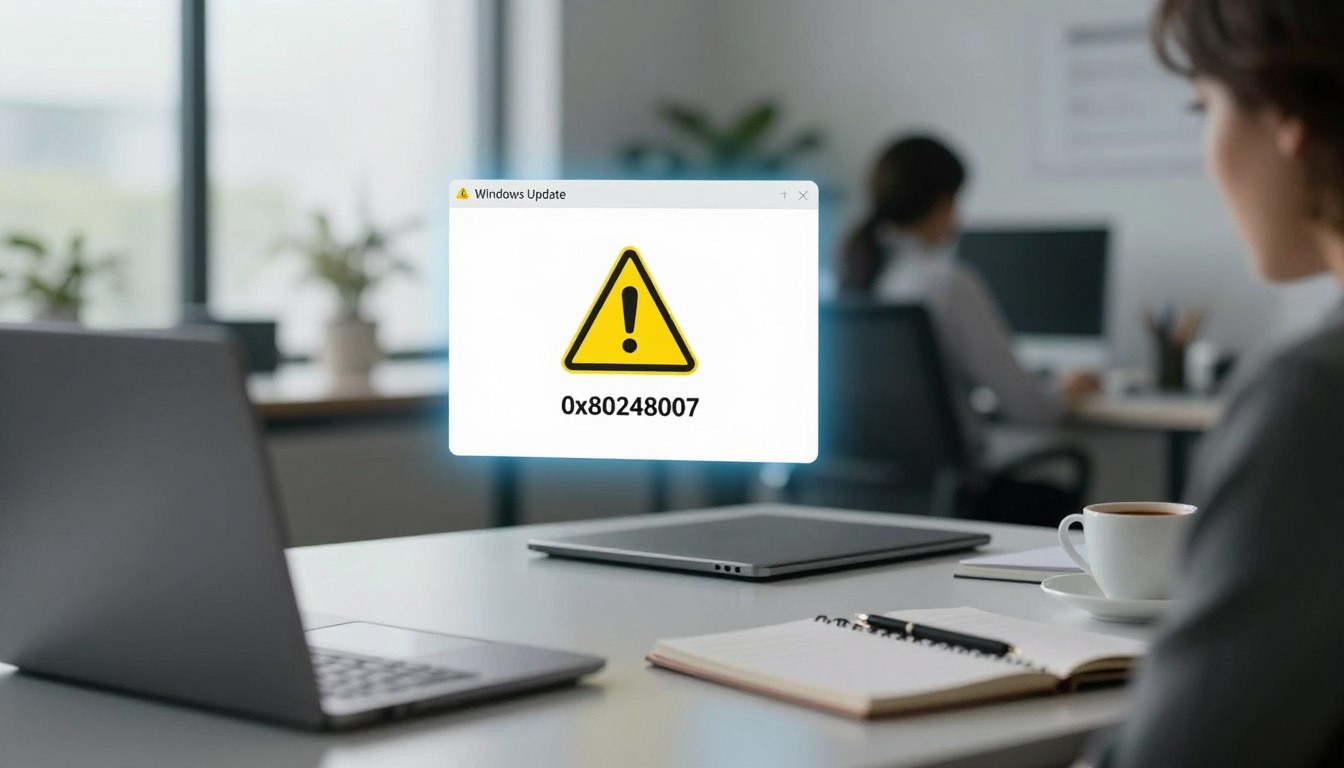
When downloads stop mid-process and an installation stalls, the 0x80248007 code is often the culprit. You need to know what causes the problem so you can fix it quickly.
Common Causes
Missing or corrupted files inside the installation code are a frequent cause. The update service can fail to verify package integrity and then halt the download.
Poor internet connectivity or strict firewall rules can block the service from reaching Microsoft servers. That keeps your computer from completing the download phase.
License or software metadata issues may also trigger this specific error code. A bug in the update code or a corrupted component will stop the installation process.
Impact on System Performance
A corrupted update service prevents critical patches from installing. That leaves your system exposed to security risks and performance slowdowns.
Failed installations can increase software compatibility issues and cause repeated failures in background tasks. Addressing the root cause restores normal download and install behavior.
Initial Troubleshooting Steps for Windows Update
Start troubleshooting by checking the built-in troubleshooter in Settings to spot common issues fast.
Open Settings > Update & Security > Troubleshoot > Additional troubleshooters. Then select the update troubleshooter and run the tool. It scans your system and tries to fix problems that block downloads.
If the troubleshooter finds a fault, follow the on-screen fixes and restart the computer. This often clears minor configuration glitches and restores normal download behavior without advanced steps.
Also check that group policy or local security settings are not blocking access to official updates servers. If the tool fails, verify your service permissions and allow the update service to run.
These simple steps let you diagnose most common update issues quickly. If problems persist, move to command-line repairs or component resets in the next section.
How to Fix Windows Update Error 0x80248007 Using Command Prompt
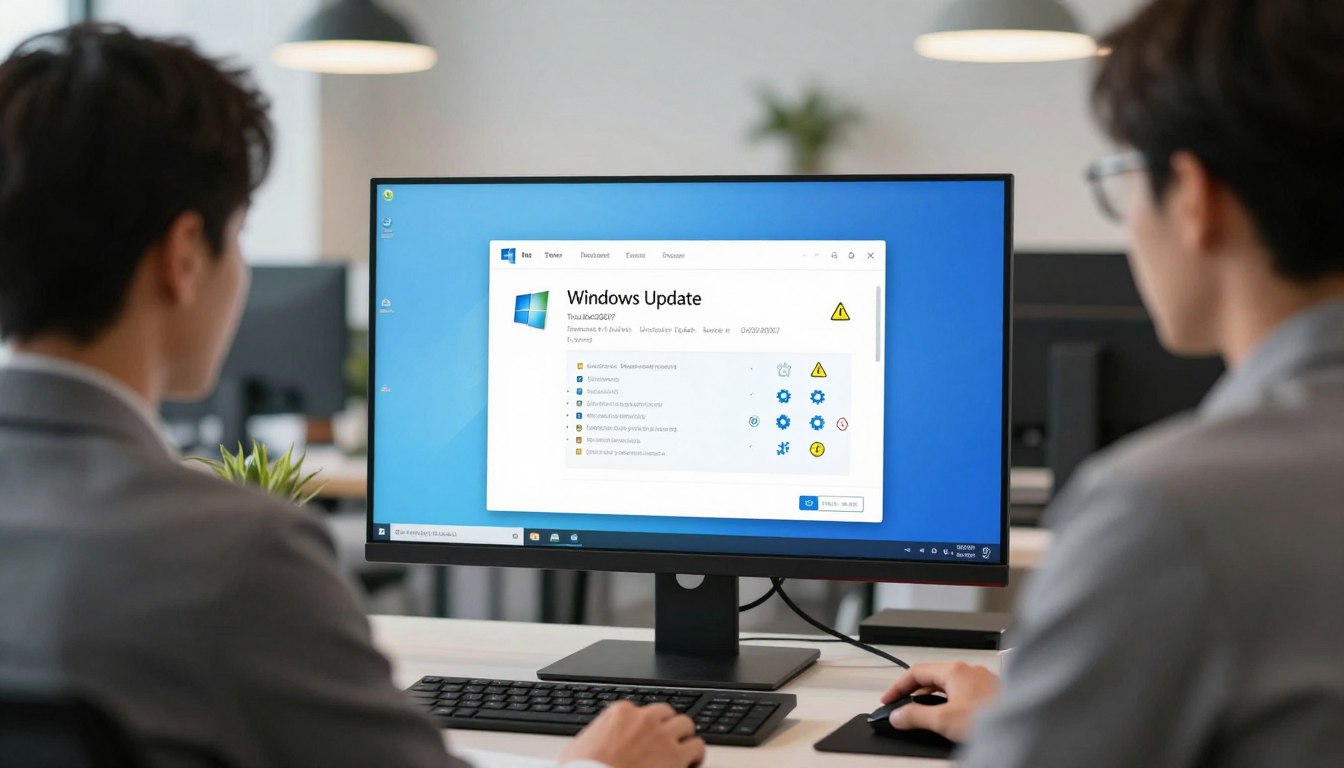
If the built-in troubleshooter did not resolve the problem, use the command prompt as an administrator to reset core components. These steps stop active services, clear the corrupted cache, and force fresh downloads so the installation can complete.
Clearing the Update Cache
Open an elevated command prompt. Rename the SoftwareDistribution folder to SoftwareDistribution.old to remove cached update files.
This forces the system to download new packages instead of using corrupted files.
Stopping Active Services
Before you rename the folder, stop related services with admin commands. Stop wuauserv, cryptSvc, bits, and msiserver so no process locks the cache.
Stopping these services prevents interference while files are renamed or deleted.
Restarting Update Processes
After renaming the folder, restart the same services from the administrator prompt. Then run the command to check for updates and allow the system to re-download necessary files.
If you still see the code, repeat the commands; this method often fixes persistent download failures when the troubleshooter cannot.
Resetting Windows Update Components
When cached files keep causing repeated failures, renaming key system folders forces safe regeneration of those components.
Renaming System Folders
Open an elevated command prompt as an administrator. Stop the related services so no process locks the files.
In C:\Windows\System32, rename the catroot2, SoftwareDistribution, and appmgmt folders. Use simple names like catroot2.old so you can restore them if needed.
These folders often contain corrupted data that causes the update service to fail when it tries to download new software packages. Renaming forces the system to create fresh folders and clean files.
After renaming, restart the stopped services from the same administrator prompt. Then run windows update to let the service fetch fresh packages and complete the install process.
If the same error returns, repeat the steps or check service permissions before moving to advanced recovery. This reset clears broken components and often fixes persistent download error conditions.
Managing System Services to Resolve Update Issues
Managing core services is often the fastest way to clear a stalled download and get updates moving again.
Type services.msc into the Run box to open the services console. Scan the list and confirm the windows update service is set to Manual or Automatic and is running.
If you still face the error or stalled downloads, right-click the service and choose Restart. Restarting the service often clears locked files and allows a fresh download.
Also check the Windows Installer entry. That installer must run for software packages and component installs to complete successfully.
Use an elevated command prompt to verify related components and run diagnostic commands as administrator. If a local policy blocks services, update the settings to allow access to update servers.
Regularly checking services and settings in the console helps prevent future issues and keeps your system ready to download and install critical components.
Advanced Recovery Options for Persistent Errors
If standard fixes fail, advanced recovery can rebuild damaged system components and restore normal downloads.
Start by running DISM with the /RestoreHealth option and a known good source. This command repairs deep corruption that the built-in troubleshooter cannot fix. Use an install image or ISO as the source to ensure files replace damaged components correctly.
For more control, install the PSWindowsUpdate PowerShell module. It lets you list, download, and apply patches outside the standard GUI when the update service keeps failing.
Also check group policy and security settings so no restrictive rule blocks access to servers. If automatic methods still fail, manually fetch cumulative packages from the Microsoft Update Catalog and apply them with the installer tool.
Review system logs after each attempt. If the same error code keeps appearing, logs point to the faulty module or file so you can target repairs or seek advanced support.
Conclusion
A few focused steps can clear the download blockage and get your system back to normal. Fixing the windows update issue restores protection and resolves the download error that stops patches.
Use the built-in troubleshooter, manual service resets, and cache clears first. These tools often repair the windows update error 0x80248007 and other common update error conditions without complex recovery.
Keep your system current to protect security and performance. If problems persist, apply advanced recovery methods or seek professional support so your device stays safe and reliable.
2 thoughts on “How to Fix Windows Update Error 0x80248007 Quickly and Easily”