
Managing your digital workspace is key to staying focused all day. By learning to control windows, you can cut out distractions. This lets you use your whole screen for your work. Knowing how to full screen on MacBook devices makes your computer work better. It helps you arrange your desktop well and increases your daily work.

Whether you’re editing documents or looking at many tabs, using more of your screen helps. Just a few tweaks to your settings can make a big difference. It makes your computer time more productive and fun.
Mastering How to Full Screen on MacBook
Your MacBook is made for a smooth and immersive experience. Learning to control your screen is key to mastering it. Knowing how to use full screen mode is the first step to better work.
Understanding the macOS Window Interface
The macOS uses a flexible window system. It lets you manage many apps at once. Each window has colored buttons in the top-left corner.
When you open an app, it starts in a standard window. You can see other apps or your desktop background. You can resize windows or use tools to organize them.
Benefits of Maximizing Your Screen Real Estate
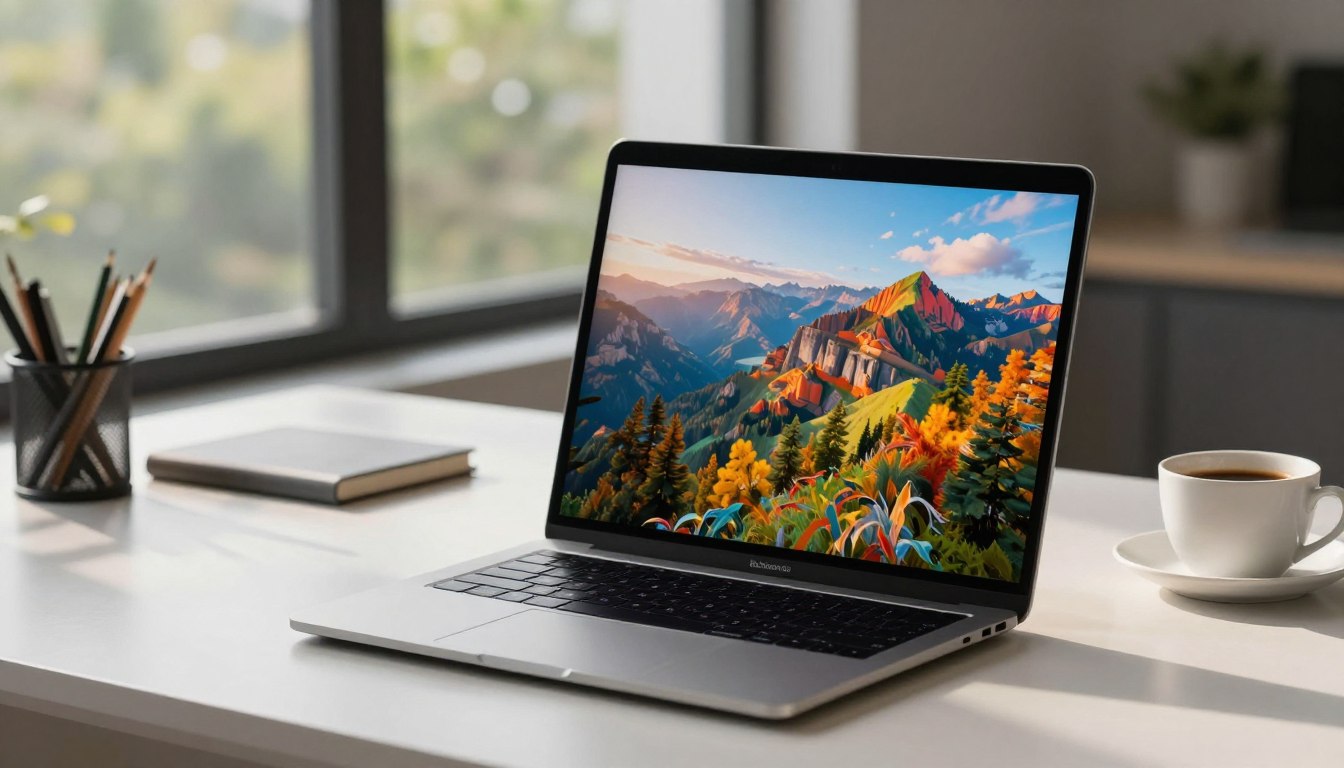
Using more screen space boosts your productivity. Full screen mode removes distractions like the menu bar. It makes your work area clean and focused.
Less visual clutter helps when working on big projects. You can focus on one task without getting sidetracked. This way, you dive deep into your work.
Using your screen fully also makes long work sessions more comfortable. Navigating through documents or interfaces becomes easier. Learning full screen mode makes your MacBook work for you, not against you.
Utilizing Built-in macOS Full Screen Controls
Controlling your screen is easy with Apple’s built-in tools. You don’t need extra software to manage your MacBook full screen display. These tools help you stay focused on your work.
Using the Green Traffic Light Button
Every window has three colored circles in the top-left corner. The green button lets you enter full-screen mode quickly. Clicking it makes your app fill the screen, hiding the menu bar and dock.
To keep the menu bar visible, hold the Option key while clicking the green button. This maximizes the window while keeping the menu bar accessible. It’s a fast way to improve your screen setup for better work.
Navigating the Menu Bar Options
The menu bar offers more control over your screen layout. You can find commands to switch between standard and full-screen views. These settings help you adjust your workspace as needed.
Accessing the View Menu
The View menu is where you find display commands. Look for “Enter Full Screen” to trigger full-screen mode in any app.
Using the Window Menu for Display Adjustments
The Window menu gives you more control over open apps. You can zoom windows or move them between displays. Using these features keeps your screen organized and efficient all day.
Keyboard Shortcuts for Efficient Window Management
Being efficient is key for power users, and your keyboard is the top tool. By ditching your mouse, you can move faster. These shortcuts let you manage your screen without losing focus.
The Primary Full Screen Shortcut
To go full screen fast, use the standard MacBook full screen shortcut. Press Control + Command + F while your window is open. This command makes your app fill the screen right away.
Quickly Exiting Full Screen Mode
To go back to your desktop, it’s just as easy. Press Control + Command + F again to exit full screen. This quick switch saves you time and keeps you focused on work.
Switching Between Full Screen Apps
Switching between apps is simple once you know the trick. Hold Control and press the Left or Right arrow keys to slide between windows. This lets you quickly switch between your browser, email, and creative tools.
Using Mission Control for Faster Navigation
Mission Control gives you a quick overview of all your windows and spaces. Swipe up with three or four fingers on your trackpad to open it. From there, you can pick any app or create a new space to organize your tasks.
Gestures for Trackpad Users
Your trackpad makes managing windows easy and smooth. Use a three-finger horizontal swipe to switch between full-screen apps. These gestures save you from repetitive clicking and keep your hands comfortable while working.
Managing Multiple Apps and Split View
Boost your productivity by organizing your workspace with Split View. This feature lets you see two windows side-by-side. It’s great for comparing documents or referencing data while you work. You might also consider how to connect your Mac to dual monitors to expand your digital canvas.
Activating Split View for Multitasking
To start using this feature, hover your cursor over the green full-screen button in the top-left corner of any window. A menu will appear, letting you tile the window to the left or right side of your screen. Once you select a side, your chosen window will snap into place. Then, you can select another open app to fill the remaining half.
Adjusting Window Sizes in Split View
After arranging your MacBook full screen apps, you might want to change their sizes. Just find the vertical black divider line between the two windows. Click and drag this divider to resize the windows as needed for your workflow.
Exiting Split View Mode
When you’re done with your task, exiting this mode is easy. Move your cursor to the top of the screen to reveal the menu bar and the green button. Clicking the green button again will restore your windows to their original sizes and positions. This simple process makes managing your MacBook full screen apps a seamless part of your daily routine.
Troubleshooting Common Full Screen Issues
Even the most reliable machines sometimes have software problems. These can mess up your work. A few simple steps can usually fix these issues quickly.
Why Full Screen Mode Might Not Be Working
There are many reasons why your MacBook full screen might not work. Maybe a certain app doesn’t support full screen, or something in the background is getting in the way.
Also, third-party software or plugins can cause problems. Finding out what’s causing the issue is the first step to fixing it.
Resolving Display Glitches and Frozen Windows
If a window on your MacBook is frozen, try using the Force Quit command. Press Command + Option + Esc to pick the app and close it right away.
Restarting the app can fix memory errors that cause problems. If it still doesn’t work, restarting your whole system might help.
Checking System Settings for Display Conflicts
System preferences might be set in a way that affects windows. Check your Mission Control settings. Make sure “Displays have separate Spaces” is turned on. This is key for smooth full screen use.
Updating macOS to Fix Interface Bugs
Apple often releases updates to fix bugs and improve stability. Keeping your operating system up to date ensures you have the latest fixes for display and window issues.
Resetting Window Preferences
If you’re still having trouble, you might need to reset your window preferences. Deleting certain files can make the system rebuild its display settings. This often fixes ongoing full screen problems.
Conclusion
Improving your MacBook display habits can change your daily work and make your space calm. Apple devices let you customize to fit your work needs. Manage your alerts to stay focused all day. If you need to turn off ringer on MacBook settings, you can. This lets you keep your area quiet for better work.
Check your sound and display settings often as your work changes. Keeping your software up to date keeps your work smooth and distraction-free.
Share these tips with your team to make everyone work better together. Start changing your audio and visual settings today for a better computer experience.