
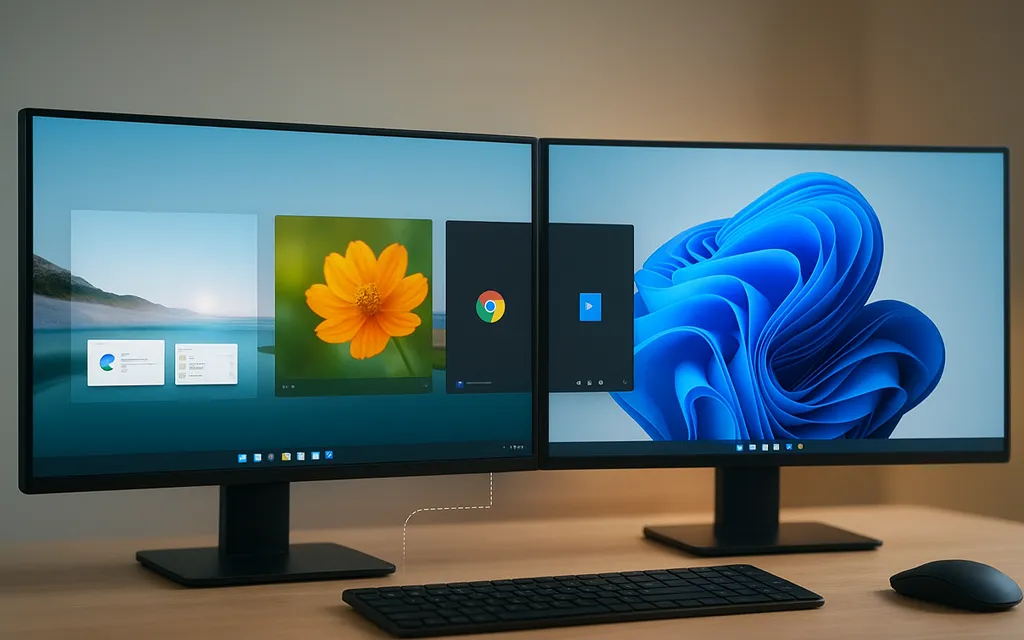
If you are running a dual monitor setup, there is no reason both screens have to look the same. Windows 10 and Windows 11 include a built-in feature that allows you to assign a completely different wallpaper to each monitor. In this guide, you’ll learn exactly how to set different wallpaper for dual monitor setup, fix common issues, choose the right resolution, and find the best free wallpaper sources for dual screens.
Why Use Different Wallpapers on Each Monitor?
A dual monitor setup is one of the most popular productivity upgrades for professionals, gamers, students, and creatives. According to research, a personalized workspace can improve mood and concentration — and your wallpaper is one of the easiest ways to make that happen.
Here is why many users choose to set different backgrounds on separate screens:
- Separate contexts at a glance — Use a motivational wallpaper on your primary screen and a minimalist one on your secondary screen.
- Better visual organization — Distinguish between monitors instantly without looking at the taskbar.
- Personal expression — Match wallpapers to your workflow, brand colors, or aesthetic preference.
- Gaming vs. work balance — Keep a clean work background on one screen and a gaming aesthetic on the other.
How to Set Different Wallpaper for Dual Monitor – Windows 11
Windows 11 makes it incredibly easy to assign a unique wallpaper to each monitor directly from the desktop settings.
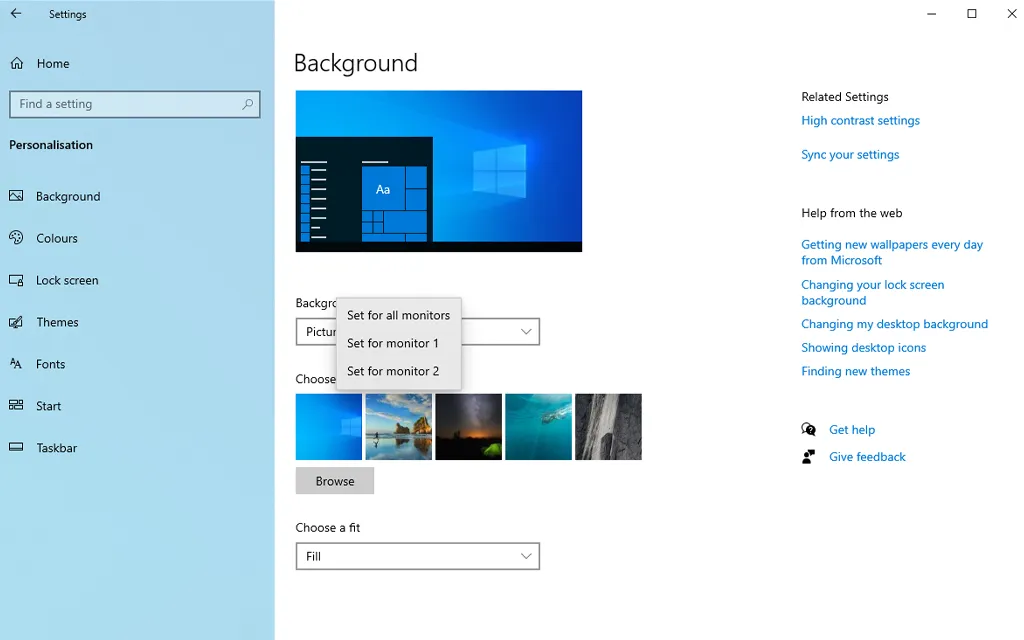
Step-by-step:
- Right-click on an empty area of your desktop.
- Select “Personalize” from the context menu.
- Click on “Background“.
- Under “Choose your background“, select “Picture“.
- Browse and select your desired image under “Recent Images” or click “Browse Photos“.
- Right-click on the image thumbnail.
- A small menu will appear — select “Set for Monitor 1” or “Set for Monitor 2” (or Monitor 3, 4, etc. if you have more displays).
- Repeat the process for the second monitor with a different image.
Pro Tip: Windows 11 automatically detects each screen’s resolution, so stretching issues are minimal compared to Windows 10.
How to Set Different Wallpaper for Dual Monitor – Windows 10
The process on Windows 10 is just as straightforward, using the Personalization settings panel.
Step-by-step:
- Click Start on the taskbar.
- Go to Settings > Personalization > Background.
- Under “Choose your picture“, click “Browse” to locate your desired image.
- Once the image appears in the list, right-click it.
- Select “Set for Monitor 1” to apply it to your primary screen.
- Browse for a second image, right-click it, and select “Set for Monitor 2“.
Common Issue: If both monitors show the same wallpaper, ensure each image is individually right-clicked and assigned to the correct monitor — don’t just click the image without right-clicking.
How to Set Different Wallpaper for Dual Monitor – Mac
On macOS, you can easily set a different wallpaper for each monitor from System Settings (formerly System Preferences).
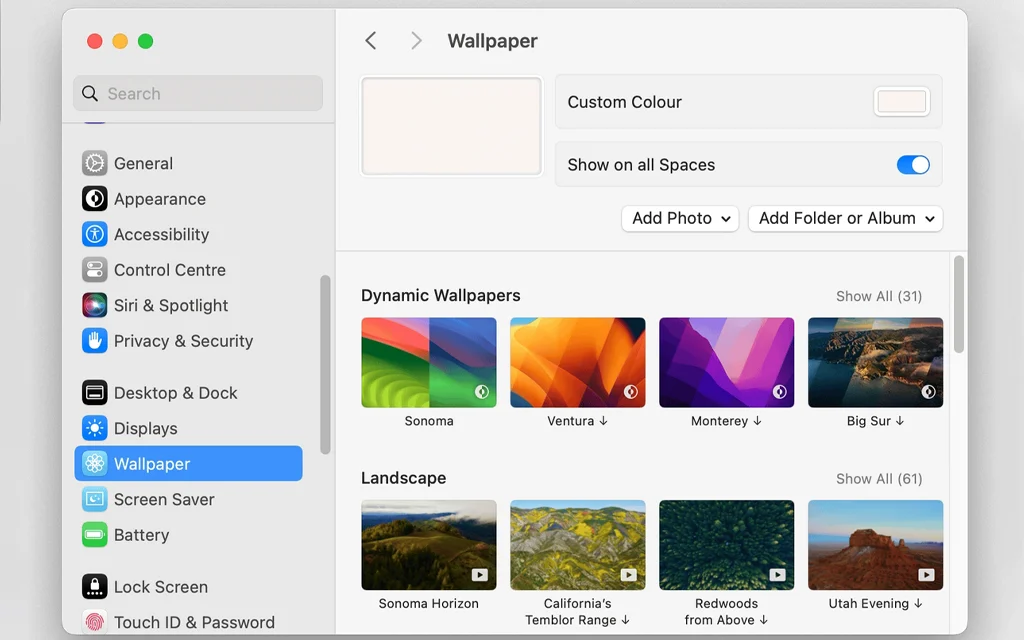
Step-by-step (macOS Ventura / Sonoma / Sequoia):
- Click the Apple Menu in the upper-left corner.
- Select “System Settings” (or “System Preferences” on older macOS).
- Click “Wallpaper” from the sidebar.
- You’ll see separate wallpaper panels for each connected display.
- Click on the monitor you want to customize.
- Select your desired wallpaper from the presets or click “Add Photo” to use your own.
- Repeat for the second monitor.
macOS Tip: If both screens show the same wallpaper, go to Wallpaper settings and uncheck “Show on all Spaces”. This unlocks independent wallpaper control for each monitor.
How to Span One Wallpaper Across Two Monitors
Want a single panoramic image to flow seamlessly across both screens? The “Span” feature makes this possible.
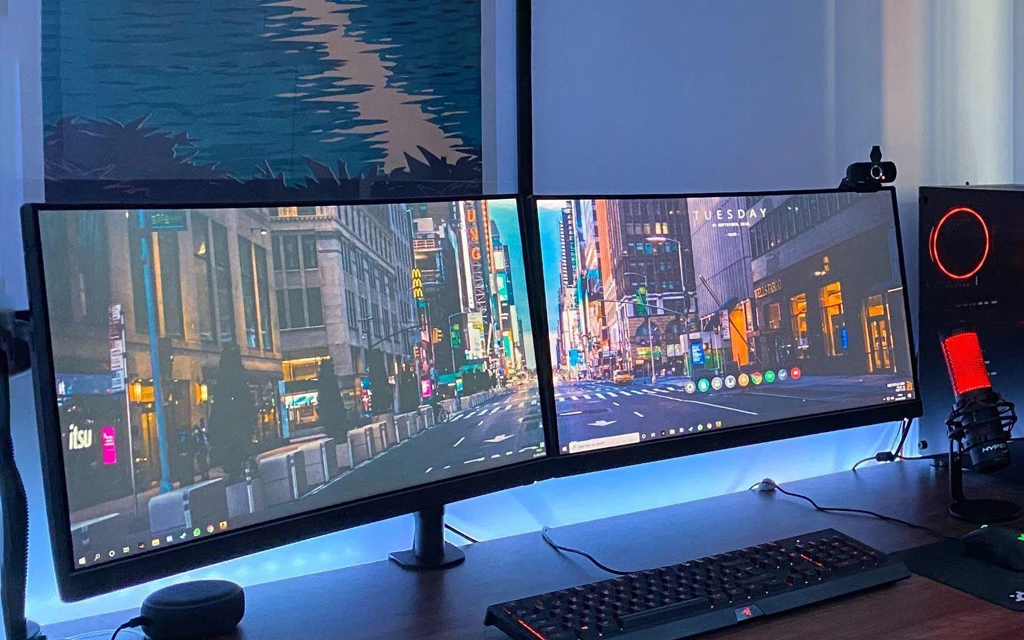
On Windows 11 / Windows 10:
- Right-click desktop → Personalize → Background.
- Select a wide ultrawide or panoramic image (e.g., 3840×1080 for two 1080p monitors).
- Under “Choose a fit“, select “Span“.
- Windows will automatically split and stretch the image across both displays.
On Mac:
- macOS does not natively support spanning a single image across two monitors.
- Use a third-party app like Wallpaper Wizard 2 or HiDock to achieve this effect.
Resolution Rule: For spanning, your wallpaper width should equal the combined width of both monitors (e.g., 1920 + 1920 = 3840px wide).
How to Set Wallpapers on a Triple Monitor Setup
Setting individual wallpapers on three monitors follows the same logic but requires a few extra steps to ensure every display is recognized correctly.
- Right-click the desktop and select Display settings.
- Under Multiple displays, confirm Extend these displays is selected.
- Go to Personalization > Background.
- Select a wallpaper and right-click to assign it to Monitor 1.
- Repeat for Monitor 2 and Monitor 3.
Troubleshooting: Common Dual Monitor Wallpaper Issues
Even with the right steps, things can occasionally go wrong. Here are the most common issues and how to fix them.
Both monitors show the same wallpaper
Ensure your display mode is set to Extend these displays, not Duplicate these displays. Open Display settings to verify this.
Wallpaper resets after restarting the PC
Reapply the wallpapers and check if your Windows profile settings are properly saved. If the issue persists, update your display drivers via Device Manager.
Wallpaper appears blurry or stretched
This is almost always a resolution mismatch. Use an image that matches or exceeds the native resolution of your monitor. For Full HD screens, use images that are at least 1920×1080 pixels.
Wallpaper not applying to the correct monitor
Go to Settings > Personalization > Background, right-click each recent image, and manually reassign it to the correct monitor number.
Option shows “Desktop 1 / Desktop 2” instead of “Monitor 1 / Monitor 2”
This happens when multiple virtual desktops are active. Open Task View (Windows + Tab) and remove extra virtual desktops. The monitor-specific option will return.
Final Thoughts
Setting a different wallpaper for each monitor only takes a minute, but the impact on your workspace is immediate — better visual organization, a more personalized feel, and a more professional-looking setup. Whether you’re on Windows 11, Windows 10, or macOS, the steps are simple and require no extra software.
Start with the built-in Personalization settings, choose images with the right resolution, and enjoy a dual monitor setup that truly looks as good as it performs.
2 thoughts on “How to Set Different Wallpaper for Dual Monitor (Windows 11, 10 & Mac)”