
Ever been somewhere without Wi-Fi and needed to get online? What is USB tethering can fix this problem fast. It makes your phone a fast modem, letting you share your mobile data with your computer via a cable.
This method is safer than public Wi-Fi, which can be risky. It keeps your data safe and your work flowing, whether you’re in a coffee shop or traveling.

Many people don’t know about this useful tool. But it’s key for staying productive on the move. By using your phone’s hardware, you have a reliable backup for your internet. We’ll show you how to turn it on for your device next.
Understanding what is USB tethering and how it functions
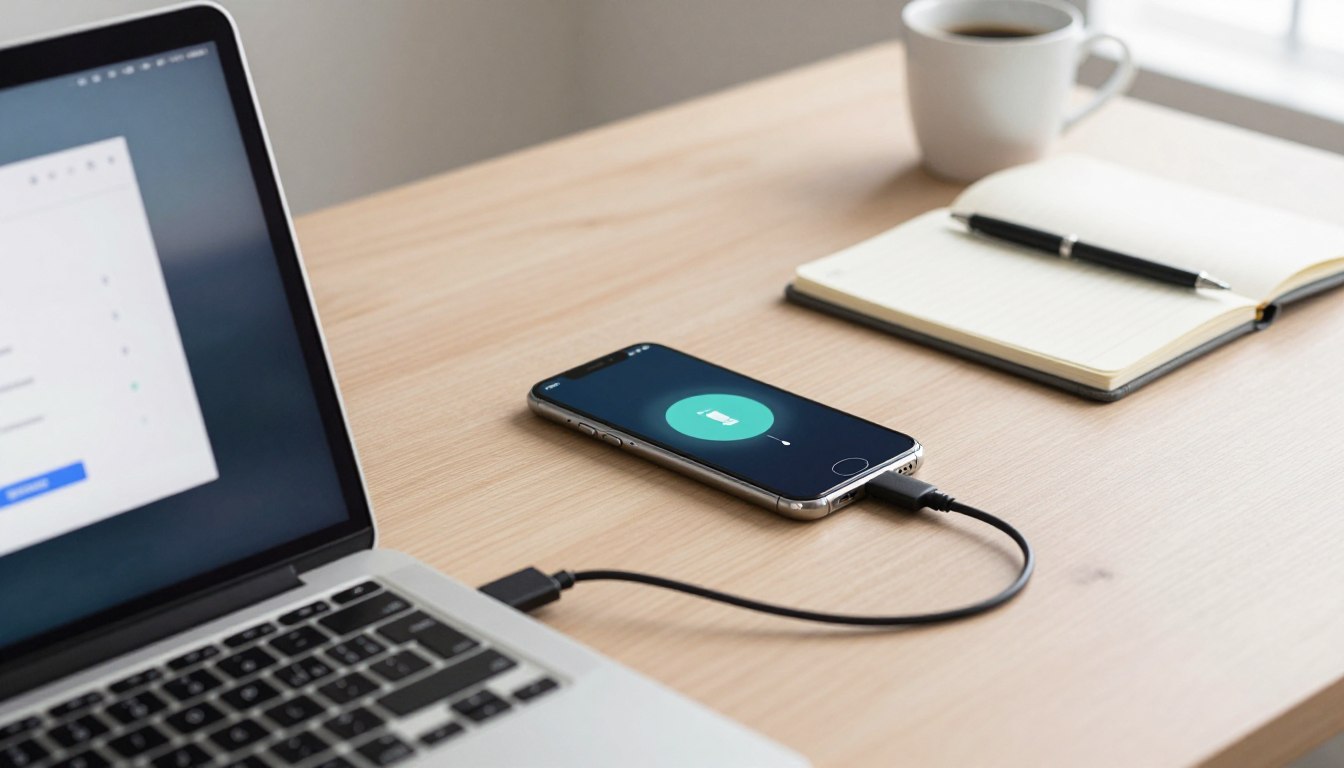
USB tethering lets your smartphone act as a portable modem. By connecting your device to a computer, it shares its cellular data. This gives your laptop or desktop internet access through your mobile network.
The core concept of mobile data sharing
This technology turns your mobile device into a network card for your computer. When plugged in, your phone is seen as a wired network adapter. This makes a stable path for data to move between your provider and your computer.
Distinguishing tethering from mobile hotspots
Tethering and mobile hotspots share data, but differently. A hotspot sends out a wireless signal for many devices. Tethering, on the other hand, uses a physical link to one device.
Using a cable gives a more stable and secure connection than wireless. It’s less likely to be affected by nearby signals. This makes it great for consistent connections in busy places.
Technical requirements for a stable connection
To have a smooth experience, you need a few things. Make sure your mobile data plan allows tethering. Also, use a good USB cable for data transfer, not just charging.
Your computer must have the right drivers for your phone. Most systems do this automatically. But, keep your software up to date for the best tethering experience. With these in place, you can have internet anywhere your signal goes.
Evaluating the benefits and disadvantages of USB tethering
Choosing between a wired and wireless internet connection is a big decision. USB tethering has its own set of advantages and disadvantages. It’s important to understand these before using it for your daily tasks.
Key advantages for remote work and travel
One big plus of USB tethering is its stability. It’s much better than wireless connections, which can be affected by interference. This makes it great for areas with lots of people and devices.
It’s also good for saving battery life. Your phone can charge while it’s sharing its data with your computer. This stops your phone’s battery from draining too fast.
For those who work with sensitive information, USB tethering is very secure. It’s safer than using public Wi-Fi, which is often not secure.
Potential drawbacks to consider
While USB tethering has many benefits, it also has some downsides. You can’t move around much because of the USB cable. It keeps your phone and computer together.
Another thing to think about is how fast you might use up your data. The connection is fast and reliable, which means you might use more data than you expect.
Lastly, make sure your devices can handle USB tethering. Some older systems might need extra setup. This can slow you down when you need to get online fast.
Preparing your devices for the tethering process
Getting your gear ready is key for a smooth USB tethering setup. It keeps your connection steady for work or fun. This way, you avoid any hiccups and keep your tasks running smoothly.
Checking your mobile data plan compatibility
First, make sure your mobile carrier lets you tether. Some plans don’t allow it or need a special add-on. This is important for sharing your data.
Look at your account online or talk to customer service to check. Not doing this could lead to unexpected charges or no data at all.
Essential hardware requirements
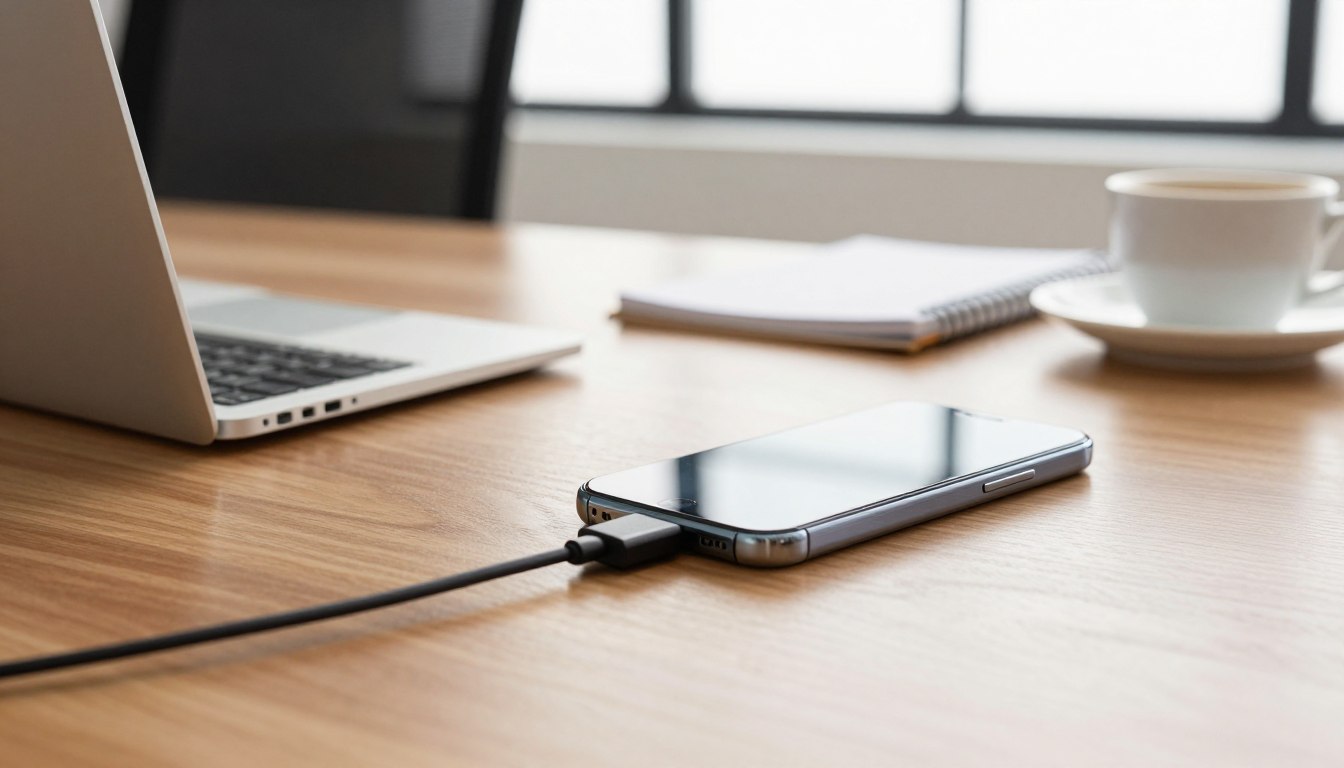
The connection between your phone and computer is crucial. You need a good USB cable for data transfer, not just for charging.
Many cheap cables from stores only charge your phone. They won’t let your computer see your phone, stopping your setup.
Choose a strong, shielded cable for a reliable signal. A good connection means no drops and fast internet during your setup.
Step-by-step guide to enabling USB tethering on Android
Learning how to use USB tethering on Android turns your phone into a modem. This method uses a cable for a stable and safe connection. Follow these steps to connect your devices fast.
Configuring settings on Samsung Galaxy devices
Start by opening the Settings app on your Samsung Galaxy phone. Go to Connections and then Mobile Hotspot and Tethering. The USB tethering option will be grayed out until you connect with a good cable.
After plugging in the cable, the toggle will turn active. Just tap it to turn on the feature. Your phone will share its data with your computer.
Enabling tethering on Google Pixel smartphones
Google Pixel users have a different menu. Open Settings and tap Network & internet. Then, select Hotspot & tethering to see your options.
Connect your device to your computer with a USB cable. When it’s detected, the USB tethering option will be available. Turn it on to start sharing your internet.
Verifying the connection on your Windows PC
After turning on the feature on your phone, your Windows PC should find the new network. Open Network & Internet settings to see if you’re connected. You should see a status showing you’re online.
If you don’t see the connection right away, check your device manager. A good connection will show your phone as a network adapter.
Establishing the link on macOS systems
On a Mac, go to System Settings and click on the Network tab. You should see a new interface, like Android USB. Make sure it’s active or connected.
If it’s not active, click on the interface to set it up manually. When you see a green light, your Mac will use your phone’s data. Now you can surf the web with your mobile data.
Troubleshooting common USB tethering connectivity issues
Keeping your connection stable is key. You might face setup or performance problems. These can be due to software issues or hardware limits.
Resolving driver installation errors
Can’t get your computer to see your phone? It’s likely because of old or missing drivers. Open your Device Manager to look for yellow icons next to network adapters.
Updating these drivers can fix the problem fast. Having the right software is crucial for a smooth USB tethering experience.
Addressing intermittent connection drops
Connection drops can be caused by bad USB cables or loose ports. Use a good, data-capable cable for a solid connection.
Also, check your computer’s power settings. Make sure the USB port stays active to keep your tethering speed up.
Managing firewall and network security settings
Firewalls might block your connection, thinking it’s a threat. Check your firewall settings to allow your phone as a trusted device.
Changing these settings can stop interruptions and keep your tethering speed stable. If issues continue, try turning off your antivirus software to see if it helps.
Conclusion
Having reliable internet is key in today’s digital world. USB tethering connects your Samsung Galaxy or Google Pixel to your computer. It keeps you online when traveling or public Wi-Fi isn’t secure.
You know how to set up your hardware and manage your mobile data now. Using these tools keeps your connection stable for work. This ensures your work flows smoothly without any hiccups.
Before your next trip, test your tethering setup. Make sure your drivers are updated and security is on. Share your experiences or ask for help if you face any issues. Your feedback helps others with their mobile networking needs.