
Managing a multi-display setup needs extra work to make it feel personal. A unique look on my desk keeps me focused and organized. This is key during a busy workday. In this guide, I’ll show you how to set different wallpaper for each monitor. Learning these simple steps can change your digital space. It also boosts your productivity.
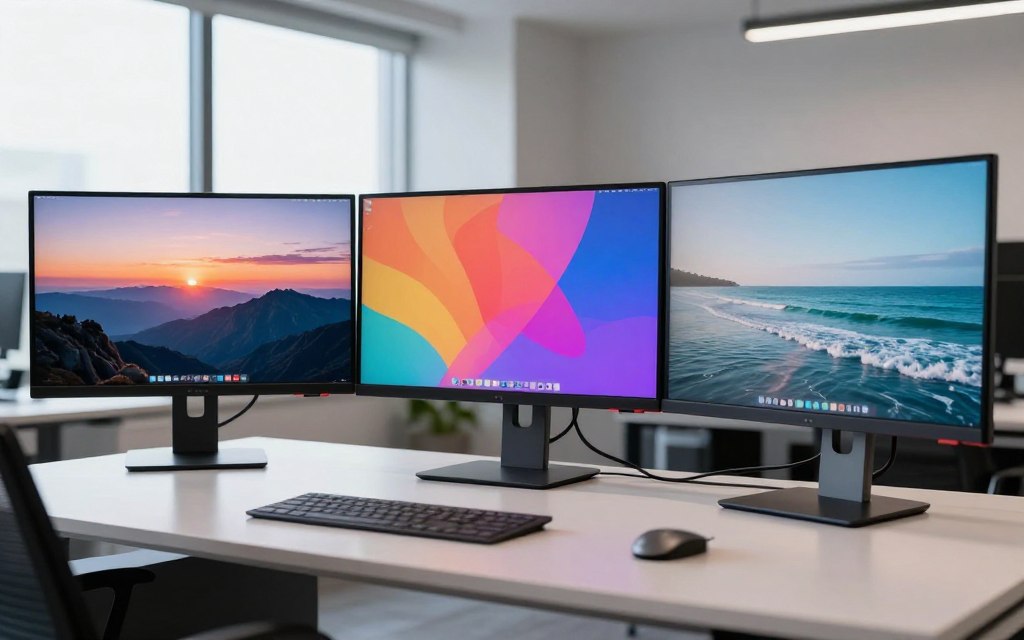
Whether you use Windows or macOS, I’ve got you covered. I’ll give you clear steps to manage your wallpapers. Customizing your screens shows your style while keeping work tools separate. Let’s improve your desktop to fit your needs and taste.
How to set different wallpaper for each monitor on Windows
Managing unique backgrounds for multiple displays is easy on Windows. You can make your workspace show your style or help you focus. You don’t need extra apps because Windows has built-in tools.
Using the Personalization Settings menu
The main way to change your desktop background is through the Windows Settings app. Go to the Personalization section to find the Background menu. This lets you control how your images look on your screens.
Selecting images for specific displays
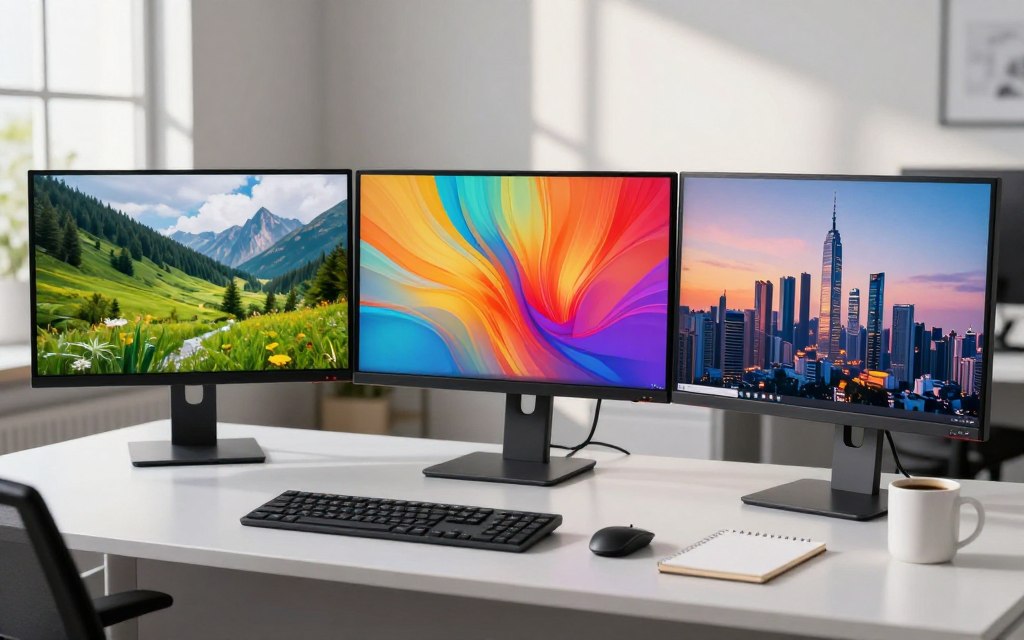
In the background settings, right-click any image to pick a monitor. This lets me pick a unique image for my main screen and a different one for my secondary screen. It’s easy and makes sure each screen looks just right.
Managing slideshows across multiple screens
For variety, set up a slideshow with your favorite photos. I use this to keep my desktop fresh all day. Just pick the “Slideshow” option in the background settings and choose your image folder.
Utilizing the File Explorer method
The File Explorer method is quick if you want to change your background fast. It’s a fast way to switch wallpapers without opening the main settings menu.
Applying images directly from folders
To use this method, open your image folder in File Explorer. Right-click the image you want and choose to set it as your desktop background. This is a handy way to change wallpapers quickly, applying the image to the active screen.
Configuring individual monitor wallpapers on macOS
Setting up separate wallpapers for multiple monitors on macOS is easy. It makes my workspace look better when I can tell my screens apart. Just a few steps, and my desktop stays both useful and nice to look at.
Accessing System Settings for display management
I start by opening the Apple menu and picking System Settings. Then, I go to the Wallpaper section in the sidebar to see my displays. This menu is key for changing how my workstation looks.
Assigning unique images to specific desktops
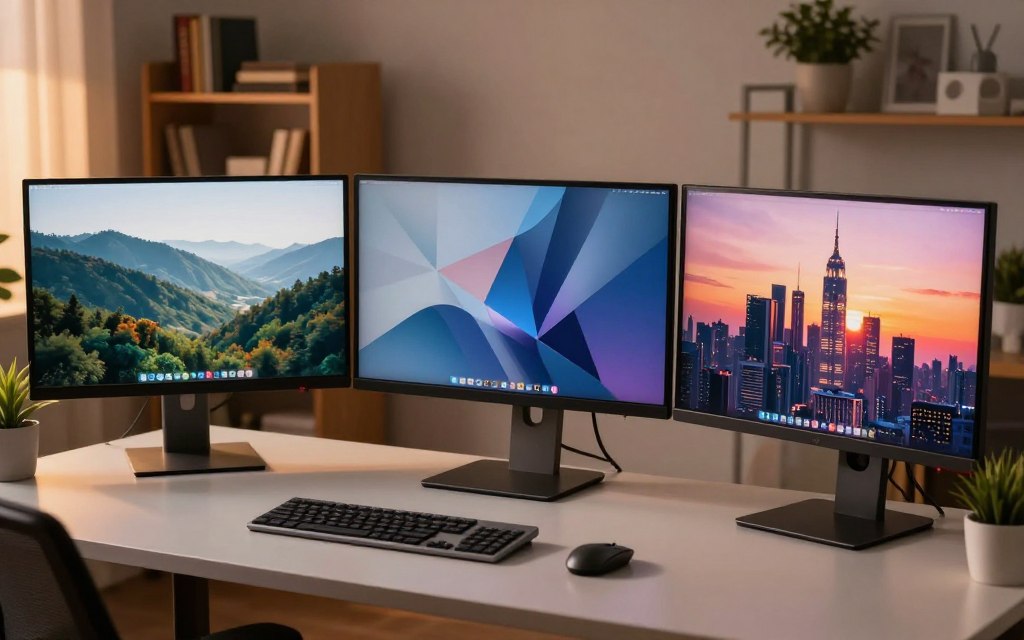
In the wallpaper menu, I click on the display I want to change. I pick the image I like, and it becomes the wallpaper for that screen. This way, each screen has its own look, helping me know which one I’m on.
Managing spaces and Mission Control settings
I also check how Mission Control works with my backgrounds. macOS lets me have different wallpapers for each screen in different spaces. I make sure the “Displays have separate Spaces” option is on in Mission Control settings.
Ensuring wallpaper persistence across reboots
Keeping my layout the same every day is crucial. I set my preferences in the main System Settings menu. This way, my wallpapers stay where I put them, even after a restart.
Troubleshooting Tips
If you run into issues, try these common solutions:
- Right-click options missing: The context menu in File Explorer can sometimes be unreliable. Use the Settings app method described first.
- Wrong monitor numbers: Not sure which is monitor 1 and which is monitor 2? Go to Settings > System > Display and click the “Identify” button. Numbers will appear on each screen, so you can assign wallpapers correctly.
- Image looks cropped: If your wallpaper isn’t fitting properly, go back to Personalization > Background and under “Choose a fit,” select a different option like “Fill” or “Fit” until it looks right.
- No “Set for monitor” options: Ensure your monitors are in “Extend” mode, not “Duplicate“. Also, close any extra “virtual desktops” you might have open, as Windows can confuse the option with those.
Conclusion
Having a unique background for each screen makes my workday better and keeps my desk tidy. A clean, different look on each monitor helps me focus on my tasks. It keeps me organized and efficient.
Windows and macOS have tools that let most people set up their screens nicely. I recommend trying these built-in settings first. You might find they’re all you need.
For those who need more, there are dedicated wallpaper managers for multiple screens. These tools offer advanced features like synchronized transitions and cloud syncing. They’re great for managing complex setups.
I hope this guide helps you make your multi-monitor setup your own. Share your favorite desktop themes or ask about your setup below.
3 thoughts on “How to Set Different Wallpapers on Multiple Monitors”