
Input lag is a silent enemy for competitive players. It’s the delay between pressing a button and seeing the action on screen. Every millisecond counts in a game, so reducing this delay is key to winning. Here’s a clear, practical guide to optimize Xbox Series X for low latency gaming.
Optimizing your gaming console unlocks its full potential. By tweaking your setup, you make sure your actions happen right away. This is crucial for a smooth and quick gaming experience.
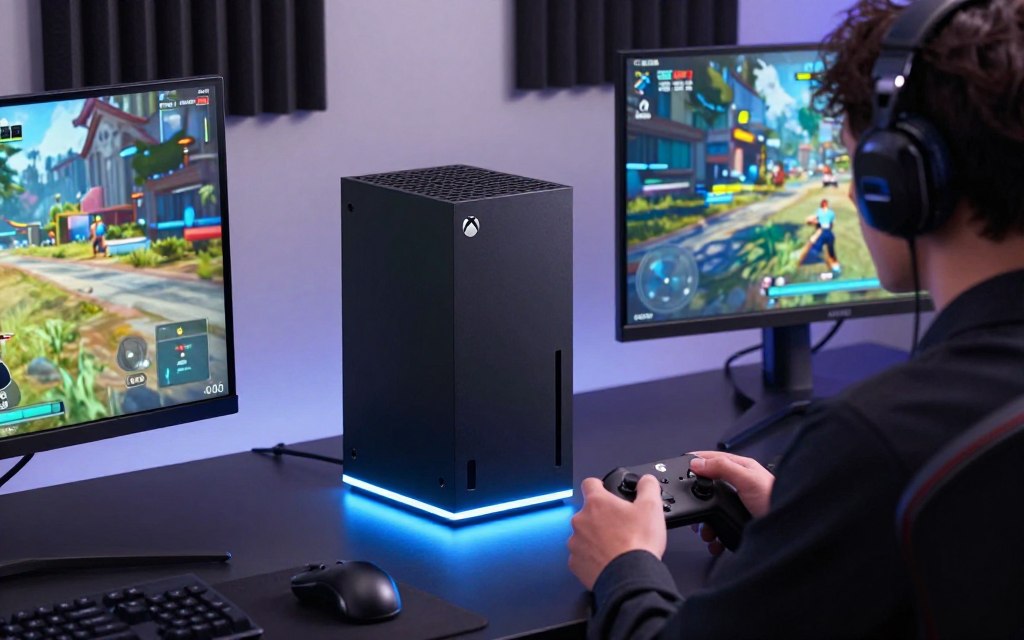
Our guide focuses on three main areas to boost your Xbox Series X gaming. We’ll show you how to adjust your display, network, and system settings. With smart tweaks and regular maintenance, you can play with low latency. Follow these steps to get ahead in your games.
Essential Display and Video Settings to Optimize Xbox Series X for Low Latency Gaming
To cut down input lag on Xbox Series X, start with your display settings. Many modern TVs and monitors have features that can slow down your reaction time. Adjusting your console output helps ensure every button press shows up right away on the screen.
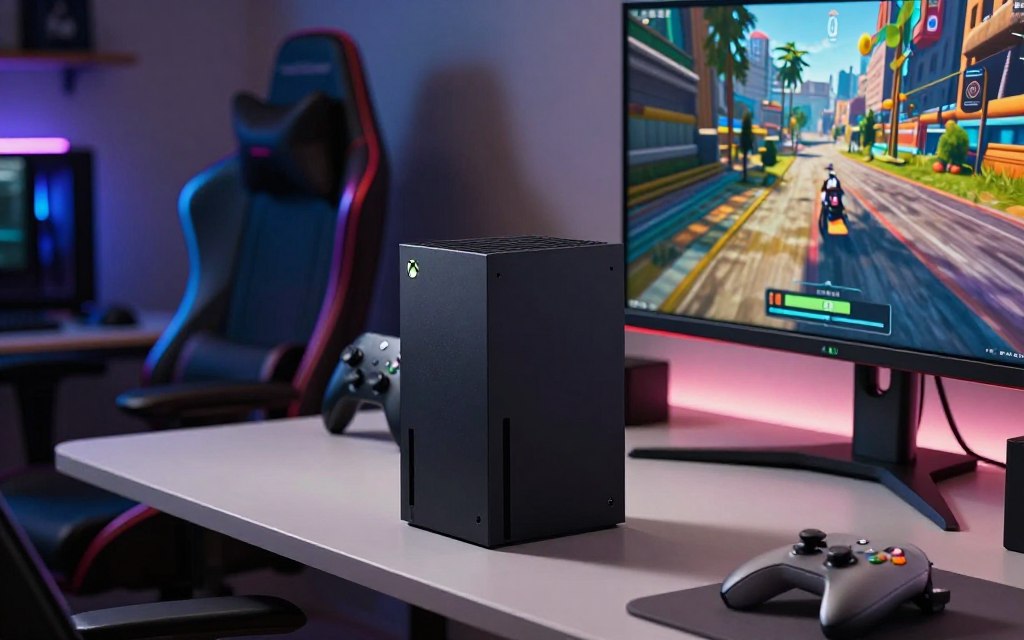
Enabling Auto Low Latency Mode (ALLM)
Auto Low Latency Mode is key. It makes your display switch to its fastest mode automatically. This setting disables extra image processing that can cause delay. You can find it in your console settings under Video Modes.
Configuring Variable Refresh Rate (VRR)
Variable Refresh Rate keeps gameplay smooth and free of visual issues. It matches your display’s refresh rate with your game’s frame rate to avoid screen tearing. Using VRR is a big part of making your Xbox Series X games feel fast and responsive.
Optimizing Resolution and Refresh Rate Settings
Finding the right mix of resolution and frame rate is key for competitive gaming. While 4K looks great, playing at 120Hz can feel much quicker. Make sure your display can handle the settings you choose to avoid performance issues.
Selecting the Correct HDMI 2.1 Output
For high-frame-rate gaming, use the right HDMI 2.1 port on your display. This standard supports 4K at 120Hz without losing signal quality. Using these techniques ensures your Xbox is ready for fast gaming.
Configuring Console Network and Controller Settings for Reduced Input Lag
Network stability and controller responsiveness are key for a top-notch gaming experience. To cut down input lag on Xbox Series X, focus on the digital path and the physical link between controller and console.
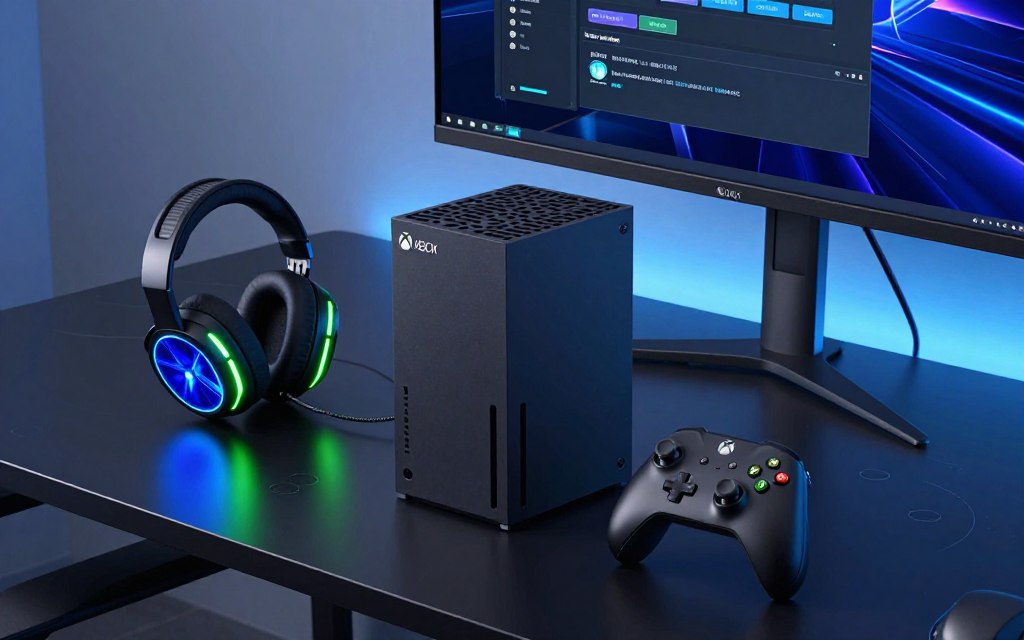
Prioritizing Wired Network Connections
A wired Ethernet connection is the best for low latency gaming on Xbox Series X. It’s better than Wi-Fi, which can be affected by interference and signal changes. A direct cable keeps data flowing smoothly, reducing packet loss and jitter.
Also, having an Open NAT type is crucial for smooth communication with game servers. Check your NAT status in the network settings to avoid firewall problems. A stable, open connection means your inputs are processed quickly by the server.
Adjusting Controller Polling and Wireless Interference
Even with a great network, wireless controller issues can cause small delays. The Xbox wireless protocol is efficient but can face challenges from other devices. Keeping your controller firmware up to date helps maintain the best communication speed.
Minimizing Wireless Signal Obstructions
Physical barriers between your controller and console can weaken the signal and increase latency. To reduce latency, make sure there’s a clear path between the controller and console. Avoid placing the console in closed cabinets or behind large metal objects.
Also, keep other wireless devices, like routers or cordless phones, away from your gaming area. Reducing the number of active Bluetooth devices nearby helps keep the signal strong. These small changes ensure your inputs are registered instantly, giving you an edge in competition.
Advanced Hardware and Peripheral Adjustments for Competitive Performance
Optimizing your gaming console starts with the physical parts. Software settings are just the beginning. The right hardware is key to top performance. It makes sure your actions on the controller show up on screen fast.
Selecting the Right Gaming Monitor or TV
The display is crucial for your setup. For Xbox Series X, choose monitors with low input lag and fast response times. High refresh rates make visuals smoother during fast action.
OLED displays are great for competitive players because of their quick pixel response. If you prefer a TV, make sure it has a Game Mode. This mode skips extra image processing, making your display quicker to react.
Utilizing High-Speed HDMI Cables
Connecting your console to your display needs a fast cable. Use an Ultra High-Speed HDMI 2.1 cable for Xbox Series X. These cables support 4K at 120Hz without losing signal quality.
Make sure your cable is certified to the latest standards. Old or damaged cables can cause problems during games. A good cable keeps your hardware talking smoothly, keeping your edge sharp.
Managing Background Downloads and System Updates
Your console works hard, but background tasks can slow you down. To improve Xbox Series X performance, stop downloads or updates before playing. These tasks use up bandwidth and resources that games need.
Update your system during off-peak hours to avoid interruptions. This keeps your system focused on the game. Small tweaks like these help keep your gaming environment top-notch for every match.
Conclusion
To get the best gaming experience, you need to focus on a few key areas. These include display calibration, network stability, and keeping your hardware in top shape. Clearing the system cache on your Xbox Series X is a simple way to improve performance. It removes temporary files without touching your saved games or apps.
Making small changes to your setup can make a big difference. By regularly adjusting these settings, you can make your Xbox Series X faster and more accurate. This will help you perform better in games, making every match more exciting.
We suggest trying out these tweaks to find what works best for you. Test them in different games to see how they affect your speed. By fine-tuning these settings, you’ll get a real edge in intense gaming moments.
3 thoughts on “How to Optimize Xbox Series X for Low Latency Gaming”