
Seeing a green screen on your laptop can be really shocking, even when you’re in the middle of something important. Many people worry it’s a sign their laptop is broken for good. But, this green screen is usually a software issue, not a hardware problem. This guide will show you how to fix the green screen issue on your laptop without spending a lot of money.
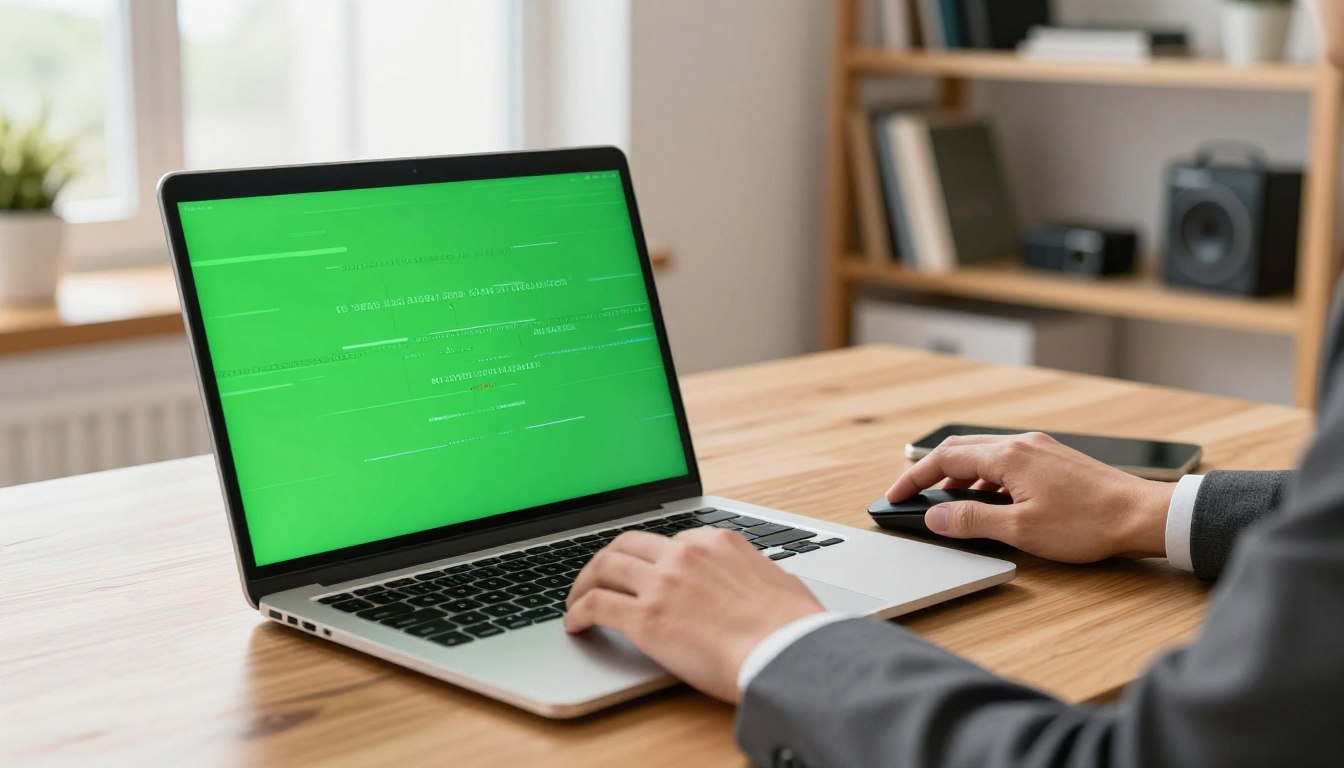
By following a step-by-step guide, you can figure out if it’s a display setting or a hardware issue. You might also find that fixing vertical lines on your screen is similar. This guide on how to fix vertical lines on computer can help.
Diagnostic Steps to Fix Green Screen on Laptop
To find out why your screen looks green, follow some simple steps. First, figure out if the problem always happens or if it changes. Knowing this helps you start fixing your laptop’s green screen issue.
Identifying the Scope of the Green Tint
See if the green tint shows up right when you turn on your laptop. If it does, it might be a hardware or driver problem.
But if it only shows up when you use certain apps, it could be a software issue. Check if any apps have color filters turned on. This helps you know if you need to fix system files or app settings.
Checking for External Display Interference
Try connecting your laptop to an external monitor. If the external screen looks fine, the problem is probably with your laptop’s display.
If the green tint shows up on the external screen too, it might be a graphics card or driver problem. Make sure your cables and ports are good. This helps you see if your GPU is working right.
Testing with Safe Mode
Safe Mode loads only the most basic drivers. It helps you find if third-party software is causing the problem.
If your screen looks normal in Safe Mode, a new program or a bad driver is likely the problem. You can then remove the bad software. This method helps you find and fix software issues quickly.
Advanced Software and Hardware Troubleshooting Methods
If your screen still looks off, it’s time to try more advanced fixes. These steps tackle problems that a simple restart can’t solve. By following these steps, you can improve your laptop’s display.
Updating or Reinstalling Graphics Drivers
Using Device Manager for Driver Updates
Start by checking your graphics drivers. Open the Device Manager by right-clicking the Start button. Then, select it from the menu. Next, expand the Display Adapters section, right-click your graphics card, and choose Update driver.
Performing a Clean Install of GPU Drivers
At times, just updating isn’t enough. You might need to do a clean install. Download the latest drivers from the manufacturer’s website. Use Display Driver Uninstaller to remove old files before installing the new ones.

Adjusting Color Calibration and Display Settings
Software issues can look like hardware problems. Go to your display settings to check your color profile. Use the Windows Color Calibration tool to reset your screen’s color balance and get rid of the green tint.
Inspecting Physical Hardware Connections
If software fixes don’t work, check the physical parts. A loose connection can cause display problems. Be careful when you open your laptop to avoid damaging it.
Checking the Laptop Lid Cable
The ribbon cable connecting your screen to the motherboard can get loose or frayed. Check the connection points near the hinge to make sure they’re secure. This is crucial when fixing hardware issues.
Evaluating Potential LCD Panel Damage
If cables are secure but the problem continues, the LCD panel might be failing. Look for cracks or dark spots that show internal damage. If you find damage, you might need a professional to replace the display assembly.
Conclusion
Learning to fix your laptop screen is a great skill. You can now handle the green screen issue with ease. Keeping your graphics drivers up to date is key to avoiding green screens.
By following these steps, you can fix green tint issues on your own. This saves you time and money. Knowing how to repair your laptop keeps your performance in check.
Share your success stories with others. Did a driver update fix your screen? Your feedback helps others solve their problems. Keep your device updated for a clear and vibrant screen for years.
1 thought on “How to Effectively Fix the Green Screen Issue on Your Laptop”