
Seeing unexpected display artifacts can be frustrating for any user. Many people encounter a vertical lines on computer screen issue. This issue disrupts their workflow and visual experience. These glitches often stem from loose cables, outdated drivers, or hardware malfunctions within the monitor itself.
Understanding why computer screen vertical lines appear is the first step toward a resolution. This guide provides a reliable vertical lines on screen fix. It helps you restore your display quality without needing expensive professional repairs. By following these simple steps, you can troubleshoot and eliminate these annoying visual defects at home.
Identifying the Cause of Vertical Lines on Computer Screen
Finding out why your screen has vertical lines is key to fixing it. First, check if it’s a temporary glitch or a lasting hardware problem. This helps you avoid making changes that won’t fix the issue.
Distinguishing Between Hardware and Software Faults
Software problems usually come from old graphics drivers or wrong screen settings. If lines show up only with certain apps, it’s likely a software issue. But, if lines are there at startup or in the BIOS, it’s a hardware problem.
Hardware issues show as static patterns that don’t change with software. Spotting these patterns early helps you choose between updating drivers or getting professional help.
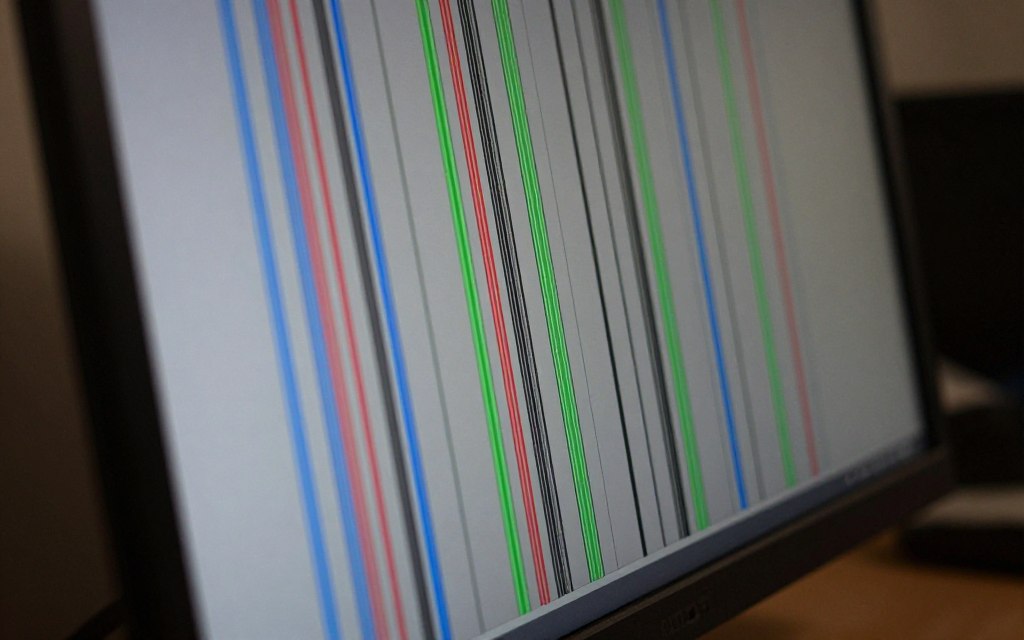
Checking for Physical Damage to the Monitor or Laptop Panel
It’s important to check for physical damage. Look for cracks, pressure marks, or liquid damage on your screen. Even small impacts can cause vertical lines.
If you find damage, you might need a new screen panel. This is common for laptop screens, which are sensitive to drops and pressure.
Testing with External Displays to Isolate the Problem
Using an external monitor is a good way to find the problem. If the external screen looks fine, the issue is probably with your original screen. But, if lines appear on the external monitor too, it’s likely a graphics card problem.
This test helps you figure out if the graphics card is the problem. Knowing this saves you from unnecessary screen repairs and helps you focus on fixing the real issue.
Troubleshooting Hardware Connections and Cables
Problems with hardware connections can show up as lines on your screen. Before you think about expensive fixes, check if your cables are tight and working right. A loose cable or a bad port can cause these lines.
Inspecting Video Cables for Damage or Loose Connections
First, look at your video cables for damage. Check for fraying, bent pins, or exposed wires. Even a small loose connection can mess up your image.
Make sure your cable fits well in both the monitor and the graphics card port. Sometimes, just unplugging and plugging it back in can fix the problem. If it feels loose, the port might be damaged.
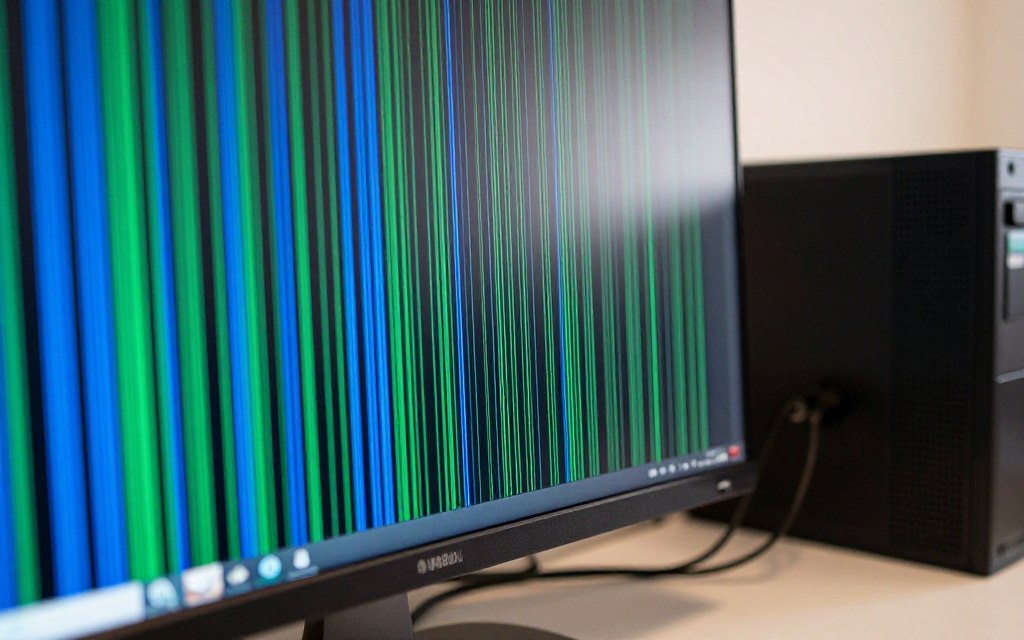
Swapping HDMI, DisplayPort, and VGA Cables
If checking the cables doesn’t help, try using a different one. Bad cables can cause signal problems. Try a different HDMI, DisplayPort, or VGA cable to see if it works.
Using a good, shielded cable can also help. If the lines go away with a new cable, you found the problem. This easy test can save you a lot of time and trouble.
Reseating Internal Ribbon Cables for Laptop Users
Laptop users might face a tougher challenge. The ribbon cable inside can get loose over time. Reseating it might fix the problem if it’s just a loose connection.
Safety Precautions When Opening Laptop Chassis
Before you open your laptop, turn it off and remove the battery. Static electricity can harm your laptop’s inside. Use an anti-static wrist strap if you have one. Working on your laptop needs patience and care to avoid more damage.
Software and Driver Solutions for Display Issues
Software problems can make your screen look damaged. Vertical lines on your display often come from bad or old drivers. Fixing these issues can make your screen clear again, without the need for costly repairs.
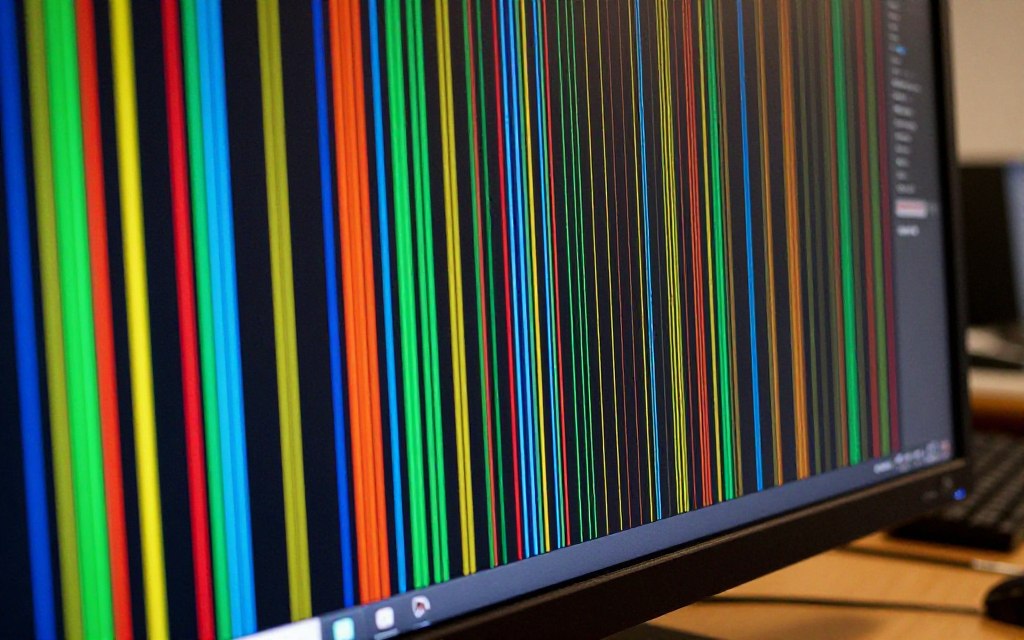
Updating Graphics Card Drivers via Device Manager
The Device Manager is key to fixing display problems. To check for updates, right-click the Start button and choose Device Manager. Look for your graphics adapter under display adapters to find newer versions.
Updating drivers can stop vertical lines on your screen. After updating, restart your computer. This simple action often fixes small issues between your system and GPU.
Adjusting Screen Resolution and Refresh Rate Settings
Incorrect settings can cause distorted images or vertical lines. Go to your display settings to make sure the resolution is right. It should match your monitor’s native value.
Also, check that your refresh rate matches your monitor. The wrong rate can cause flickering or lines. Adjusting these settings ensures your monitor gets a stable signal.
Performing a Clean Reinstallation of Display Adapters
If updates don’t work, try reinstalling the drivers. This removes old drivers and installs new ones. It’s a good way to fix vertical lines on your screen.
Using Display Driver Uninstaller for Deep Cleaning
For a deep clean, use the Display Driver Uninstaller (DDU) tool. It removes all old driver files that regular uninstallers miss. It’s great for fixing stubborn vertical lines on your screen.
Conclusion
Systematic troubleshooting is key to fixing display issues. You can often solve problems by making simple software changes or checking cables. But, if issues keep coming back, it might mean a bigger problem. If basic fixes don’t work, you might need a pro to fix your monitor or laptop.
It’s important to take care of your hardware. Keeping your graphics drivers up to date can prevent many issues. Also, make sure your cables are secure and not too tight. Dealing with vertical lines on your screen? Taking good care of your equipment helps. Share your experiences below. Your stories can help others fix their own display problems.
2 thoughts on “How to Fix Vertical Lines on Computer Screen Easily”