
Roblox is one of the most popular gaming platforms in the world, with millions of daily active users. While it offers creativity and social interaction, many parents find themselves needing to limit or block access entirely. This article will help you to block Roblox on your router, from simple built-in parental controls to advanced DNS filtering.
Why Block Roblox at the Router Level?
Blocking Roblox directly on your router is smarter than blocking it on individual devices because:
- It applies to all devices on your Wi-Fi at once.
- Your child cannot bypass it by switching browsers.
- You can set time-based schedules (e.g., only block during school hours).
- It takes less than 5 minutes to set up.
- You don’t need to install any third-party apps.
Roblox has over 380 million monthly active users, and nearly 80% of its users are under the age of 16. Many parents are concerned about unlimited screen time, addictive gameplay, and exposure to inappropriate content within user-generated games.
Reliable Methods to Block Roblox on your Router
If your child is spending too much time on Roblox, blocking it at the router level is the most effective solution — it works on every device connected to your Wi-Fi, including phones, tablets, PCs, and smart TVs, without needing to install anything on each device.
Method 1: Blocking Roblox on Asus Router
Asus routers include a built-in URL Filter under the Firewall settings, making it easy to block specific websites.
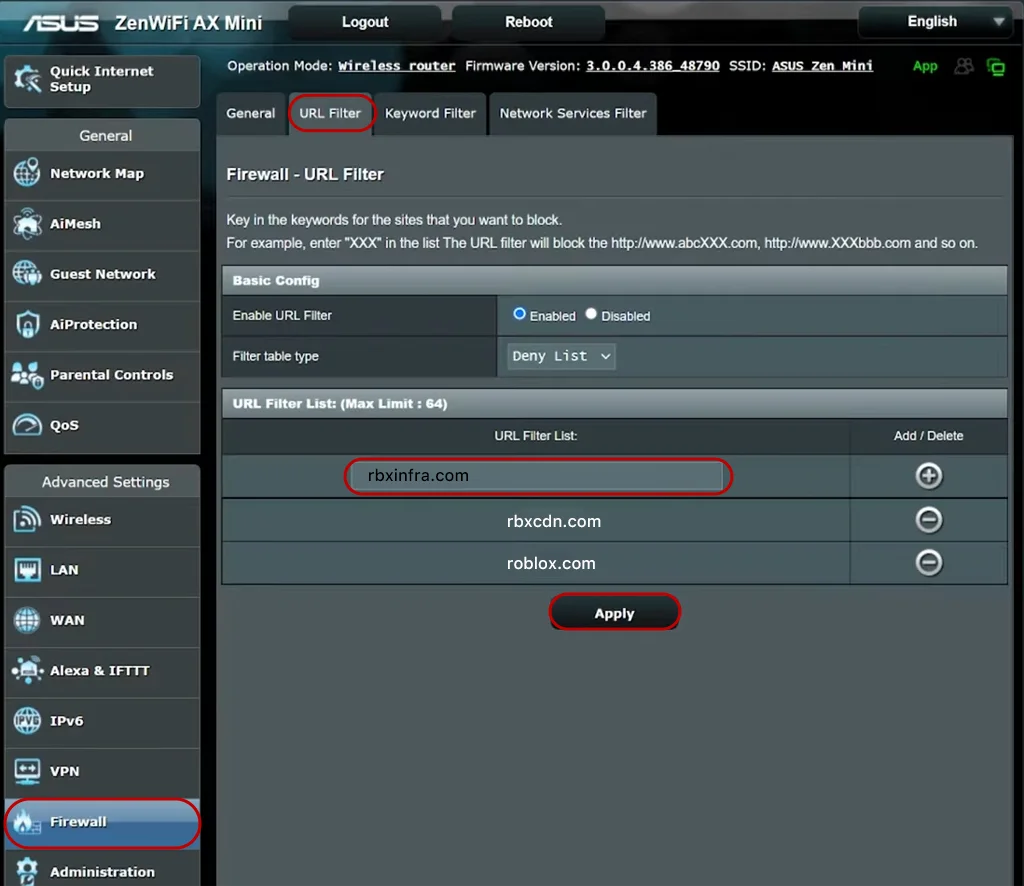
- Open your browser and type your router’s IP address — usually 192.168.1.1 or 192.168.0.1 — into the address bar.
- Log in with your admin username and password (default is often admin / admin).
- Go to Advanced Settings → Firewall.
- Click the URL Filter tab and enable the URL Filter.
- Select the type Black List.
- Add roblox.com, rbxcdn.com, and rbxinfra.com to the list.
- Click Apply to save your settings.
Method 2: Block Roblox on Netgear Router
Netgear routers have a dedicated Block Sites feature in their Security settings.
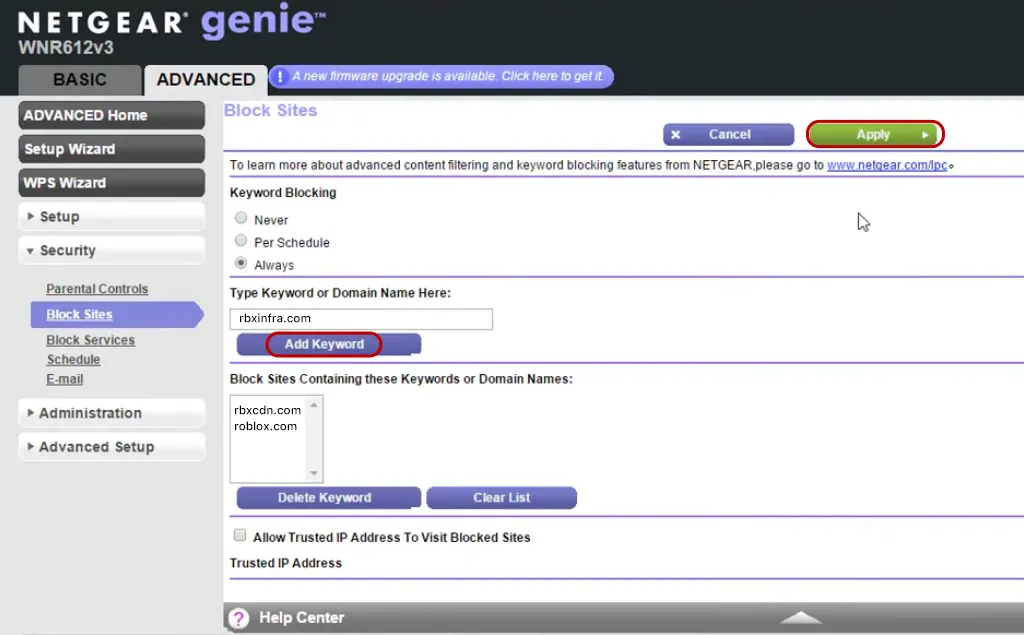
- Open a browser and go to 192.168.1.1 or routerlogin.net.
- Log in with your admin credentials.
- Go to Advanced → Security → Block Sites.
- Select Always (to block all the time) or choose Per Schedule if you only want to block during certain hours.
- Under “Type keyword or domain name here,” enter roblox.com.
- Click Add Keyword and then Apply.
Tip: Netgear also lets you type Roblox as a keyword, which will block any URL that contains the word Roblox.
Method 3: Block Roblox on TP-Link Router
TP-Link routers use an Access Control system to block websites by domain or device.
- Open your browser and go to 192.168.0.1 or tplinkwifi.net.
- Log in with admin credentials.
- Go to Advanced → Security → Access Control.
- Enable Access Control and select Blacklist mode.
- In the Host list, click Add New and enter roblox.com as the domain.
- Save your settings and verify the block is active.
You can also restrict access to specific devices only — useful if you want to block Roblox on your child’s tablet but keep it available on other devices.
Method 4: Block Roblox on Xfinity (Comcast) Router
Xfinity users can manage site blocking through the Xfinity xFi app or their router’s admin panel.
- Open the Xfinity xFi app on your phone or go to xfi.xfinity.com.
- Go to Parental Controls → Managed Services.
- Choose Enable and look for the Blocked Sites option.
- Add roblox.com and rbxcdn.com to your blocked list.
- Apply the rules and test on a connected device.
You can also assign internet time limits per profile — perfect for school nights.
Method 5: Block Roblox Using OpenDNS (Works on Any Router)
If your router doesn’t have built-in website blocking, OpenDNS is the best alternative. It’s a free DNS filtering service that blocks websites across your entire network by changing your router’s DNS server addresses.
- Step 1 – Create a free OpenDNS account at opendns.com and add your home network.
- Step 2 – Change your router’s DNS settings:
- Log into your router admin panel (192.168.1.1 or 192.168.0.1).
- Go to WAN Settings or Internet Settings → DNS.
- Replace your current DNS servers with:
- Primary DNS: 208.67.222.123
- Secondary DNS: 208.67.220.123
- Save settings and restart your router.
- Step 3 – Block Roblox via OpenDNS Dashboard:
- Log into your OpenDNS account at dashboard.opendns.com.
- Click your network → Web Content Filtering.
- Either choose the Gaming category to block all gaming sites, or add roblox.com manually to your blocked domains list.
Advantage: OpenDNS works even on routers with no parental controls built in.
Method 6: Set Up Time-Based Roblox Blocking
You don’t have to block Roblox 24/7 — most routers with parental controls let you create a schedule so Roblox is only blocked during homework time, school hours, or bedtime.
- Asus: Advanced Settings → Parental Controls → Enable Time Scheduling
- Netgear: Security → Block Sites → Per Schedule → Set the schedule
- TP-Link: Advanced → Parental Controls → Add time restriction rules
- Xfinity xFi app: Parental Controls → Downtime → Set daily schedules
This gives children supervised play time instead of a complete ban, which can reduce frustration.
Block Roblox on a Specific Device Only
Many parents don’t want to block Roblox for the whole house — just on their child’s device. Here’s how to apply device-specific restrictions:
- Log into your router admin panel.
- Find the Device Management, Access Control, or Connected Devices section.
- Identify your child’s device by its MAC address (found in the device’s Wi-Fi settings).
- Apply website blocking or time restrictions only to that device’s MAC address.
This way, parents and other family members can still use Roblox freely.
Roblox Domains to Block
For the most effective blocking, add all of these domains to your router’s blocklist or DNS filter:
| Domain | Purpose |
| roblox.com | Main website and game launcher |
| rbxcdn.com | Content delivery network (game assets) |
| robloxlabs.com | Development and testing servers |
| robloxcdn.com | Additional content delivery |
| rbxinfra.com | Infrastructure and backend services |
| *.roblox.com | (Wildcard) Blocks all subdomains automatically |
Pro tip: If your router supports wildcard blocking (using *), use *.roblox.com to block every subdomain without listing them individually.
Common Issues & Troubleshooting
“I added the domains but Roblox still works!”
- Check your router’s DNS settings. Some routers require a reboot for changes to take effect.
- Test on a device that was already connected. You may need to disconnect and reconnect to WiFi.
- Some apps hardcode IP addresses. Certain apps (like YouTube) bypass DNS filtering entirely by using pre-configured IP addresses. For Roblox, DNS filtering usually works, but if it doesn’t, consider a firewall-based solution.
“My child bypassed the block using a VPN or mobile data”
Router-level blocking only applies when devices are connected to your home WiFi. If your child has:
- Cellular data (iPad with SIM card), they can simply turn off WiFi and use mobile data
- A VPN installed, they can bypass DNS filtering entirely
Solution: Combine router blocking with device-level restrictions. On iPhones/iPads, use Screen Time to prevent VPN installation and disable cellular data during certain hours. On Windows, create a standard (non-admin) user account.
Frequently Asked Questions
Q: Does blocking roblox.com completely stop the game from working?
Yes — Roblox requires roblox.com to authenticate and load games. Blocking it at the router level will prevent login and gameplay on all connected devices.
Q: Do I need to block rbxcdn.com too?
Blocking roblox.com is usually enough to stop the game. However, adding rbxcdn.com and rbxinfra.com ensures all Roblox-related content delivery is blocked as well.
Q: What if my router doesn’t have parental controls?
Use OpenDNS as described in Method 5 above — it works on virtually any router regardless of brand or model.
Q: Can I block Roblox only on weekdays?
Yes, if your router supports time-based scheduling (most Netgear, Asus, TP-Link, and Xfinity models do). Set a schedule that applies restrictions Monday through Friday during school hours.
Q: Will this block Roblox on consoles like Xbox and PlayStation too?
Yes — router-level blocking affects every device on your network, including gaming consoles, as long as they’re using your Wi-Fi.
Final Thoughts
Blocking Roblox at the router level is the most reliable way to enforce screen time limits and keep your home network safe. Start with built-in parental controls if your router supports it. If not, OpenDNS is free, effective, and works with almost any router.
For families dealing with tech-savvy kids who find workarounds, combine multiple methods: use router-level blocking plus device-level restrictions (Screen Time, standard user accounts, or a dedicated parental control app). This layered approach is the only way to stay ahead in the cat-and-mouse game.
Remember that communication matters too. Talk to your kids about why you’re limiting Roblox access—whether it’s about balancing homework and playtime, online safety, or simply setting healthy boundaries.
1 thought on “How to Block Roblox on Your Router: A Parent’s Complete Guide”