
Is your Google Fiber connection acting up? Experiencing lag, drop-offs, or a complete outage? Before you call support, a simple router reset can often be the fastest and most effective fix. This guide walks you through every way to reset your Google Fiber router, from a quick power cycle to a full factory reset.

This step-by-step guide explains exactly how to reset your Google Fiber router — whether you have a Fiber Jack, Network Box, or a Google Nest Wifi Pro — along with what each reset does, how long it takes, and what to do after.
Understanding Your Google Fiber Hardware
Before resetting, it helps to know what each device does:
- Fiber Jack (ONT): The small box that converts the fiber optic signal from outside your home into a usable internet connection.
- GFiber Router/Network Box: The primary device that distributes the internet connection throughout your home, either wirelessly or via Ethernet cables.
- Mesh Extenders: Additional devices that boost your Wi-Fi signal to eliminate dead zones.
When Should You Reset Your Router?
Resetting your router can resolve a variety of common issues, such as:
- Persistent Connectivity Issues: Frequent disconnections or an inability to connect at all.
- Slow Internet Speeds: When your connection is significantly slower than your plan’s advertised speed.
- Network Congestion: Slowdowns caused by having too many devices connected at once.
- Forgotten Passwords: When you’ve lost or forgotten your Wi-Fi network name (SSID) or password.
- Firmware Glitches: Issues stemming from outdated or corrupted router software.
Preparation Before You Start
Take these quick preparatory steps to ensure a smooth reset:
- Back up your custom settings if possible, as a full factory reset will erase them.
- Have your Google Fiber account credentials ready for reconfiguration after a hard reset.
- Ensure you have the Google Fiber app installed on your smartphone.
How to Soft Reset (Reboot) Your Google Fiber Router
A soft reset is the simplest fix and takes less than 3 minutes. No tools needed.
Steps to reboot your Google Fiber router:
- Locate the power cable at the back of your Google Fiber router.
- Unplug the power adapter from the wall outlet — or disconnect it directly from the router.
- Wait a full 60 seconds (don’t rush this step).
- Plug the power cable back in.
- Wait 2–3 minutes for the router to fully reconnect to the network.
- Check your internet connection on a connected device.
Pro Tip: If your Google Fiber Fiber Jack (the small wall-mounted unit) is having issues, you can also reset it the same way — unplug it from power, wait 30 seconds, then plug it back in.
How to Factory Reset Google Fiber Router (All Models)
A factory reset permanently erases all your settings, including your Wi-Fi name (SSID), password, IP reservations, and VLAN configurations. Make sure to note down your Wi-Fi name and password before proceeding.
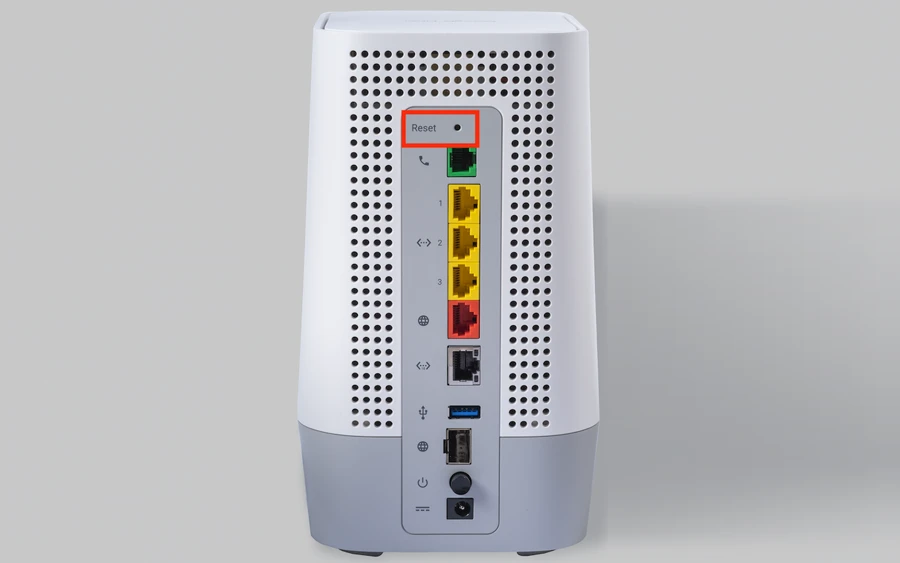
You’ll need a small pin, toothpick, or paperclip to press the recessed reset button.
Google Fiber Network Box (GFRG200)
- Make sure the router is plugged in and powered on.
- Locate the reset button on the back of the device.
- Insert a paperclip and press and hold the reset button for 10 seconds.
- The light will flash yellow, then turn solid yellow — release the button when solid yellow appears.
- The reset process starts automatically and can take up to 10 minutes.
- Do not unplug the power cord during this process.
- When complete, the light will pulse white, indicating the router is ready for setup.
Google Nest Wifi Router
- Ensure the device is powered on.
- Locate the factory reset button (a circle etched into the bottom or back of the device).
- Press and hold the button for 10 seconds.
- The light will flash yellow, then turn solid yellow — release when solid.
- The reset process can take up to 10 minutes — do not power off.
- When done, the light will pulse white, meaning setup is ready.
Google Nest Wifi Point (Mesh Extender)
- Locate the reset button on the bottom of the Nest Wifi point.
- Press and hold the factory reset button.
- After about 5 seconds, the device begins resetting.
- Continue holding for a total of 10 seconds until you hear a confirmation sound.
- The device will still appear in the Google Home app — to fully remove it, manually delete it from the app.
Google Nest Wifi Pro
- The reset button is located on the side of the device.
- Press and hold the reset button for 10 seconds.
- The indicator light will start flashing periodically — release the button.
- Wait 5–10 minutes for the device to reboot and for Google’s Cloud to reapply firmware settings.
- Lights will stabilize to indicate the reset is complete.
OnHub Router (Legacy Model)
- Unplug the OnHub from power.
- Use a paperclip to press and hold the factory reset button.
- While still holding the button, plug the power cable back in.
- Continue holding the button for about 10 seconds.
- Note: Holding for more than 15 seconds will cause the device to flash red and abort the reset — unplug and try again.
- The reset process takes up to 10 minutes — don’t unplug during this time.
- When complete, the OnHub will pulse blue.
How to Factory Reset Using the Google Home App
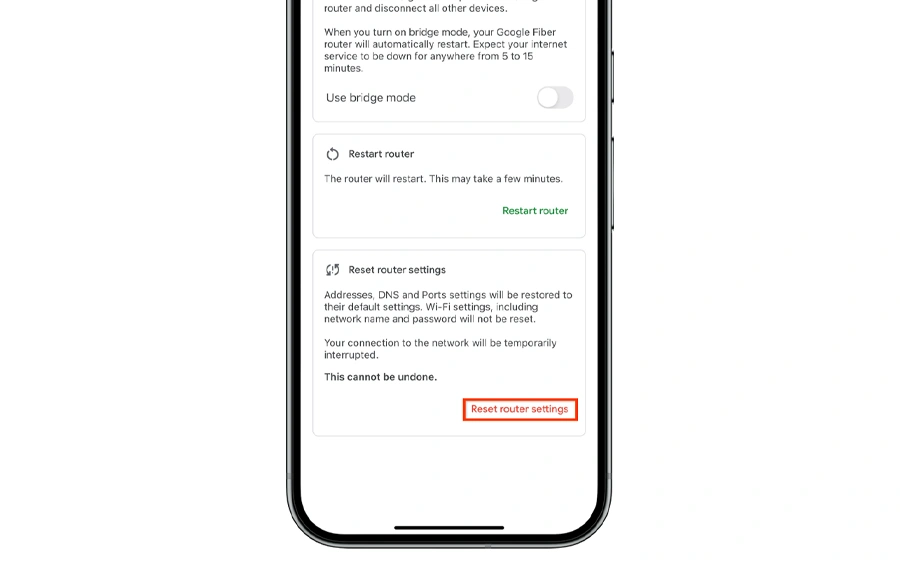
If you prefer not to use the physical button, you can reset via the app:
- Open the Google Home app on your phone.
- Tap Home, then All Devices.
- Touch and hold your router’s tile.
- Tap the Settings icon (gear icon).
- Tap Factory Reset.
- Confirm by tapping Factory Reset again.
- Your Wifi point(s) will flash blue, then turn solid blue.
The process can take up to 10 minutes — your router will be removed from your Google Account immediately
What to Do After Resetting Your Google Fiber Router
Once the factory reset is complete, your router is like brand new. Here’s how to get back online quickly:
- Open the Google Home app (or visit 192.168.86.1 in a browser) to begin setup.
- Re-enter your Wi-Fi network name (SSID) and password — use the same credentials as before so your devices reconnect automatically.
- Reconnect all smart home devices, including TVs, speakers, and smart plugs that were on your old network.
- Re-enter any custom settings you noted before the reset — static IPs, DHCP reservations, port forwarding rules.
- Update your router firmware if the app prompts you to do so after setup.
If your router was removed from your Google Account during the reset, you’ll need to re-add it in the Google Home app before completing setup.
Google Fiber Router Still Not Working After Reset?
If your connection issues persist even after a factory reset, try these additional steps:
- Check for an outage in your area using the Google Fiber app or the official Google Fiber status page.
- Reset your Fiber Jack separately — unplug it, wait 30 seconds, then reconnect.
- Recheck all cable connections — ensure the fiber cable is securely inserted into the Fiber Jack.
- Contact Google Fiber support at 1-844-363-4237 if hardware replacement is needed.
- Move your router to a central, elevated location for better signal distribution.
Final Thoughts
Resetting your Google Fiber router is a straightforward process once you know which type of reset to perform and which model you own. Always start with a soft reset (reboot) to avoid losing your settings — and only move to a full factory reset when necessary.
Keep the Google Home app on your phone ready for the post-reset setup, and note your Wi-Fi credentials beforehand to get all your devices reconnected quickly.
2 thoughts on “How to Reset Google Fiber Router: Soft Reset & Factory Reset Guide”