
Is your Google Fiber internet crawling even though you’re paying for gigabit speeds? Before you wipe your settings with a factory reset, there are at least 10 effective fixes you can try first. Most slow-speed problems come from router placement, Wi-Fi band interference, device congestion, or firmware issues — all fixable without losing a single setting. This guide walks you through each fix step by step to fix Google Fiber slow speeds, from easiest to most advanced.

Troubleshooting Guide to Fix Google Fiber Slow Speeds
Google Fiber is one of the fastest internet services available, offering symmetrical speeds up to 8 Gbps. So when it starts lagging or buffering, it’s understandably frustrating. This guide will walk you through 10 simple steps to diagnose and fix slow speeds on your Google Fiber connection.
Step 1: Check for a Service Outage
Before troubleshooting your equipment, ensure there’s no widespread outage in your area. Visit fiber.google.com and sign in to your account, or check the GFiber app for any service alerts.
Step 2: Run a Baseline Speed Test
You need a benchmark to compare against.
- Wired Test (Most Accurate): Connect a computer directly to the Fiber Jack (or to the router’s LAN port) using a Cat5e or Cat6 Ethernet cable. Then run a speed test at speed.googlefiber.net or via the GFiber app.
- Wi-Fi Test: For a wireless test, stand close to your router and use the same speed test tool.
- Expected Results: A wired connection should deliver close to your plan’s advertised speed (e.g., ~940 Mbps for the 1 Gig plan). Wi-Fi will be lower, especially on older devices.
Pro Tip: The GFiber app’s speed test measures the speed between the GFiber network and your Fiber Jack, effectively a hardwired test without involving your internal network.
Step 3: Restart (Power Cycle) Your Equipment
A simple restart can clear temporary glitches and refresh your connection.
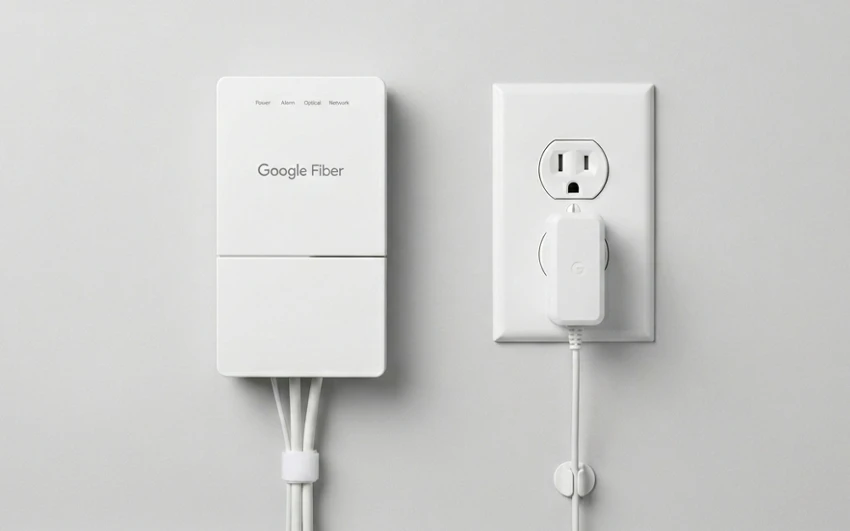
- Unplug the power cord from your Fiber Jack and router (or Network Box).
- Wait 30 seconds to allow residual power to drain.
- Plug the Fiber Jack back in and wait for the lights to stabilize (about 1–2 minutes).
- Plug the router back in and wait for it to fully boot (another 2–3 minutes).
Step 4: Optimize Router Placement
Wi-Fi signals are easily blocked. For the best coverage:
- Place your router in a central, elevated location (e.g., on a shelf, not the floor).
- Keep it away from walls, metal objects, and other electronics (especially microwaves and cordless phones).
- Do not hide it inside a cabinet or closet.
Step 5: Reduce Network Congestion
Too many active devices can slow down your connection for everyone.
- Temporarily disconnect non-essential devices (smart TVs, tablets, IoT devices) and test speeds again.
- Pause or limit bandwidth-heavy activities (large downloads, 4K streaming, cloud backups) during speed tests.
Step 6: Check Your Ethernet Cables
If you’re using a wired connection, a faulty or outdated cable is a common bottleneck.
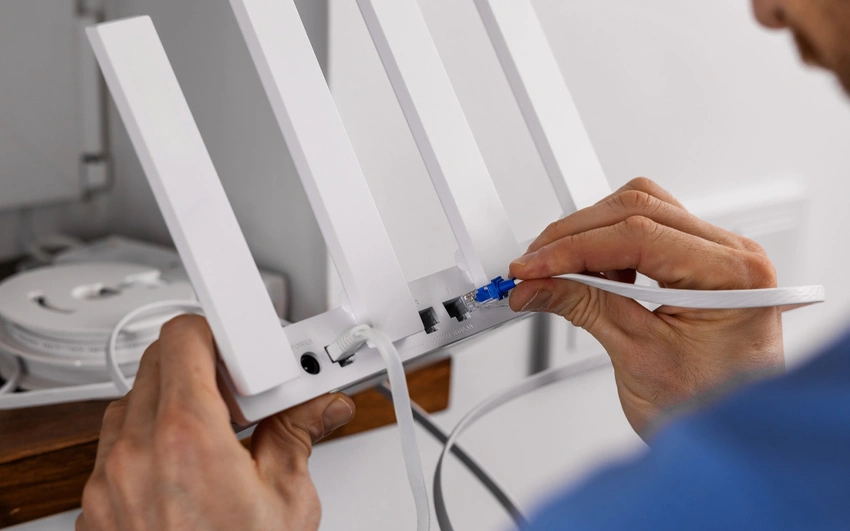
- Ensure you are using at least Cat5e or Cat6 Ethernet cables (Cat5 cables max out at 100 Mbps).
- Try a different, known-good cable to rule out damage.
Step 7: Update Device Drivers & Firmware
Outdated software can limit performance.
- Network Adapter Drivers: On Windows, go to Device Manager > Network Adapters, right-click your adapter, and select Update driver.
- Router Firmware: Check the GFiber app or your router’s web interface for available firmware updates.
Step 8: Disable Bandwidth-Heavy Background Apps
Background processes can silently consume your bandwidth.
- Windows: Open Task Manager (Ctrl+Shift+Esc) and check the Network column. Look for apps using high percentages.
- Pause Windows Updates temporarily during a speed test.
- Close cloud sync apps (Google Drive, Dropbox, OneDrive) and game launchers (Steam, Epic Games).
Step 9: Test a Different Device
Isolate whether the problem is with one device or your entire network.
- Run a speed test on multiple devices (phone, laptop, desktop).
- If only one device is slow, the issue is likely with that device’s hardware or software.
- If all devices are slow, the problem is with your Google Fiber connection or router.
Step 10: Adjust Your Router’s Wi-Fi Settings
If Wi-Fi speeds are consistently slow but wired speeds are fine, try these tweaks:
- Separate 2.4 GHz and 5 GHz bands in your router’s settings. Connect newer devices to the 5 GHz band for faster speeds.
- Change the Wi-Fi channel to avoid interference from neighboring networks. Use a Wi-Fi analyzer app to find the least congested channel.
- Enable Quality of Service (QoS) if your router supports it, to prioritize critical traffic like gaming or video calls.
Advanced Fixes for Persistent Slowdowns
If the basic steps didn’t solve the issue, try these more advanced solutions.
Fix Bufferbloat (Lag Under Load)
Bufferbloat causes high latency when your connection is under heavy load, resulting in lag during gaming or choppy video calls.
- Test for bufferbloat using the Waveform Bufferbloat Test or DSLReports speed test.
- Enable Smart Queue Management (SQM) in your router settings if available. Look for features like fq_codel or CAKE.
- If your Google Fiber router doesn’t support SQM, consider using your own router that does, placing it between the Fiber Jack and your network.
Perform a Factory Reset
If you’ve made many changes and speeds are still poor, a full reset might help.
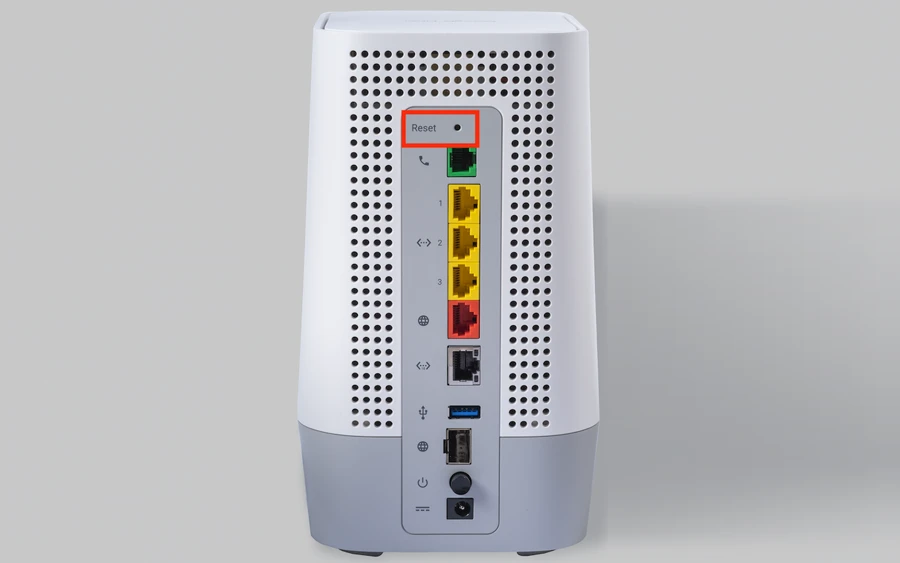
- Locate the small reset button on the back of your Google Fiber Network Box (usually recessed).
- Use a paperclip to press and hold the button for about 10 seconds.
- Release the button and wait for the box to restart. This can take several minutes.
- Set up your network again using the GFiber app. You’ll need to recreate your network name (SSID) and password.
Warning: A factory reset erases all custom settings. Only do this as a last resort.
Use Your Own Router
If you continue experiencing issues with Google Fiber’s provided router, you can use your own. Many users report better performance with third-party routers from brands like TP-Link, ASUS, or Netgear that offer more advanced features (SQM, better QoS, more antennas).
- Connect your router directly to the Fiber Jack.
- Set the WAN interface to use DHCP (no PPPoE or special login required).
- Ensure your router supports gigabit speeds and, for multi-gig plans, has a 2.5 GbE or 10 GbE WAN port.
Note: If you use your own router, Google Fiber support is limited to the Fiber Jack and the connection up to that point.
When to Contact Google Fiber Support
If you’ve worked through all the steps above and your speeds are still consistently below expectations, it’s time to call in the experts.
- Phone: 1-866-777-7550 (available 24/7)
- Chat: Via the GFiber app or website
- Before you call, have this information ready:
- Your speed test results (both wired and wireless)
- A list of the troubleshooting steps you’ve already tried
- Any error messages you’ve seen
- The model numbers of your router, Fiber Jack, and any other networking equipment
Google Fiber support can run remote diagnostics, check for issues on their end, and schedule a technician visit if needed.
Frequently Asked Questions (FAQs)
Why is my Google Fiber slow even with a direct Ethernet connection?
This often points to a cabling issue (use at least Cat5e), a misconfigured network adapter, or a problem with your computer’s hardware (e.g., a 10/100 Ethernet port that caps at 100 Mbps). Also, check for background applications consuming bandwidth.
Why are my Wi-Fi speeds slower than wired?
Wi-Fi is inherently slower due to interference, distance from the router, and the capabilities of your devices. For best results, use the 5 GHz band (or 6 GHz if supported), place your router centrally, and ensure your devices support modern Wi-Fi standards (Wi-Fi 5, 6, or 6E).
What is bufferbloat, and how do I fix it?
Bufferbloat is high latency that occurs when your connection is under heavy load, causing lag in games and choppy video calls. Fix it by enabling Smart Queue Management (SQM) on your router (features like fq_codel or CAKE) or using a router that supports it.
Can too many devices slow down my Google Fiber?
Yes. While Google Fiber can handle many devices simultaneously, each device consumes a portion of your total bandwidth. If you have a 1 Gbps plan and multiple devices are streaming 4K video, gaming, and downloading large files, you may experience slowdowns. Disconnect non-essential devices or consider upgrading to a higher-tier plan (3 Gbps or 8 Gbps).
Will using my own router improve speeds?
Possibly. Many third-party routers offer better Wi-Fi range, more advanced QoS settings, and bufferbloat mitigation than Google Fiber’s provided router. However, ensure the router is gigabit-capable and supports your plan’s speed.
How often should I restart my Google Fiber router?
There’s no set schedule. Restart it when you notice slowdowns or connectivity issues. A simple power cycle (unplug for 30 seconds, then plug back in) often resolves temporary glitches.
Final Thoughts
Slow Google Fiber speeds are frustrating, but they’re almost always fixable with the right steps. By restarting your equipment, checking for interference, updating your network adapter drivers, and optimizing your router placement, you can restore your connection to the blazing-fast speeds Google Fiber promises.
If none of these fixes work, don’t hesitate to contact Google Fiber support — your issue may be on their end, and they can dispatch a technician to resolve it quickly. With a little troubleshooting, you’ll be back to seamless streaming, gaming, and browsing in no time.
5 thoughts on “How to Fix Google Fiber Slow Speeds Without Resetting Your Router”