
Ever wondered why your internet slows down during important calls or games? A stable network is key to our digital lives. Yet, we often ignore the router’s role in keeping us connected. Knowing how to check if router is bad is crucial for today’s users. Router failures can ruin our day, causing frustration and extra costs. Spotting these problems early can save you time and money.

But sometimes, slow speeds aren’t the router’s fault. If your internet is slow, you might want to check if Google Fiber is the. This guide helps you figure out if your router or service is the problem. It shows you how to keep your network running smoothly.
Identifying the Signs of a Failing Network Device
Your home network relies on hardware that eventually wears out. Knowing the symptoms is key to effective router troubleshooting. It’s important to distinguish between a temporary service outage and permanent hardware failure.
By monitoring your device closely, you can determine if your equipment is reaching the end of its functional life.
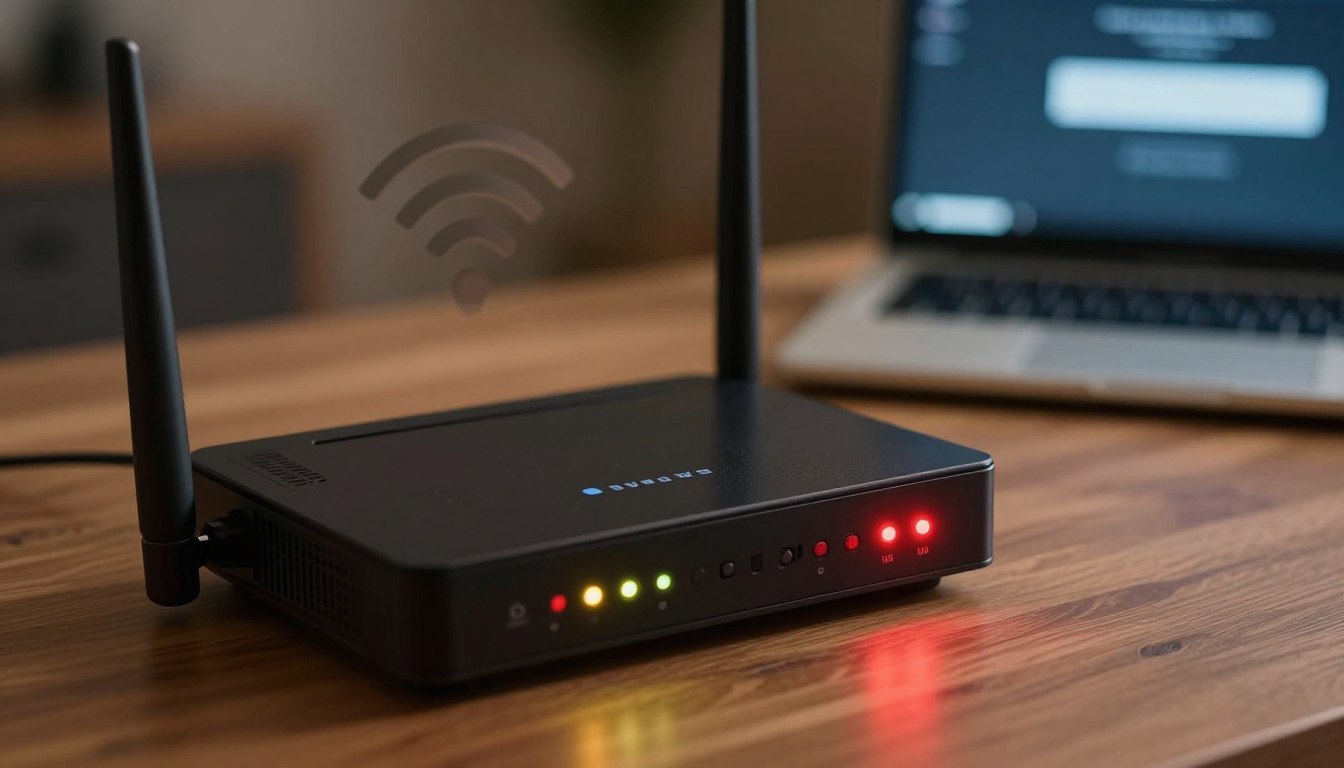
Common Symptoms of Hardware Degradation
Recognizing common router issues is the first step in your maintenance routine. These signs of bad router performance often manifest as subtle changes in your daily connectivity experience. When you notice these patterns, it’s time to investigate the health of your device.
Frequent Connection Drops and Intermittent Signal
A wireless signal that constantly disappears is very frustrating. If your devices frequently disconnect and reconnect without a clear cause, the internal radio components may be failing. This instability often points to a hardware defect rather than a simple software glitch.
Unexplained Slow Speeds and Latency Spikes
You might experience understanding and fixing slow internet connectivity on Xbox Series or other high-bandwidth devices when your router struggles to process data.
Unexplained latency spikes often occur when the processor inside the unit can no longer handle modern traffic demands. This degradation typically worsens over time as the hardware components lose their efficiency.
Physical Overheating and Unusual Noises
Check the physical condition of your router by feeling its casing for excessive heat. If the device feels hot to the touch or emits strange buzzing sounds, the internal cooling system or power supply may be compromised.
These physical warning signs are clear indicators that your hardware requires immediate attention or replacement.
Utilizing Router Diagnostic Tools
Once you have identified potential physical issues, use professional router diagnostic tools to confirm your findings. Proper router problem identification involves looking at the digital data generated by the device itself.
These built-in features provide a deeper look into what is happening behind the scenes.
Checking System Logs for Error Codes
Most modern routers maintain system logs that record every event and error encountered during operation. Access your router’s administrative interface to review these logs for recurring warnings or critical failure messages. Frequent reboots or memory allocation errors are common red flags that suggest the hardware is failing.
Running Built-in Ping and Traceroute Tests
Use the built-in ping and traceroute utilities to test the stability of your connection to external servers. These tests help you identify where packet loss occurs, whether it is within your local network or further out on the internet.
Consistent packet loss during these tests is a strong indicator that your router is struggling to manage network traffic effectively.
How to Check If Router Is Bad Using 5 Simple Steps
When your internet connection drops, knowing how to check if your router is bad can save you time and money. You don’t always need to buy new equipment when your internet slows down. Often, a few simple adjustments can fix your network.

Step One: Perform a Power Cycle and Factory Reset
The first step in troubleshooting your router is to clear its memory. Unplug the power cord from the wall outlet and wait thirty seconds before plugging it back in. If your connection still isn’t stable, you might need to perform a factory reset to get back to the original settings.
Step Two: Inspect Physical Cables and Power Connections
Loose or damaged cables can cause your internet to drop. Make sure your Ethernet and power cables are securely plugged in. Replace any frayed or damaged cords to keep your signal strong.
Step Three: Update Firmware to the Latest Version
Old software can cause problems with your router. Log into your router’s dashboard to check for firmware updates. Installing the latest version can fix bugs and improve stability.
Step Four: Test Connectivity with a Direct Ethernet Connection
Wireless interference can make it seem like your router is failing. To test your router, connect your computer directly to it with an Ethernet cable. This isolates the wired connection and helps you see if the problem is with your Wi-Fi.
Step Five: Compare Performance Across Multiple Devices
If all devices are slow, your router might be the problem. But if only one device is slow, it could be a hardware issue. By testing multiple devices, you can figure out if your router is bad and if you need a new one.
Conclusion
Your home network needs regular care to stay fast and reliable. Small issues can quickly become big problems if not fixed.
You now know how to check your router’s health with ease. These steps keep your router working well for streaming and gaming.
Think about cleaning your eero router cache to refresh it. Power cycling is the best way to clear out temporary data and keep your connection stable.
Regularly check your signal strength through your app. This helps you catch any hardware problems early, before they affect your internet use.
Using these methods lets you handle your home network better. You can tell if a problem is just a software glitch or a bigger hardware issue.
Do these checks often to keep your network safe. A well-kept network is key for a modern home.
1 thought on “How to Check If Router Is Bad in 5 Simple Steps”