
Are you tired of dealing with frustrating dead zones that interrupt your streaming or work? Many people struggle with poor signal strength in large properties or buildings with thick walls. Fortunately, you can solve these connectivity issues by using multiple routers at home to extend your wireless reach.
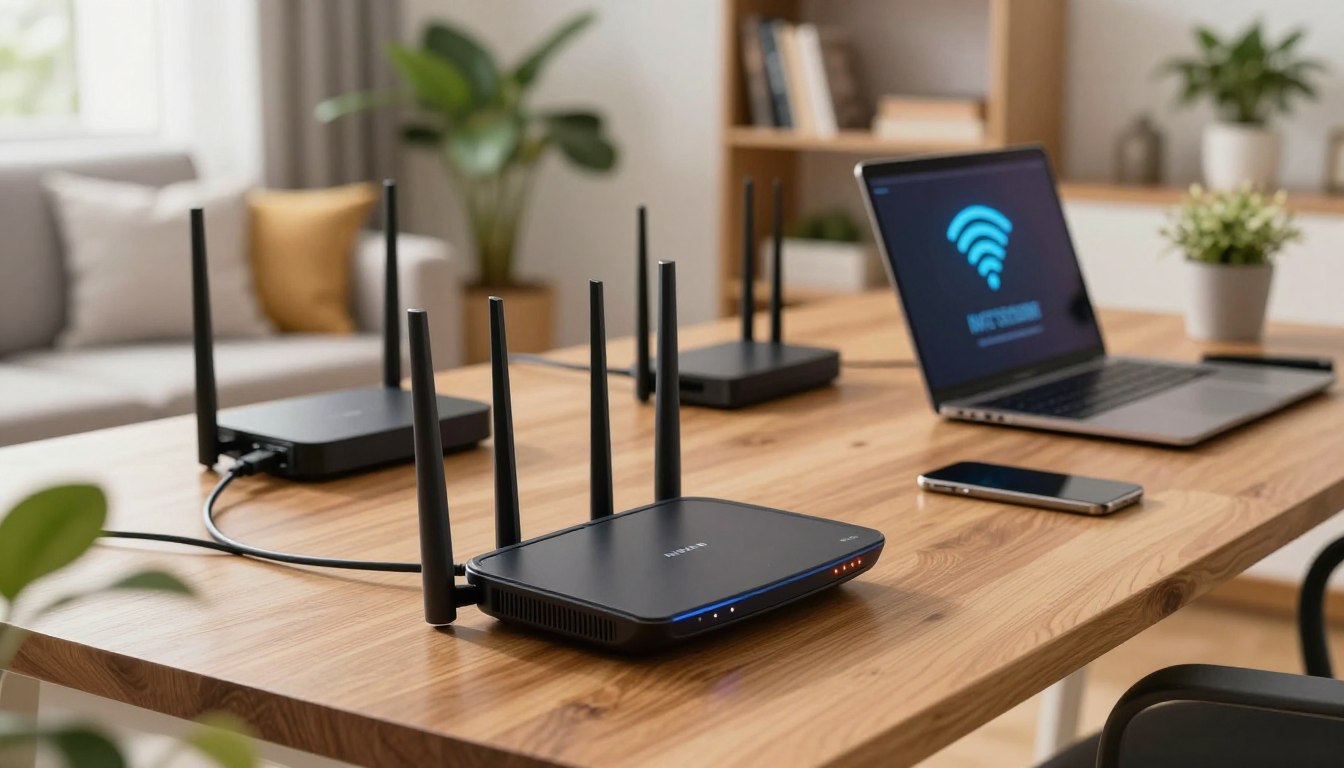
Expanding your network coverage is a smart, professional-grade strategy for any homeowner. By strategically placing hardware throughout your living space, you ensure consistent internet access in every room. This approach effectively eliminates those annoying spots where your connection usually drops.
Learning the process of using more than one router at home allows you to take full control of your digital environment. You will find that managing multiple routers at home is simpler than it seems once you understand the basic configuration steps. Get ready to transform your network into a reliable system that covers every corner of your property.
Understanding the Benefits of Multiple Routers at Home
Ever find yourself resetting your internet connection a lot? You might wonder if having multiple routers at home is the solution. Many standard devices struggle to keep a strong signal in big homes. They can’t get through thick walls or reach all parts of your living space.

Why your single router might be failing you
Your main router can get overwhelmed by too many devices. With more smart gadgets, streaming services, and mobile devices, it can’t keep up. This causes slow speeds and dropped connections.
Things like concrete walls, metal appliances, and big furniture also weaken your signal. Even top-notch routers have limits due to physics. Devices in the middle of the house still might not get a good signal in every room.
Advantages of a dual router setup in house
Ever thought about having two routers in your house to boost your network? Yes, you can, and it makes a big difference. Spreading the load between two devices eases the pressure on your main router.
Having two routers creates a stronger mesh network. This means your devices always connect to the strongest signal. You’ll see fewer dead spots and faster speeds as you move around your home.
Distinguishing between access points and repeaters
It’s key to know the difference between different network setups before starting. Many mix up range extenders and access points, but they work differently. A repeater just re-broadcasts a signal, which can slow down your internet.
An access point, on the other hand, connects directly to your main router with an Ethernet cable. This gives your devices a faster and more stable connection. You can learn more about setting up a router as an access to keep your network running smoothly.
Preparing Your Hardware and Network Environment
Creating a solid home network with two routers begins with checking your current equipment. Make sure your devices can handle the extra traffic and setup needs.
Assessing your existing equipment
Before setting up, it’s crucial to check if your router is bad or outdated. Old routers might not keep up with the demands of a secondary access point.
Make sure both routers have Gigabit Ethernet ports to prevent slow data transfers. It’s all about compatibility for a smooth network.
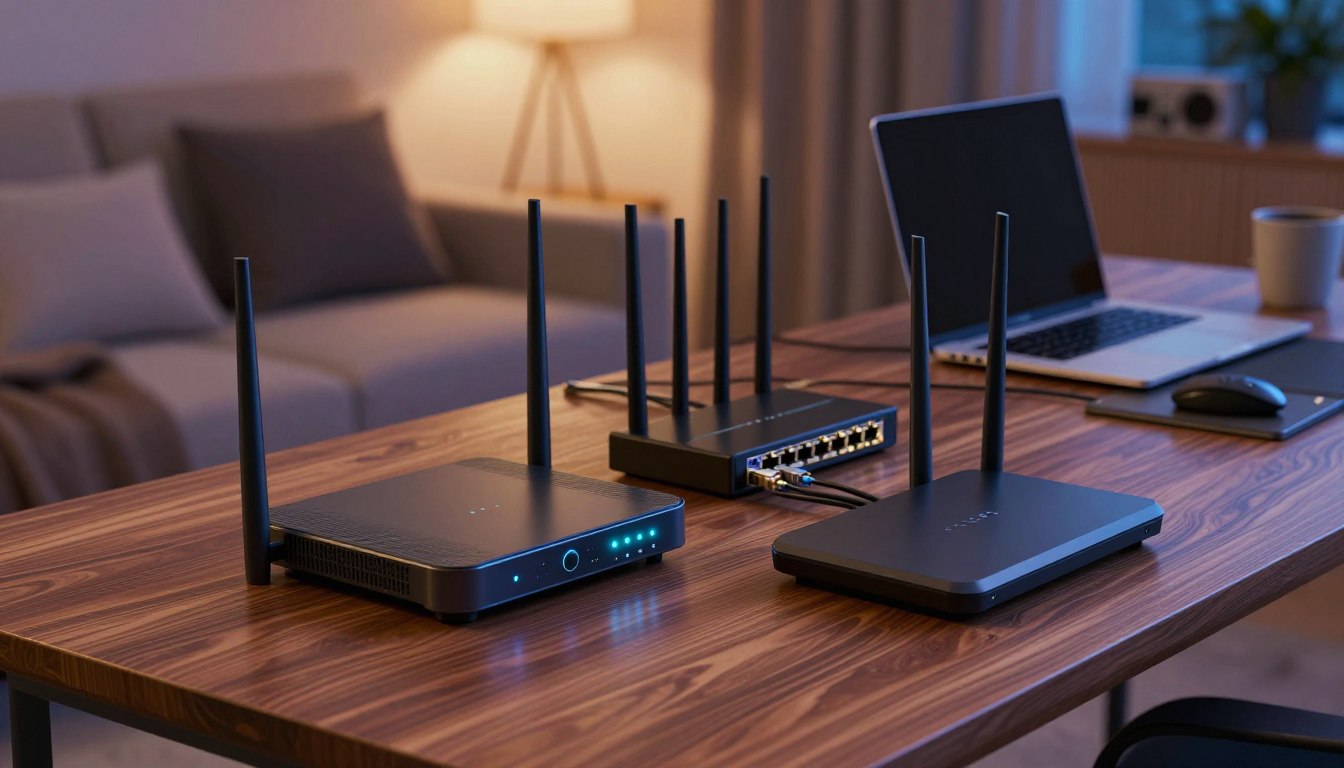
Choosing the right location for your secondary router
Where you place the secondary router is as critical as the router itself. Put it in a central spot where the main router’s signal is still strong.
Don’t put your router in cabinets or behind metal objects that block signals. An open, elevated spot will boost your network’s performance.
Gathering necessary cables and tools
For a stable setup, you need the right physical connections. Use high-quality Cat6 Ethernet cables to connect your devices well.
Get a basic toolkit, like a screwdriver and cable clips, to keep things organized. Having these ready will streamline your setup process.
Configuring Your Primary and Secondary Routers
Setting up dual routers is key to a smooth network. You need to avoid IP address conflicts and ensure devices talk without issues. A step-by-step guide helps you manage your network like a pro.
Accessing the administrative interface
First, plug your computer into the router with an Ethernet cable. Open your browser and type the default gateway IP address, usually on a sticker. You’ll need your admin username and password to get into the dashboard.
Once in, you can tweak advanced network settings. If you want to manage traffic, learn how to port forward. Always save your changes before leaving the settings page.
Setting the primary router as the gateway
Your primary router should handle all internet traffic. Make sure its DHCP server is on to assign IP addresses to devices. This router controls your home network’s traffic.
Check that the WAN port is connected to your modem. Keeping this router as the main gateway keeps your network stable. It ensures all traffic goes through one point.
Configuring the secondary router as an access point
To finish setting up dual routers, switch the secondary router to access point mode. This disables its DHCP server to avoid conflicts with the primary router. Give it a static IP address within your main network’s range.
Then, connect the routers with a LAN-to-LAN cable. This change lets the secondary router boost your WiFi without creating a separate network. Your devices will move smoothly between both access points.
Connecting Two WiFi Routers in the Same House via Ethernet
For the best performance, use a physical Ethernet link between two WiFi routers in one house. Wireless mesh systems are easy, but a wired backhaul gives you the best speed. This way, your secondary device gets the full bandwidth from your primary router.
Running physical cables for maximum stability
Start with a high-quality Cat6 or Cat6a Ethernet cable. These cables support fast speeds and block out interference. Run the cable through walls or along baseboards to keep your home neat.
Don’t use long, low-quality cables that can lose data. If you must run the cable in busy areas, use cord covers. This protects your network and keeps it stable for years.
Establishing the LAN-to-LAN connection
To connect two routers, you need to set up the ports right. Plug one end of the Ethernet cable into a LAN port on the primary router. Then, plug the other end into a LAN port on the secondary router.
Don’t use the WAN or Internet port on the secondary router. This avoids a double NAT issue. Your second router becomes a high-performance access point. The primary router handles all IP addresses and traffic.
Synchronizing SSID and security settings
For a smooth experience, make sure both devices have the same network name and password. When devices share the same SSID, they automatically switch to the strongest signal. This is key for smart homes.
Use WPA3 for the highest security on both units. If older devices can’t handle WPA3, use WPA2-AES instead. Connecting routers this way creates a fast, secure network for your home.
Troubleshooting Common Dual Router Setup Issues
Setting up a fast home network can need some extra work after you first install it. Even if your gear is in the right spot, small mistakes can mess up your internet. Knowing how to find and fix these problems helps keep your connection strong and quick.
Resolving IP address conflicts
IP address conflicts happen when two routers try to give the same address to different devices. This usually occurs when both routers have their DHCP server turned on at the same time. To solve this, turn off the DHCP on your secondary router.
After disabling the DHCP server, your main router will handle all IP addresses for your home. Make sure your secondary router has a static IP address that’s in the same subnet as your main router. This simple step stops address conflicts and keeps your devices talking well.
Fixing connectivity drops and signal interference
Connection drops often point to signal interference. If your routers are using the same channel, their signals can clash. Log into your router settings and pick different channels for each device.
Where you place your routers also affects signal strength. Make sure they’re not blocked by big metal objects or in closed cabinets. Moving them to an open, high spot can fix drops and boost coverage.
Updating firmware for better compatibility
Keeping your router’s firmware up to date is key for network security and performance. Manufacturers often release updates to fix bugs and improve data handling. You can find these updates in the admin interface under system or maintenance.
Checking for updates regularly keeps your dual router setup running smoothly. If you still have problems, updating the firmware can often fix them. Always save your current settings before updating to keep your setup safe.
Conclusion
Building a strong network needs careful planning and precise steps. You now know how to make your home’s digital setup better by linking routers. Having reliable internet is key for today’s homes. It’s important for streaming high-quality media or controlling smart home devices. A stable signal stops annoying drops.
If your gaming console’s internet is slow, fixing slow internet on Xbox Series is similar. It involves optimizing your network and managing your hardware. Keeping your connection fast and safe is crucial. Always check your router’s firmware and make sure cables are secure. These habits help your network run smoothly.
You have the tools to get rid of dead zones and use your bandwidth fully. Enjoy a fully connected home where all devices work at their best.