
Want to use your PS4 DualShock 4 controller on your Windows PC? Whether you prefer a wired setup or wireless Bluetooth, connecting a PS4 controller to your PC is easier than you think — and it works with Steam, non-Steam games, and even emulators. In this guide, you’ll learn three proven methods to connect your PS4 controller to a PC, how to set it up on Steam, and how to fix common issues using DS4Windows.
What You Need Before You Start
Before diving in, make sure you have the following ready:
- A PS4 DualShock 4 controller (any version).
- A Windows 10 or Windows 11 PC.
- A Micro-USB to USB-A cable (for wired connection) — the original PS4 cable works best.
- Bluetooth adapter (if your PC doesn’t have built-in Bluetooth).
Optional: DS4Windows software (free download) for full game compatibility.
Method 1: Connect PS4 Controller to PC via USB Cable (Easiest)
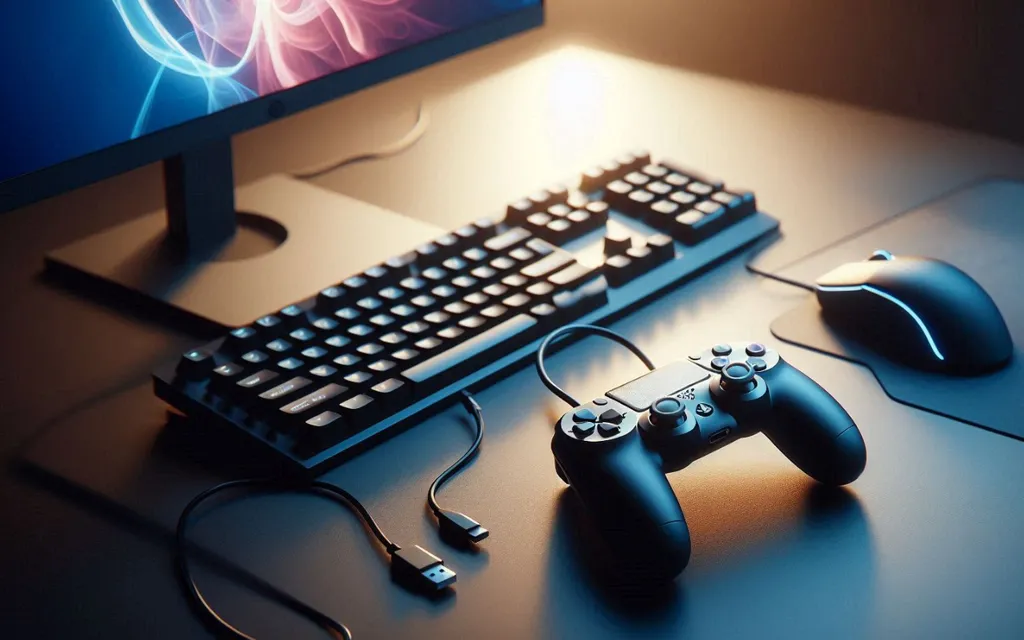
The wired USB method is the fastest and most reliable way to connect your PS4 controller to a PC. It works right out of the box with zero software required on most systems.
Steps:
- Grab your Micro-USB to USB cable (make sure it supports data transfer, not charging-only).
- Plug the Micro-USB end into the back of your PS4 controller.
- Plug the USB-A end into an available USB port on your PC.
- Press the PS button on the controller for about 3 seconds — the light bar should glow solid blue.
- Windows will automatically install the necessary drivers. The controller appears in Device Manager under Human Interface Devices as “Wireless Controller.”
✅ Your PS4 controller is now connected via USB!
Pro Tip: If Windows doesn’t recognize the controller immediately, try a different USB port or use the original PS4 cable, as some third-party cables are charge-only and won’t transfer data.
Method 2: Connect PS4 Controller to PC via Bluetooth (Wireless)
Connecting wirelessly via Bluetooth gives you more freedom of movement. This method works on Windows 10 and Windows 11 as long as your PC has Bluetooth capability.
Steps:
- On your PC, click Start Menu → Settings → Devices → toggle Bluetooth ON.
- Click “Add Bluetooth or other device” → select “Bluetooth”.
- On your PS4 controller, simultaneously hold the Share button + PS button until the light bar starts flashing rapidly (two blinks, then pause).
- Your PC will detect the controller as “Wireless Controller” in the device list.
- Click on it to connect. If prompted for a PIN, enter 0000.
- Once paired, the light bar will stop flashing and glow a steady color — the controller is connected!
✅ Your PS4 controller is now connected wirelessly via Bluetooth!
Note: Some PS4 controller features like the touchpad, vibration, and headphone jack may have limited support in Bluetooth mode on certain games. For full feature support, consider using DS4Windows (Method 3) or a USB connection.
Method 3: Using DS4Windows for Full Compatibility
While the wired and Bluetooth methods work, some games (especially older or non-Steam games) might not recognize the PS4 controller properly.
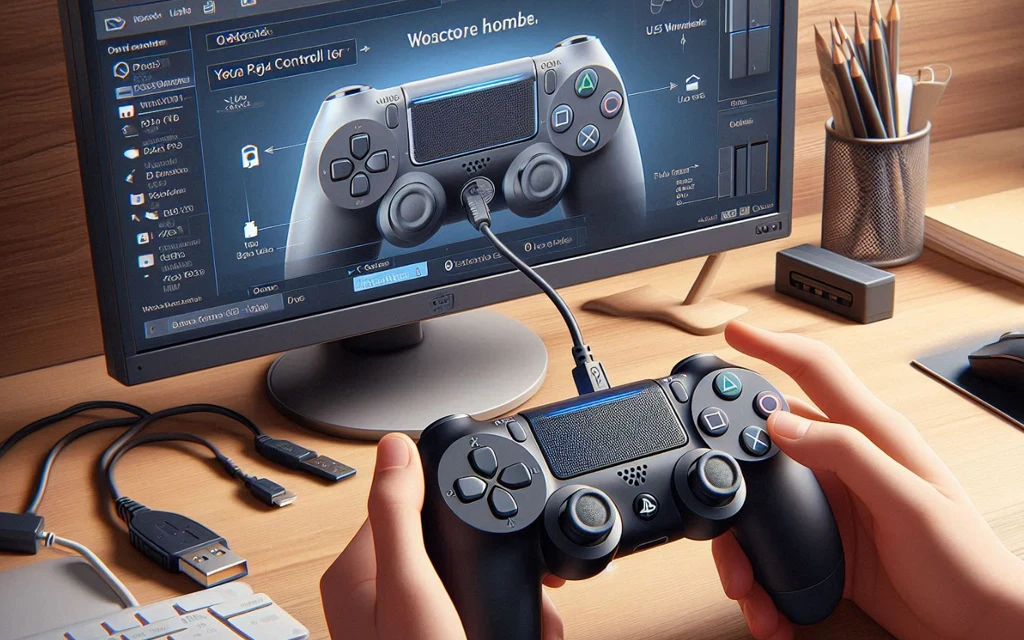
DS4Windows is a free, open-source tool that solves this by making your PC think your PS4 controller is an Xbox 360 controller, which is universally compatible with Windows games.
Here’s how to set it up:
- Download DS4Windows: Go to the official website (ds4-windows.com) and download the latest version.
- Install Drivers: Extract the downloaded ZIP file to a folder and run DS4Windows.exe. The first time you run it, it will prompt you to install the ViGEmBus driver. You must install this for the program to work.
- Connect Your Controller: Now, connect your controller to your PC using either the wired or Bluetooth method described above. DS4Windows will automatically detect it.
- Customize Your Settings: Once connected, you’ll see your controller in the DS4Windows window. You can then explore the settings to customize button mappings, change the color of the light bar, and more.
- For Best Results: If you’re using DS4Windows, it’s a good idea to disable Steam’s built-in controller support for your PS4 controller to avoid any conflicts. You can do this in Steam’s Controller Settings.
How to Configure Your PS4 Controller on Steam
Steam has built-in native support for PS4 controllers and is the easiest way to use your DualShock 4 with your game library.
Steps:
- Connect your PS4 controller via USB or Bluetooth.
- Open Steam and click on Steam (top-left menu) → Settings.
- Go to Controller → General Controller Settings.
- Check the box for “PlayStation Configuration Support.”
- Your PS4 controller is now fully recognized by Steam with proper button prompts (showing ✕ △ ○ □ instead of Xbox labels).
For Non-Steam Games on Steam:
- In Steam, go to Games → “Add a Non-Steam Game to My Library.”
- Browse and select the .exe file of your game (e.g., from Epic Games, Ubisoft Connect, or EA App).
- Steam’s controller support will now apply to that game.
PS4 Controller on PC: Troubleshooting Common Issues
If you run into issues, here are some common fixes:
- “USB Device Not Recognized”: This almost always means you are using a charge-only cable that can’t transfer data. Try a different Micro-USB cable.
- PC Can’t Find Controller Over Bluetooth: Try turning your PC’s Bluetooth off and on again, then repeat the pairing steps. If that doesn’t work, unplug your PS4 console to prevent it from interfering with the pairing process.
- Buttons Not Working or Wrong Icons in Games: This is the main reason to use DS4Windows. Installing it will make your controller mimic an Xbox controller, fixing mapping issues in most games.
- Driver Issues: If you see a driver error, go to Device Manager, find your controller under “Human Interface Devices” or “Bluetooth,” right-click it, and select “Uninstall device”. Then, unplug and reconnect your controller to let Windows reinstall the drivers.
- Cleaning Up Old Pairings: Sometimes, old or “ghost” pairings cause problems. In Device Manager, click “View” and enable “Show hidden devices.” Look for any greyed-out entries related to your controller in the “Bluetooth” or “Human Interface Devices” sections, right-click them, and select “Uninstall device”.
Conclusion
Connecting your PS4 DualShock 4 controller to a PC is a straightforward process regardless of whether you go wired, wireless, or use DS4Windows. For casual gaming on Steam, Bluetooth or USB is all you need. For maximum compatibility across all games and emulators, DS4Windows is the gold standard. Choose the method that fits your setup and start gaming today!