
In this guide, I’ll show you how to set up your PS5 for HDR gaming. This ensures your console shows the best visuals. High Dynamic Range (HDR) makes colors and contrast pop, making games feel more real.
This guide is easy to follow. It helps you change settings on your console and display. You’ll see how simple it is to get great results. By following these steps, you’ll get the most out of your PS5. You’ll enjoy games with stunning visuals. Let’s start making your display look perfect.
Preparing Your Hardware for HDR Compatibility
Your journey to a top-notch gaming experience starts with checking your hardware. Before tweaking any settings, make sure your display can handle today’s gaming visuals.
These early steps will save you time and headaches later. Getting ready right is crucial to unlock your console’s full power.
Verifying Your TV or Monitor Specifications
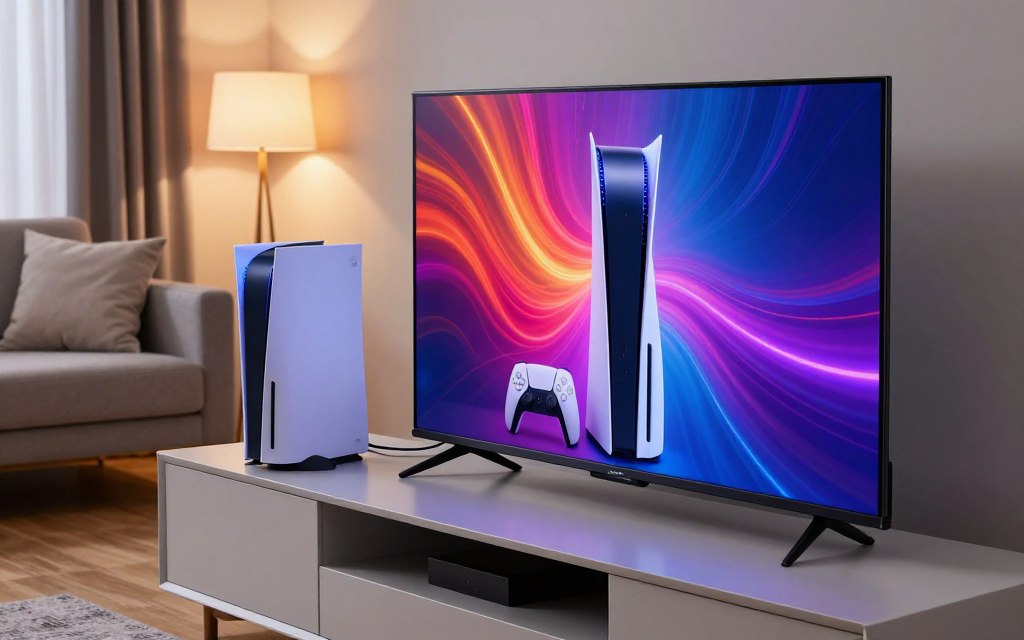
First, check your display’s technical manual. You must confirm that your TV supports HDR10. This is the standard your console uses.
If it doesn’t support HDR10, you won’t get the full color and contrast of HDR gaming. Always check the manufacturer’s website if you can’t find your manual.
Ensuring Proper HDMI Cable Connections
Bandwidth is key for high-resolution signals. Always use the high-speed HDMI cable that came with your console.
This cable is made for 4K and HDR signals. Using a lower-quality cable can cause flickering, drops, or image failure.
Enabling HDR Settings on Your Display
Many think their display will automatically turn on HDR. But, you need to do it manually.
Look for “HDMI Ultra HD Deep Color” or “Enhanced Format” in your picture settings. Once enabled, you’re ready for the next steps to set up PS5 HDR compatibility.
How to Set Up PS5 for HDR Gaming
I will now guide you through the system menus to ensure your console is perfectly optimized for high-dynamic-range visuals. Completing this software configuration is the final step to unlock the full potential of your display.
Navigating to the Video Output Menu
To begin the process, power on your console and navigate to the Settings menu located in the top right corner of the home screen. From there, select the Screen and Video option to access your display preferences.
Within this menu, you will find the Video Output tab. This is where you can effectively set up PS5 for HDR gaming by adjusting the core signal parameters.
Configuring HDR and Deep Color Output
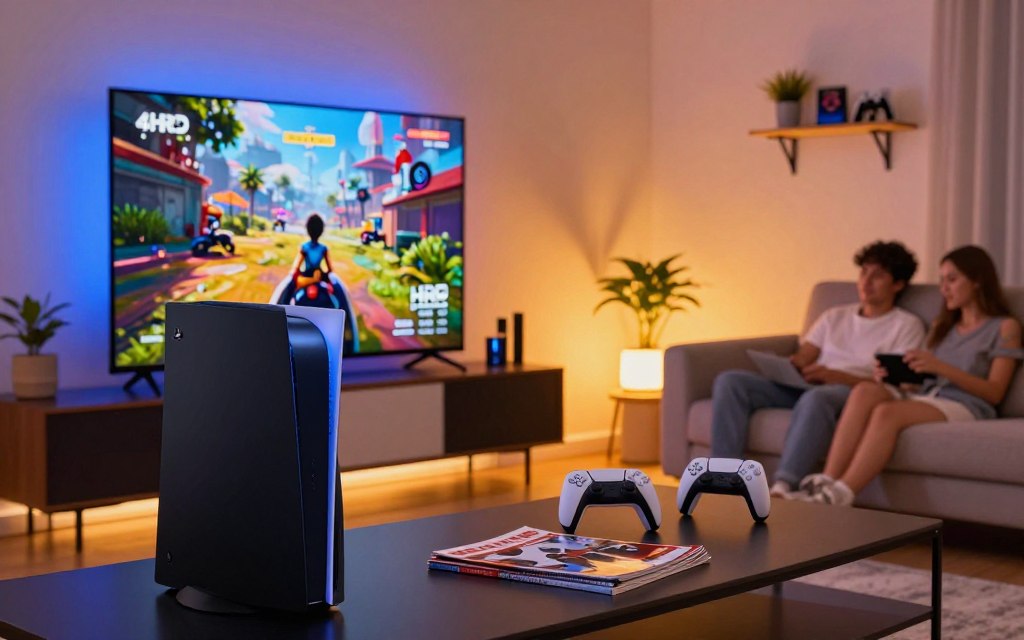
Once you are inside the Video Output tab, look for the HDR and Deep Color Output settings. I recommend setting the HDR option to “On When Supported” to ensure the console automatically detects when a game or media app can utilize the enhanced color range.
You should also ensure that Deep Color Output is set to Automatic. This allows your console to communicate effectively with your display to provide the best possible color depth for your PS5 HDR setup.
Adjusting Resolution and Refresh Rate Settings
It is vital to verify that your resolution and refresh rate settings align perfectly with the capabilities of your specific display device. You can manually select your resolution or leave it on Automatic to let the system detect the optimal output for your screen.
If you have a high-end monitor or TV, check that the refresh rate is set to match your panel’s maximum frequency. Properly managing these ps5 hdr settings ensures that you experience smooth gameplay without any visual artifacts or signal drops.
Fine-Tuning Your Visuals with HDR Calibration
The final step is a precise calibration to ensure accurate light mapping. Proper PS5 HDR calibration is key to match your console’s output with your display’s peak luminance. This avoids issues like crushed blacks or blown-out highlights, letting you see every detail in games.
Launching the HDR Calibration Tool
To start, go to the Settings menu on your console and pick Screen and Video. Then, choose the Video Output tab and find the Adjust HDR option. This opens the built-in calibration tool to help you set up.
Adjusting Brightness for Light and Dark Scenes
The tool shows you three test patterns on your screen. You need to adjust the brightness until the symbols in each pattern are just visible. This careful calibration ensures your display handles contrast well in both light and dark scenes.
Take your time with each screen for the best results. Rushing can lead to lost detail in shadows or washed-out colors. Being precise is crucial for a top-notch visual experience.
Saving Your Calibration Profile
After finishing all three steps, the console saves your new profile. This keeps your visual settings the same for all HDR games. With your PS5 HDR calibration done, you’re ready to enjoy games with the best picture quality.
Conclusion
You now have the tools to make your gaming sessions feel like movies. By following these steps, your PlayStation 5 will show off rich colors and deep contrast. This is what modern displays are all about.
Even with these steps, you might still run into some problems. If your colors seem dull or your screen flickers, don’t worry. Just try the usual PS5 HDR troubleshooting steps. Often, checking your HDMI cable or updating your TV’s firmware will fix the issue.
Don’t be afraid to play with your brightness settings to match your room’s light. A well-set screen makes a huge difference, bringing out details in dark scenes. Proper troubleshooting ensures your console works its best every time.
Share your favorite HDR games with others. Your feedback helps people find the best games for HDR. I hope this guide helps you with your console settings in the future.
1 thought on “How to Set Up PS5 for HDR Gaming: A Step-by-Step Guide”