
Is your controller not detected on PC? You’re not alone. Thousands of gamers face this frustrating issue every day — you plug in your gamepad, launch your game, and nothing happens. Whether you’re using an Xbox, PlayStation, or a generic USB controller, the good news is that this problem is almost always fixable.
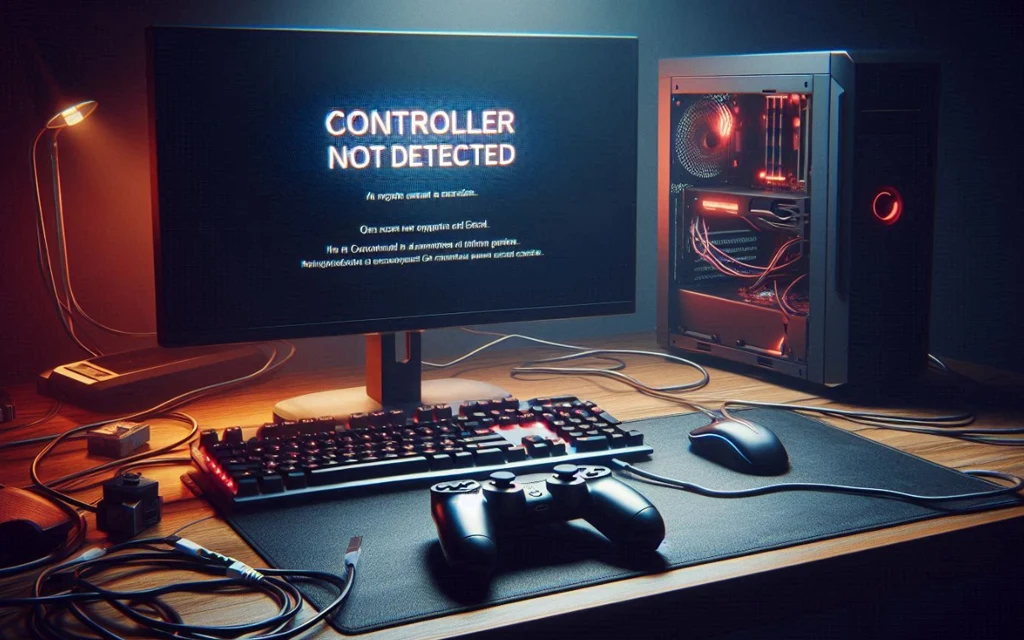
In this guide, we’ll walk you through 10 proven fixes to get your controller recognized and working on Windows 10 and Windows 11 — no tech expertise required.
Why Is My Controller Not Detected on PC?
Before jumping into the fixes, it helps to understand why the issue occurs. Your PC may fail to detect a controller for several common reasons:
- Loose, damaged, or charge-only USB cable.
- Faulty or underpowered USB port.
- Missing, outdated, or corrupted controller drivers.
- Incorrect input mode (DInput vs. XInput).
- Windows power management disabling USB ports.
- Bluetooth pairing errors or signal interference.
- Conflicting software after a Windows or firmware update.
- Steam settings not enabling controller support.
- Identifying the root cause will help you jump to the right fix faster.
Step-by-step to Fix Controller Not Detected on PC
A controller not being detected on a PC can feel frustrating, but in most cases, it’s a solvable problem. By systematically checking connections, updating drivers, resolving software conflicts, and verifying compatibility, you can quickly restore functionality.
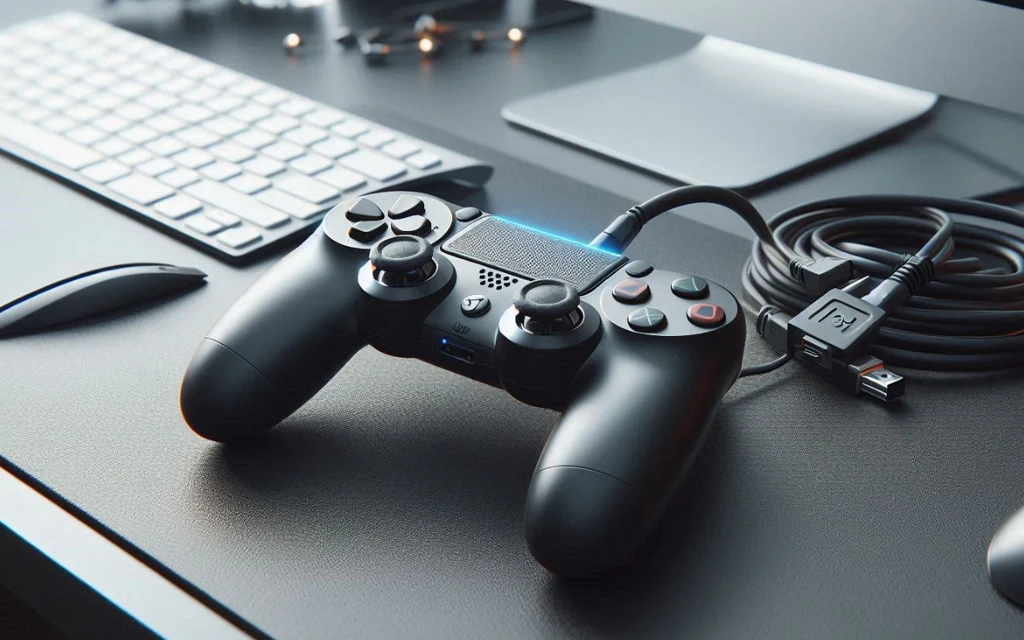
Fix 1: Check the Physical Connection First
The simplest issues are often overlooked. Start here before diving into software fixes.
For USB controllers:
- Unplug your controller and plug it back in firmly.
- Try a different USB port — preferably a USB 2.0 port directly on your PC, not a USB hub.
- Try a different USB cable — many cables are charge-only and don’t support data transfer.
- Avoid USB hubs, as they may not supply enough power to the controller.
For wireless/Bluetooth controllers:
- Turn Bluetooth on in Windows Settings → Bluetooth & Devices.
- Put your controller into pairing mode (for Xbox: hold the Pair button; for PS4/PS5: hold Share + PS button simultaneously).
- Unpair the controller from any phones or consoles that may still be connected.
- After reconnecting, open Gamepad Tester in your browser to immediately check if Windows is reading inputs.
Fix 2: Restart Your PC and Reconnect
A quick restart clears temporary system conflicts that may be blocking controller detection.
- Disconnect your controller completely.
- Restart your PC.
- After Windows fully loads, reconnect the controller.
- Wait 10–15 seconds for Windows to auto-install drivers.
This simple step resolves the issue for many users and should always be tried early.
Fix 3: Update or Reinstall Controller Drivers
Outdated or missing drivers are one of the most common reasons a controller is not detected on PC.
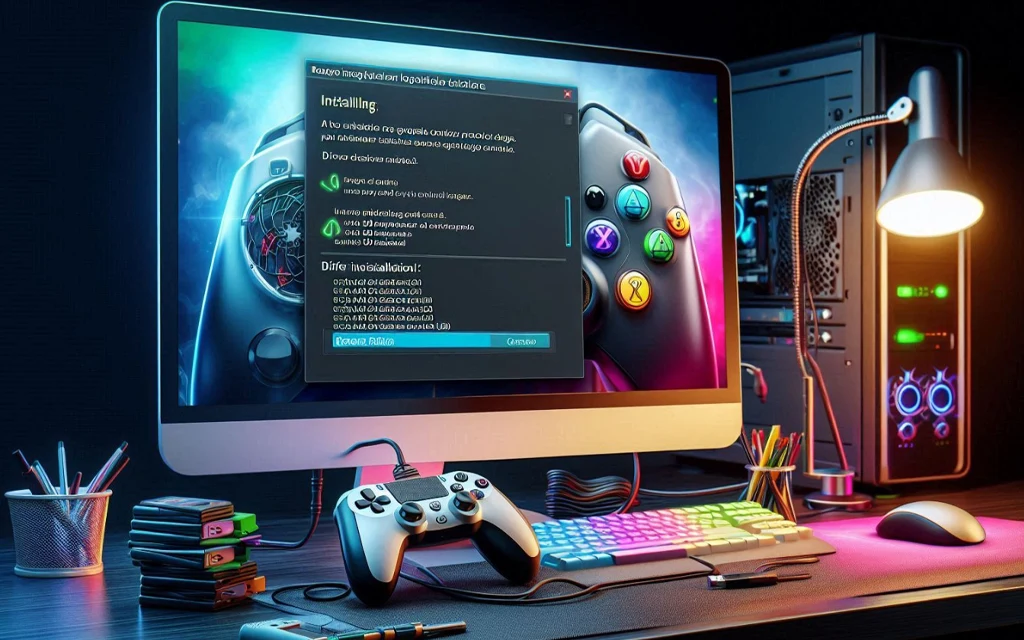
- Press Windows + X → select Device Manager.
- Expand Human Interface Devices or Universal Serial Bus controllers.
- Look for entries labeled Controller, Gamepad, or Unknown Device (marked with a yellow exclamation mark).
- Right-click the entry → Update driver → Search automatically for drivers.
- If no update is found, right-click → Uninstall device, then unplug and replug the controller to let Windows reinstall it fresh.
For Xbox controllers on Windows 11, drivers are typically updated automatically through Windows Update. For PS4/PS5 controllers, consider installing DS4Windows for full driver support.
Fix 4: Check Windows Game Controllers (joy.cpl)
Windows has a built-in tool to verify whether your controller is being detected at the system level.
- Press Windows + R → type joy.cpl → press Enter.
- The Game Controllers window opens.
- If your controller appears here, it means Windows detects it — the issue may be game- or app-specific.
- Select your controller → click Properties → go to the Test tab.
- Press buttons, move the thumbsticks, and pull the triggers to verify they register correctly.
If nothing appears in joy.cpl, your controller is not recognized at the OS level, and you’ll need to continue troubleshooting drivers or connections.
Fix 5: Fix Steam Not Detecting Controller
Many PC games run through Steam, which has its own controller input layer. If Steam is not recognizing your controller, games won’t detect it either.
- Open Steam → go to Settings → Controller.
- Under Controller Settings, enable the toggle for your controller type:
- Xbox Configuration Support.
- PlayStation Configuration Support.
- Switch Pro Configuration Support.
- Generic Gamepad Configuration Support.
- Close and reopen your game.
- If the issue persists, right-click the Steam shortcut → select Run as administrator. This often resolves permission-related detection issues.
- Also check Big Picture Mode → Settings → Controller → verify your controller is listed.
Fix 6: Disable USB Selective Suspend (Power Management)
Windows has a power-saving feature that cuts power to USB ports when not actively in use — this can cause your controller to disconnect or go undetected.
- Press Windows + S → search for Power Plan → select Edit power plan.
- Click Change advanced power settings.
- Expand USB settings → USB selective suspend setting.
- Set it to Disabled for both battery and plugged-in modes.
- Click Apply → OK → restart your PC.
This fix is especially important for laptop users who frequently switch between battery and plugged-in usage.
Fix 7: Run the Hardware and Devices Troubleshooter
Windows 10 and 11 include built-in troubleshooters that can automatically detect and fix common hardware issues.
- Go to Settings → System → Troubleshoot → Other troubleshooters.
- Scroll to find Hardware and Devices → click Run.
- Follow the on-screen prompts and allow Windows to apply recommended fixes.
Alternatively, for a more powerful scan:
- Press Windows + R → type msdt.exe -id DeviceDiagnostic → press Enter.
- Run the diagnostic and apply all suggested fixes.
Fix 8: Show and Remove Hidden/Ghost Devices in Device Manager
Old or duplicate controller entries in Device Manager can interfere with new detections.
- Press Windows + R → type devmgmt.msc → press Enter.
- In Device Manager, click View → Show hidden devices.
- Expand Human Interface Devices and Universal Serial Bus controllers.
- Right-click and Uninstall any grayed-out or duplicate controller entries.
- Re-connect your controller.
This clears out “ghost” devices that Windows may be confusing with your current controller.
Fix 9: Use a Controller Emulator (DS4Windows or x360ce)
If you’re using a PlayStation or generic third-party controller, many PC games only natively recognize Xbox (XInput) format. A controller emulator bridges this gap.
- DS4Windows — Best for PS4 and PS5 DualShock/DualSense controllers. It emulates an Xbox controller so Windows and games recognize it automatically.
- x360ce — Best for generic or third-party gamepads. Place the .exe file in your game’s folder and configure button mapping.
Steps for DS4Windows:
- Download DS4Windows from the official site.
- Run the setup and install the virtual controller driver (ViGEmBus).
- Connect your PS4/PS5 controller via USB or Bluetooth.
- DS4Windows should auto-detect and emulate it as an Xbox controller.
Fix 10: Try a Powered USB Hub or Different PC
If you’ve tried everything above and your controller is still not detected, the issue may be hardware-related — either a faulty USB port or a damaged controller.
- Try a powered USB hub: Some PCs — especially desktops with many USB devices — don’t provide enough voltage per port. A powered hub gives consistent power to each connected device.
- Test on a different PC: Plug your controller into another computer. If it’s detected there, the issue is with your PC’s settings or hardware. If it’s still not detected, the controller itself may be faulty.
- Test a different controller on your PC: Borrow or use another controller to rule out a PC-side issue.
Frequently Asked Questions (FAQ)
Why is my controller connected but not working in games?
Your controller may be detected by Windows but not by the specific game. Check if the game supports your controller type, or enable controller support in Steam settings. Some games only recognize Xbox (XInput) controllers — use DS4Windows or x360ce to emulate Xbox input.
Why does my Xbox controller not connect to PC?
Make sure the Xbox Wireless Adapter or Bluetooth is active. Update Xbox controller drivers via Windows Update and try pressing the sync button on both the controller and the dongle.
Why is my PS4/PS5 controller not detected on PC?
PlayStation controllers require DS4Windows for full PC compatibility. Download and install it, then connect via USB or Bluetooth.
Does Windows 11 support all game controllers?
Windows 11 natively supports Xbox controllers. For PlayStation, Switch Pro, and generic controllers, you may need additional software or drivers.
How do I test if my controller is working on PC?
Visit any browser-based Gamepad Tester site and press buttons on your controller. If inputs show up, the controller is detected by Windows.
Conclusion
A controller not detected on PC is a common but very fixable issue. Start with the basics — check your cable, try a different port, and restart your PC. If that doesn’t work, update your drivers, adjust Steam settings, and disable USB power saving. For PS or generic controllers, tools like DS4Windows and x360ce are game-changers. Work through these fixes one by one, and your controller should be up and running in minutes.
2 thoughts on “How to Fix Controller Not Detected on PC — Complete Troubleshooting Guide”