
Is your iPhone displaying a frustrating “Share Location Unavailable” error every time you try to share your location with someone? This is one of the most commonly reported issues among iPhone users, particularly those who have recently set up a new device, switched Apple ID accounts, or updated to a newer version of iOS. This guide provides a systematic, professional approach to fix share location unavailable on iPhone, ensuring your location-sharing capabilities are restored quickly and effectively.
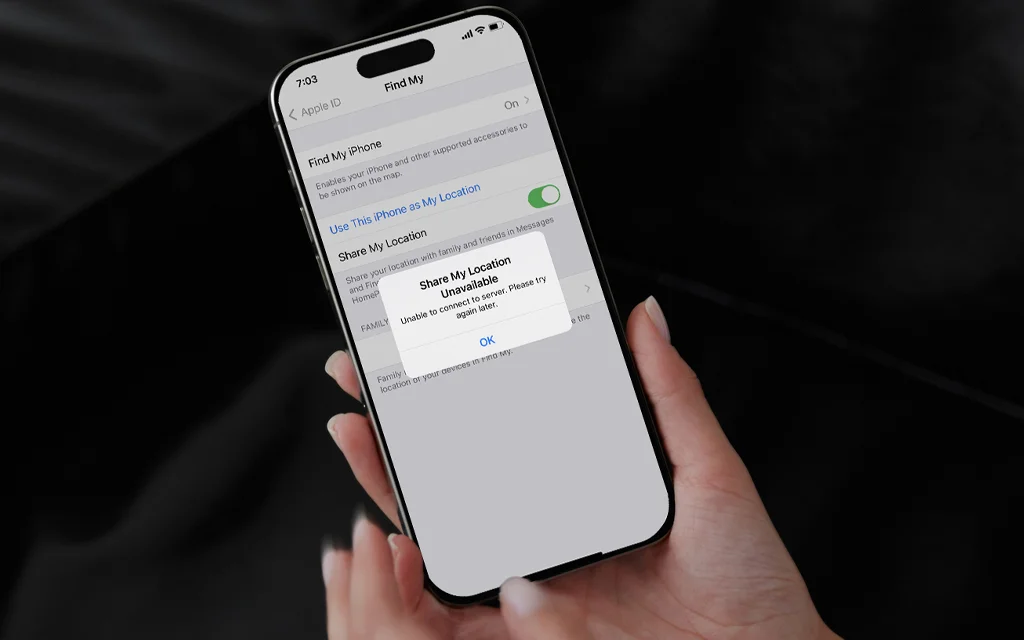
Why Does It Say “Share Location Unavailable”?
Understanding the root cause of the issue is the first step toward a resolution. Based on an analysis of the most common scenarios reported by users and Apple support forums, the error typically stems from one or more of the following factors:
- iCloud Data Syncing Problems: This is a primary culprit, especially if you have recently set up a new iPhone or switched to a different Apple account. If your iCloud data is not fully synced, the Find My service cannot function correctly.
- Disabled Location Services: Your iPhone’s global Location Services must be turned on for any app, including Find My and Messages, to access GPS data.
- Incorrect “Share My Location” or “Find My” Settings: The feature may be disabled within the Find My app itself, or the wrong device might be set as the source for sharing your location.
- Poor or Unstable Internet Connection: Sharing your location requires an active and stable internet connection, whether through Wi-Fi or cellular data, to transmit coordinates to Apple’s servers. Airplane Mode being enabled will also prevent this.
- Screen Time or Content Restrictions: Active Screen Time settings, particularly Content & Privacy Restrictions, may inadvertently block location sharing.
Incorrect Date & Time Settings: Apple’s servers rely on precise time synchronization. Incorrect date and time settings on your iPhone can cause location requests to fail. - Apple ID or iMessage Configuration Issues: A mismatched Apple ID between iCloud and iMessage, or not being signed into iCloud at all, can disrupt location sharing.
- VPN or Network Interference: Active VPN connections or restrictive firewall settings on certain Wi-Fi networks can block location data transmission.
How to Fix Share Location Unavailable on iPhone
The following step-by-step solutions are arranged from the most common and simplest fixes to more advanced troubleshooting. It is recommended to test location sharing after each step to see if the issue has been resolved.
1. Verify and Resume iCloud Data Sync
As iCloud syncing issues are a leading cause of this error, this should be your first port of call.
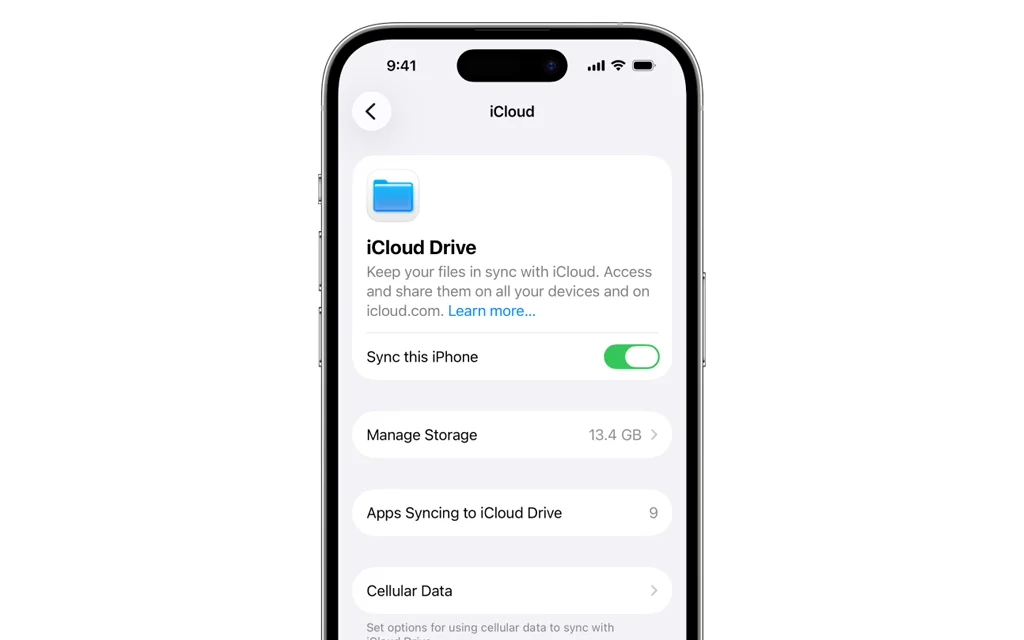
- Open the Settings app on your iPhone.
- Tap on your Apple ID / name at the top of the screen.
- Look for a card or message that says “Some iCloud Data Isn’t Syncing” or similar. If you see this, tap on it.
- You will be redirected to the Apple ID Suggestions screen. Tap “Resume Data Sync.”
- Follow any on-screen instructions and wait 5–10 minutes for the sync to complete before testing location sharing again.
2. Enable Location Services
Location Services is the core system setting that allows apps to access your GPS data.
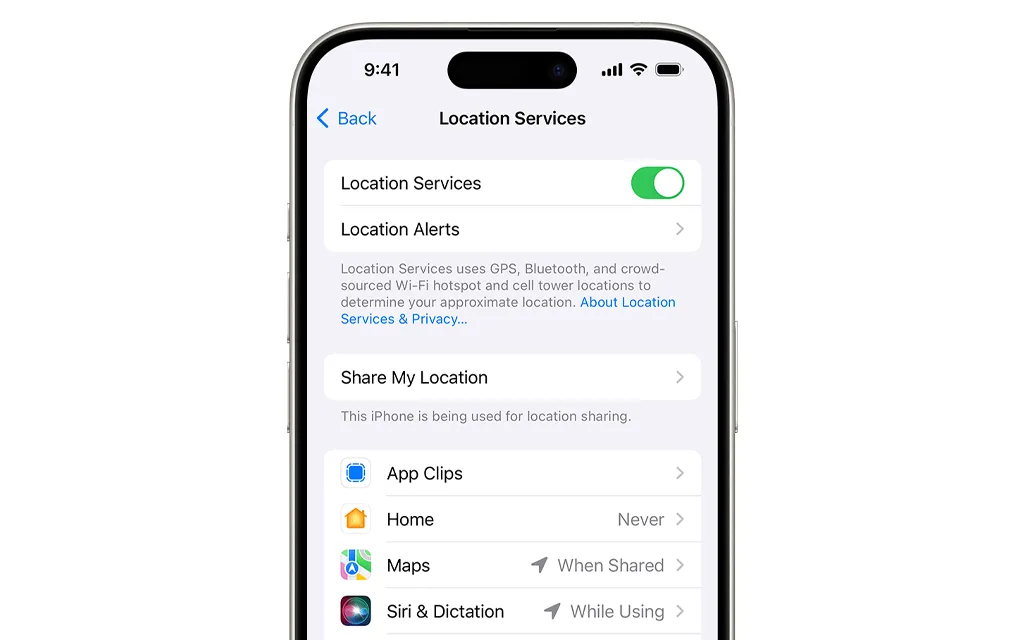
- Navigate to Settings > Privacy & Security > Location Services.
- Ensure the main toggle at the top of the screen is turned on (green).
- Scroll down the list of apps and tap on Find My.
- Ensure its permission is set to “While Using the App” or “Always.” For reliable background sharing, “While Using the App” is generally sufficient.
3. Check “Share My Location” and Find My Settings
Even with Location Services enabled, the specific sharing feature must be activated.
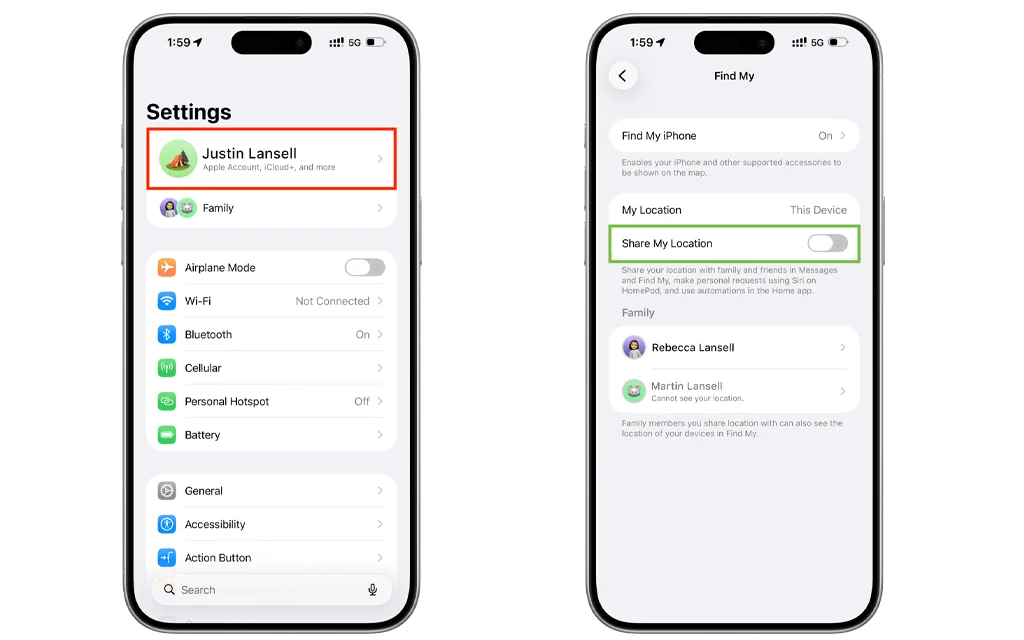
- Go to Settings > [Your Name] > Find My.
- Tap on “Share My Location” and ensure the toggle is turned on.
- Tap “Find My iPhone” and ensure the “Find My iPhone” toggle is turned on. It is also recommended to enable “Find My Network” and “Send Last Location” for optimal functionality.
- Go back to the main Find My settings screen and verify that “Use This iPhone as My Location” is selected under the “My Location” section. This ensures your iPhone is designated as the source device for location sharing.
4. Check Your Internet Connection
Your iPhone needs to be online to share location data.
- Ensure you are connected to a stable Wi-Fi or cellular network.
- Check that Airplane Mode is turned off. Swipe down from the top-right corner to access Control Center and verify the airplane icon is not highlighted.
- If you are using a VPN, try disconnecting it temporarily to see if that resolves the issue.
5. Verify Date & Time Settings
Incorrect date and time can break the secure connection to Apple’s servers.
- Go to Settings > General > Date & Time.
- Ensure “Set Automatically” is toggled on. If it is already on, toggle it off and then back on to force a refresh.
6. Check Screen Time Restrictions
Parental controls or other restrictions can block location sharing.
- Navigate to Settings > Screen Time > Content & Privacy Restrictions.
- If Content & Privacy Restrictions are enabled, tap on Location Services.
- Ensure “Allow Changes” is selected, or that Location Services are not explicitly restricted.
7. Restart Your iPhone
A simple restart can clear temporary software glitches that might be interfering with location services.
- Press and hold the side button and either volume button until the power-off slider appears.
- Drag the slider to turn off your iPhone.
- After the device turns off, press and hold the side button again until the Apple logo appears.
8. Force Restart the Messages App
If you are encountering the error specifically within the Messages app, a force restart of that app can help.
- Swipe up from the bottom of the screen and pause in the middle to open the App Switcher (on iPhones without a Home button). On iPhones with a Home button, double-click the Home button.
- Swipe up on the Messages app card to close it completely.
- Reopen the Messages app and try sharing your location again.
9. Toggle “Find My iPhone” Off and On
Refreshing the Find My service can re-establish its connection to iCloud.
- Important: Before proceeding, temporarily disable Stolen Device Protection if it is enabled (go to Settings > Face ID & Passcode > Stolen Device Protection and toggle it off).
- Go to Settings > [Your Name] > Find My.
- Tap “Find My iPhone” and toggle the switch off.
- Enable Airplane Mode from Control Center.
- Restart your iPhone. After it restarts, turn off Airplane Mode.
- Return to Settings > [Your Name] > Find My > Find My iPhone and toggle the switch back on. Also, re-enable “Find My Network” and “Send Last Location.”
- You can now re-enable Stolen Device Protection if you wish.
10. Sign Out and Back Into Your Apple ID
This can resolve authentication issues that may be preventing location sharing.
- Go to Settings > [Your Name].
- Scroll down and tap “Sign Out.” You will be prompted to enter your Apple ID password to turn off Find My.
- Choose to keep a copy of your data on your iPhone if desired, then tap “Sign Out.”
- Restart your iPhone.
- Go back to Settings and sign in with your Apple ID and password.
- Re-enable Location Services and Share My Location in Find My as described in Steps 2 and 3.
11. Reset Location & Privacy Settings
This will revert all location and privacy permissions to their factory defaults but will not delete your personal data.
- Go to Settings > General > Transfer or Reset iPhone.
- Tap “Reset” at the bottom.
- Choose “Reset Location & Privacy.” You may be prompted to enter your passcode.
12. Update to the Latest iOS Version
Keeping your iPhone’s software up to date ensures you have the latest bug fixes and performance improvements.
- Go to Settings > General > Software Update.
- If an update is available, tap “Download and Install.”
13. Check Apple’s System Status
Occasionally, the issue may not be on your end at all. Apple’s servers responsible for Find My and location services could be experiencing an outage.
- Visit Apple’s System Status page.
- Check that the indicator next to “Find My” is green. If it is yellow or red, Apple is currently experiencing an issue, and you will need to wait for them to resolve it.
Proactive Tips to Prevent Future Location Sharing Issues
- Regularly Update iOS: Always install the latest iOS updates as they become available to benefit from bug fixes and security patches.
- Monitor iCloud Sync: Periodically check your Apple ID settings for any iCloud sync prompts or errors and address them promptly.
- Avoid Battery Saving Modes When Sharing: Low Power Mode can sometimes affect background app activities, including location updates. If you need reliable location sharing, keep Low Power Mode disabled or be aware of its potential impact.
- Check App Permissions After Updates: Major iOS updates can occasionally reset app permissions. After an update, verify that Find My and Messages still have the correct location access.
- Stable Network: When possible, share your location while connected to a stable Wi-Fi network to avoid interruptions caused by weak cellular signals.
When to Contact Apple Support
If you have systematically worked through all the troubleshooting steps above and still encounter the “Share Location Unavailable” error, the issue may be more complex. In such cases, it is advisable to contact Apple Support directly.
They can provide specialized diagnostics and support, especially if a hardware issue with your iPhone’s GPS or a deeper software problem is suspected.
Final Thoughts
The Share Location Unavailable error on iPhone, while frustrating, is almost always solvable by methodically checking settings, ensuring proper iCloud sync, and verifying network connectivity. The most effective and often overlooked fix is resuming iCloud data syncing, which addresses the root cause for many users
By following this comprehensive guide, you should be well-equipped to diagnose the problem and restore your iPhone’s location-sharing functionality, keeping you connected with those who matter most.
Have you successfully resolved the “Share Location Unavailable” issue using this guide, or do you have another tip to share? Let us know in the comments below!
5 thoughts on “How to Fix Share Location Unavailable on iPhone (2026 Guide)”