
Whether you‘re meeting up with friends, letting family know you’re safe, or coordinating a pickup from the airport, knowing how to share location on iPhone through text is an essential skill. The good news? Apple has made this incredibly simple right inside the Messages app.
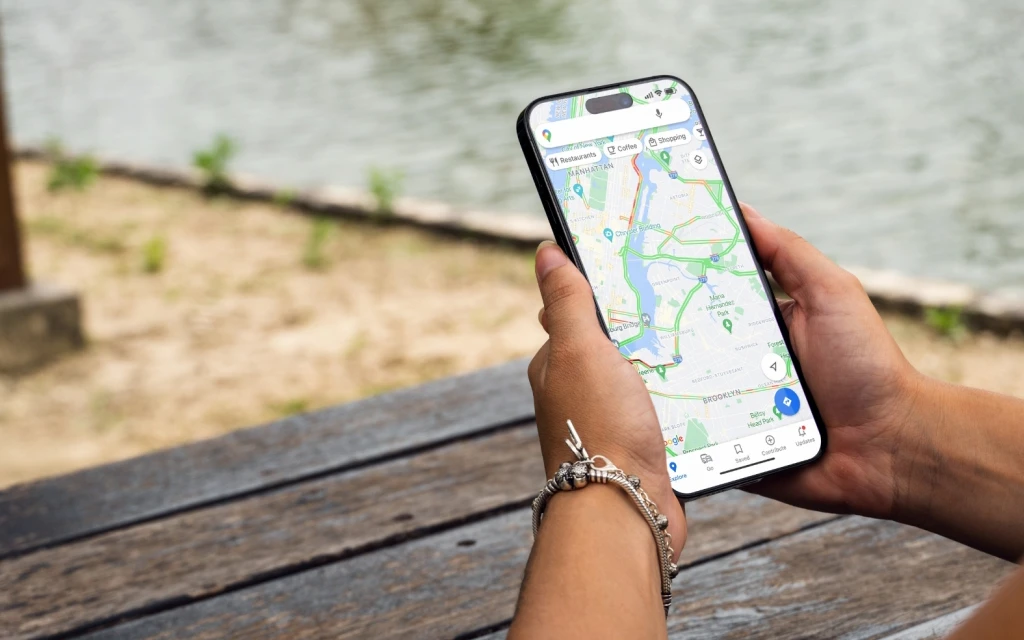
In this comprehensive guide, I‘ll walk you through every method, from sending a quick one-time pin to sharing your live location for hours at a time. By the end, you’ll be a pro at sharing your whereabouts with anyone, even if they‘re on Android.
Before You Start: Prerequisites for Location Sharing on iPhone
Before diving into the steps, make sure your iPhone is ready. Most modern location-sharing features require iOS 17 or higher to share live, real-time updates.
- Update Your iPhone: Go to Settings > General > Software Update and ensure you’re running at least iOS 17 (or newer). If an update is available, download and install it.
- Enable Location Services: Navigate to Settings > Privacy & Security > Location Services and toggle it ON.
- Turn on Share My Location: In the same Location Services menu, scroll to the bottom, tap System Services, and make sure Share My Location is enabled.
Once these settings are configured, you‘re ready to share your location on iPhone through text!
Method 1: Share Your Live Location via Text (Real-Time Tracking)
This is the most powerful method. When you share your live location, the recipient sees a small map in your text conversation that updates in real time as you move. They can tap it to see your progress, get directions to you, and even open your location in Apple Maps or the Find My app.
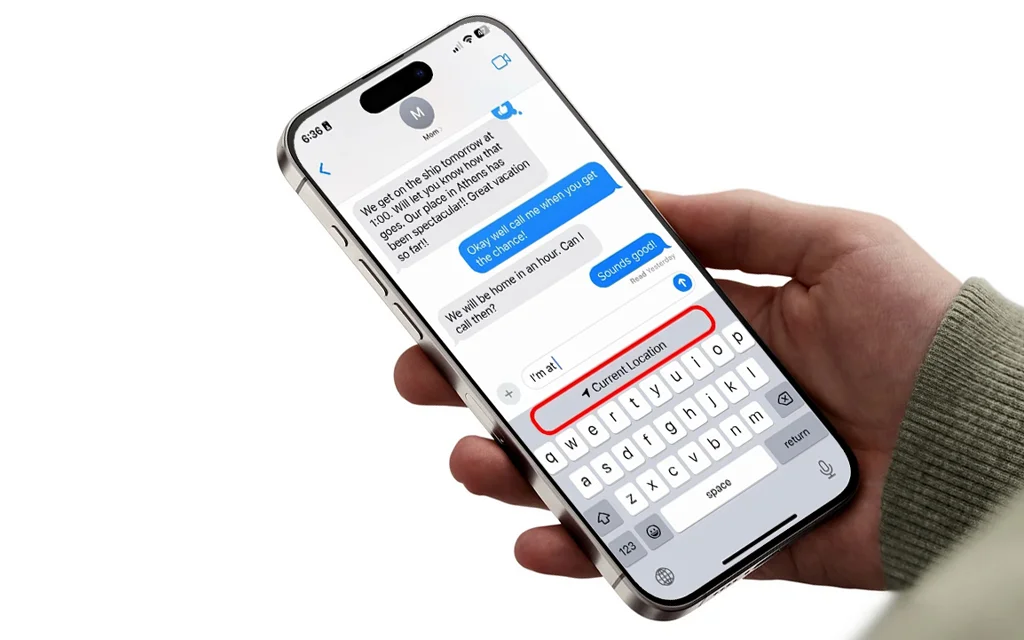
Step-by-Step Instructions:
- Open the Messages app on your iPhone.
- Open an existing conversation with the person you want to share your location with, or start a new one.
- Tap the plus (+) icon located to the left of the text input field to open the iMessage app drawer.
- Select “Location” from the menu that appears. A small map will open showing your current position.
- Tap the “Share” button (blue, in the bottom right corner).
- Choose a sharing duration from the pop-up menu:
- Share for One Hour: Perfect for short meetups or quick errands.
- Share Until End of Day: Great for day trips or travel.
- Share Indefinitely: Useful for family members or close friends, but remember you‘ll need to manually stop sharing later.
- Tap the blue arrow to send the text. Your live location is now shared!
Alternative: Share from the Contact Screen
You can also initiate live location sharing directly from the conversation‘s contact card:
- In your Messages conversation, tap the name or profile picture of the person at the top of the screen.
- Select ”Share My Location”.
- Choose how long you want to share (One Hour, Until End of Day, or Indefinitely).
- Tap the blue arrow to send.
Method 2: Send a Static Pin (Great for SMS & Non-iPhone Users)
 What if the person you‘re texting doesn’t have an iPhone or iMessage turned on? Don‘t worry—you can still send them a pinned location via standard SMS/MMS. This sends a static map pin that doesn’t update as you move, but it‘s perfect for sharing an exact address or meeting point.
Step-by-Step Instructions:
- Open Messages and go to the conversation with your recipient.
- Tap the plus (+) icon and select ”Location” again.
- This time, tap the map pin icon in the top left corner of the map view.
- Drag the map until the pin is placed exactly where you want to share.
- Tap “Send Pin” in the bottom right, then tap the blue arrow to send the message.
Note: Pinned locations do not update as you move. If you‘re on the go, use the live sharing method above instead.
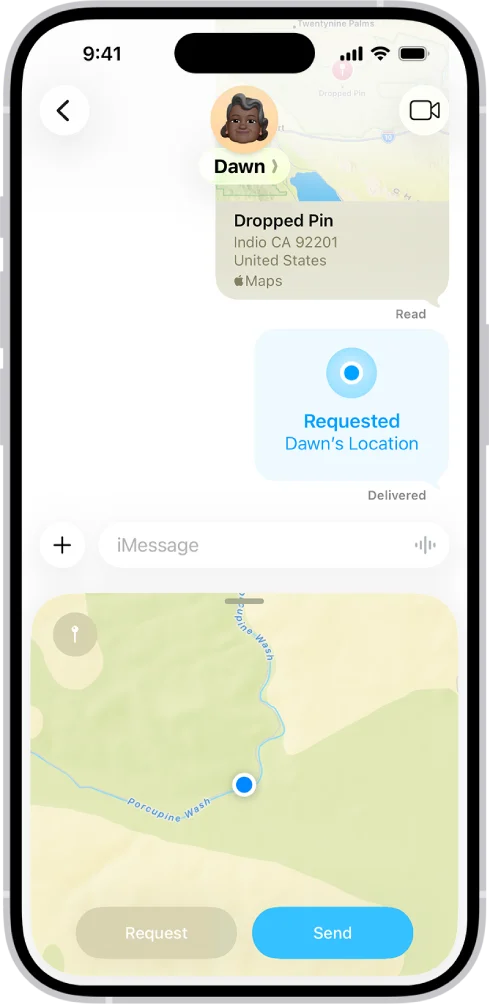
Method 3: Request Someone Else’s Location
Need to know where a friend or family member is? You can easily request their location right from your Messages conversation.
- Open Messages and go to the conversation with the person.
- Tap the plus (+) icon and select ”Location”.
- Tap “Request” (gray button at the bottom left).
- Tap the blue arrow to send the request. Your recipient will get a notification and can choose to share their location with you for a set period.
Alternatively, you can type a message ending with “Where are you?” and tap ”Request Location” that appears above the keyboard.
How to Stop Sharing Your Location
Apple makes it just as easy to stop sharing your location when you‘re done. Here’s how:
- Open Messages and go to the conversation where you‘re sharing your location.
- Tap the name or profile picture of the person at the top of the screen.
- Tap ”Stop Sharing My Location” (or simply “Stop Sharing”). A notice will appear in the conversation confirming that you‘ve stopped sharing.
- You can also stop sharing from the Find My app by tapping the People tab, selecting the person, and tapping Stop Sharing Location at the bottom of the screen.
Bonus: Use “Check In” for Safety
If you‘re traveling to a destination and want someone to automatically know when you’ve arrived safely, use the Check In feature (available in iOS 17 and later).
- In a Messages conversation, tap the plus (+) icon and select ”Check In”.
- Choose how much data to share (Limited or Full).
- Set your destination and expected arrival time (either by time or when you physically arrive).
- Send the Check In message. If you don‘t arrive on time, the recipient will be alerted so they can check on you.
Troubleshooting: Why Can’t I Share My Location?
If you‘re having trouble sharing your location on iPhone, try these common fixes:
| Issue | Solution |
| Location Services is off | Go to Settings > Privacy & Security > Location Services and toggle it ON. |
| No internet connection | Make sure you‘re connected to Wi-Fi or have mobile data enabled. |
| Find My iPhone not set up | Go to Settings > [Your Name] > Find My and turn on Find My iPhone. |
| Outdated iOS version | Update your iPhone in Settings > General > Software Update. |
| Low Power Mode is on | Disable Low Power Mode in Settings > Battery, as it can restrict background location updates. |
| Screen Time restrictions | Check Settings > Screen Time > Content & Privacy Restrictions to ensure location sharing isn’t blocked. |
Pro Tips & Privacy Best Practices
Sharing your location is powerful, but it also comes with responsibility. Keep these tips in mind:
- Use temporary sharing whenever possible. Instead of “Indefinitely,” choose “One Hour” or “Until End of Day” to limit how long others can see you.
- Regularly review who can see your location in the Find My app under the People tab.
- Be aware of battery impact. Continuous live location sharing uses more battery, so use it only when necessary.
- Only share with people you trust. Your iPhone will always notify you when your location is being shared—you‘ll see an indicator in the status bar and within the Find My app.
- Consider satellite location sharing if you have an iPhone 14 or later and are in an area without cellular coverage. You can share your location via satellite through the Find My app in emergency situations.
Sharing Location with Android Users
What if your friend has an Android phone? You can‘t share your live location directly through Apple‘s native Messages app with non-iMessage users. However, you have a couple of options:
- Send a pinned location via SMS (Method 2 above). This sends a static map link that works on any device.
- Use a cross-platform app like WhatsApp, Google Maps, or Telegram, all of which allow location sharing between iPhone and Android.
Conclusion
Knowing how to share location on iPhone through text is one of the most practical and reassuring features Apple offers. Whether you’re sending a quick pin, sharing live updates for an hour, or using Check In for safety, the Messages app puts complete control at your fingertips.
Now that you have this step-by-step guide, you can confidently share your whereabouts with anyone—keeping your loved ones informed and your meetups hassle‑free.
Have questions or tips of your own? Drop them in the comments below! And if you found this guide helpful, share it with a friend who might need it.
2 thoughts on “How to Share Location on iPhone Through Text in Messages”