
Switching to your first iPhone can feel overwhelming. If you just unboxed the iPhone 17, you might notice it works differently from Android phones or older iPhone models. One of the first things new users ask is how to turn off iPhone 17 properly.
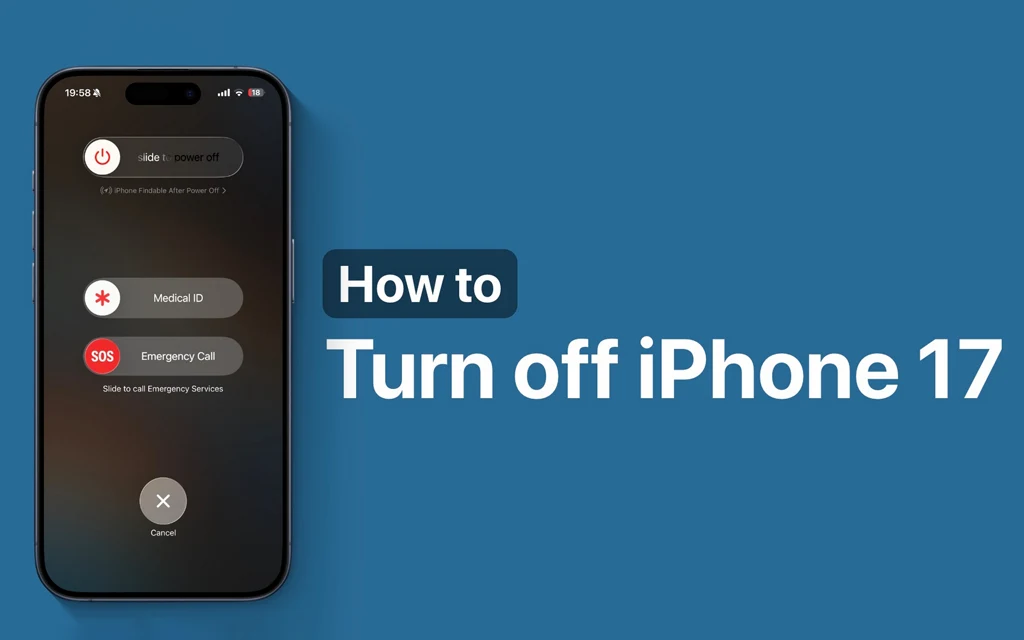
Unlike older models with a home button, the iPhone 17 relies on a simple button combination. It also offers a software-based shutdown inside the Settings app. This guide explains both methods in clear steps so you can power down your device safely.
Why You Might Need to Turn Off Your iPhone 17
Turning off your phone is not just for airplane travel. A full shutdown can fix minor software glitches, preserve battery life during long flights, or give you a break from notifications.
New users often restart their device when apps freeze or the touchscreen feels slow.
Knowing how to turn off iPhone 17 correctly helps you avoid forced restarts that could interrupt background updates or data saves.
How to Turn Off iPhone 17 Using the Physical Buttons
The fastest way to power down your device uses the Side button and the volume controls.
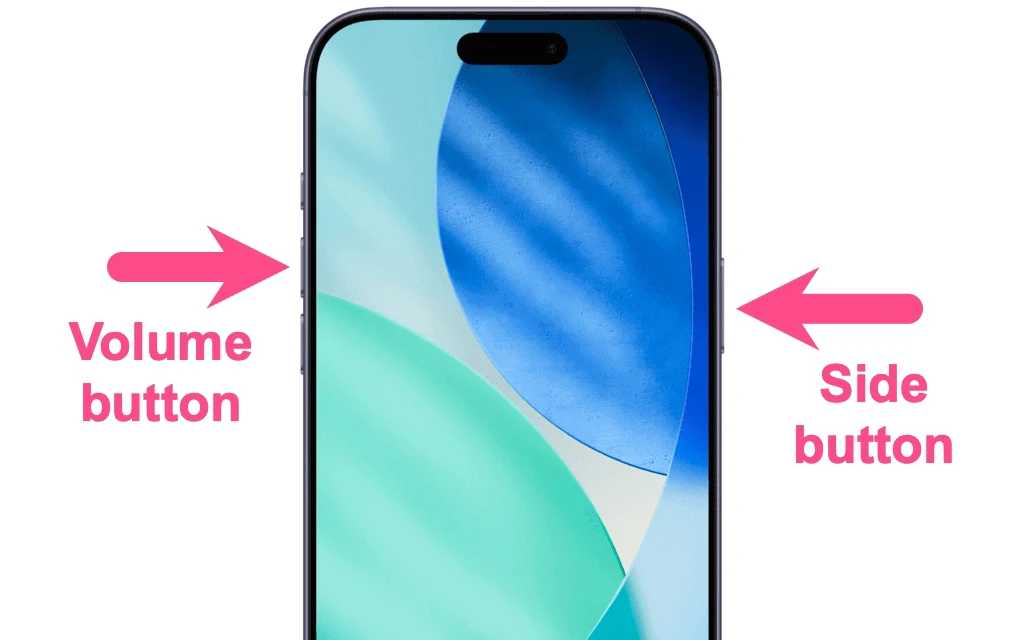
Step-by-Step Button Method:
- Press and hold the Side button and either the Volume Up or Volume Down button at the same time.
- Keep holding both buttons until the “slide to power off” slider appears on your screen.
- Release the buttons.
- Swipe the power icon from left to right.
- Wait approximately 30 seconds for the device to fully shut down.
Your screen will go completely dark once the iPhone 17 is off.
How to Turn Off iPhone 17 Using Settings
If your buttons feel unresponsive or you prefer a software option, you can shut down the device from within iOS.
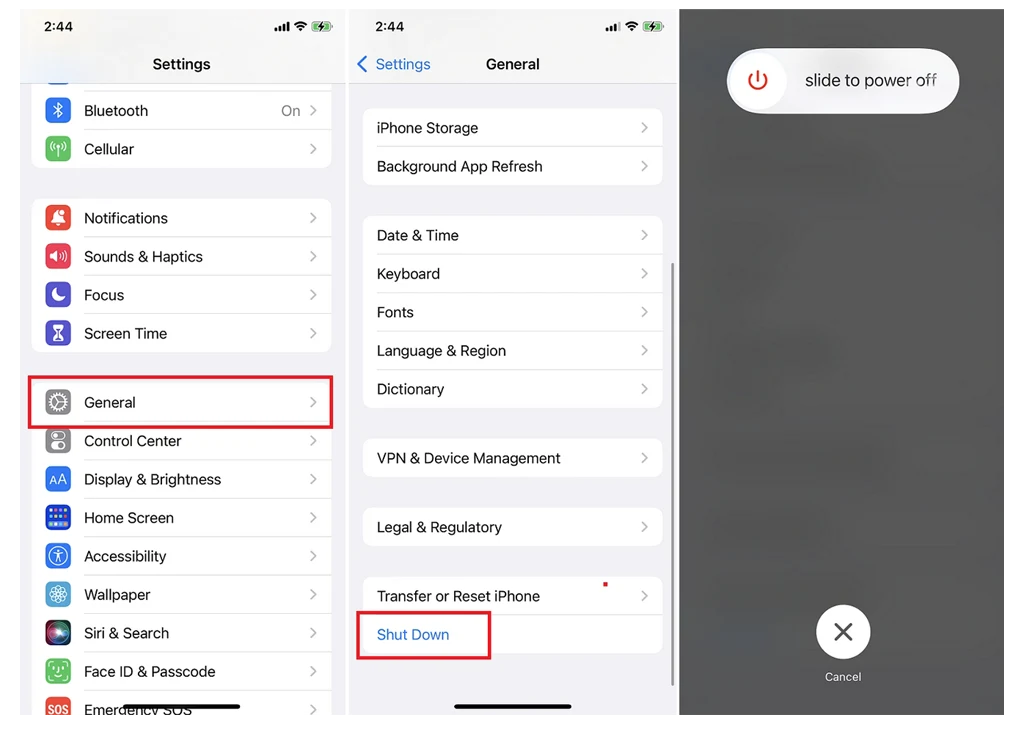
Step-by-Step Settings Method:
- Open the Settings app from your Home Screen.
- Tap General.
- Scroll to the bottom of the menu.
- Tap Shut Down.
- Swipe the “slide to power off” slider to the right.
- Wait for the screen to go dark.
This method is useful if your Side button is difficult to press or if you want to avoid accidental screenshots.
How to Turn Your iPhone 17 Back On
Restarting your phone is simple:
- Press and hold the Side button until you see the Apple logo appear on the screen.
- Release the button and wait for the lock screen to load.
- Enter your passcode or use Face ID to unlock the device.
If you just turned the phone off, this process should take less than a minute.
What to Do If Your iPhone 17 Won’t Turn Off
Sometimes the screen freezes and the standard shutdown methods do not work. If your device becomes unresponsive, use a force restart. This will not erase your data.
How to Force Restart iPhone 17:
- Quickly press and release the Volume Up button.
- Quickly press and release the Volume Down button.
- Press and hold the Side button.
- Keep holding until the Apple logo appears on the screen.
- Release the Side button.
Your iPhone 17 will restart automatically. Use this method only when the regular power-off options fail.
Note: During this process, you might see the “slide to power off” slider appear. Ignore it and continue holding the Side button until the screen goes black and the Apple logo appears
Troubleshooting Tips for New Users
If you struggle to turn off your iPhone 17, check these common issues first.
- Case interference: Some protective cases cover the Side button. Make sure you can press it fully.
- Timing: Do not hold the buttons too briefly. Wait until the power-off slider clearly appears.
- Software updates: If your phone is installing an iOS update, the shutdown process may take longer than usual.
- Screen protector: A poorly fitted screen protector can make swipe gestures difficult. Swipe firmly across the slider.
Key Differences from Older iPhone Models
New users coming from an iPhone 8 or earlier may look for a home button to power off the device.
The iPhone 17 does not have a home button. It uses Face ID and gesture-based navigation. This means the button combination for shutdown has changed. Learning this early will make daily use much smoother.
Learning how to turn off iPhone 17 is an essential first step for any new user. Whether you use the physical buttons or the Settings menu, both methods are safe and easy to remember.
If your device ever freezes, the force restart option will get you back on track without losing data.
Bookmark this guide for quick reference as you get comfortable with your new iPhone 17.
3 thoughts on “How to Turn Off iPhone 17: A Simple Guide for New Users”