
Unboxing new Sudio earbuds signals the start of an upgraded wireless audio experience. Yet for first-time users, figuring out how to connect Sudio earbuds to laptop systems can present an initial hurdle. Whether you need them for video conferences, media streaming, or focused work sessions, establishing a stable Bluetooth connection is essential for optimal performance.
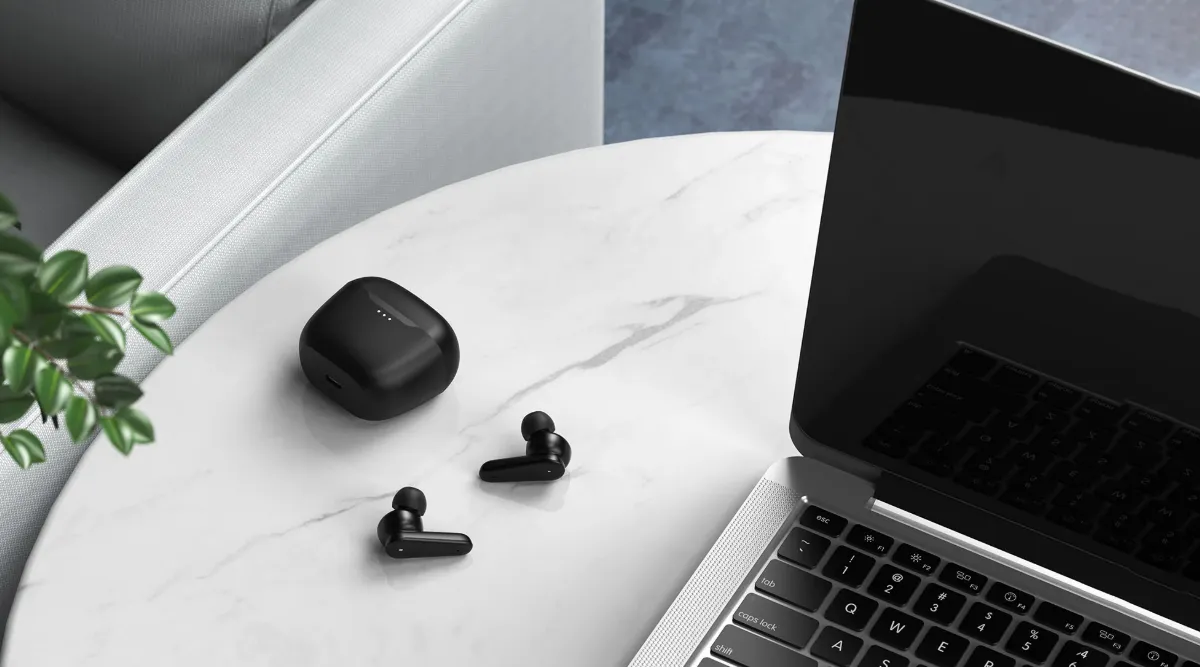
This guide provides professional, step-by-step instructions to help you pair your Sudio earbuds with both Windows and macOS laptops efficiently. Follow these directions to complete your setup within minutes.
Prerequisites Before Pairing
Before initiating the connection process, confirm the following:
- Bluetooth Capability: Ensure your laptop supports Bluetooth 4.0 or higher. Most modern laptops include this functionality, but older models may require an external USB Bluetooth adapter.
- Charging Status: Place your Sudio earbuds in their charging case and verify the LED indicator shows adequate battery life. Low power can interrupt the pairing process.
- Proximity: Position your earbuds within 3 feet of your laptop during initial setup to avoid signal interference.
Step-by-Step to Connect Sudio Earbuds to Laptop
The pairing process differs slightly between operating systems. Follow the instructions specific to your laptop platform.
For Windows 10 and 11 Users
- Activate Pairing Mode: Remove both earbuds from the charging case. Press and hold the touch controls on both earbuds simultaneously for 3–5 seconds until the LED indicators flash blue and white alternately. This signals the earbuds are discoverable.
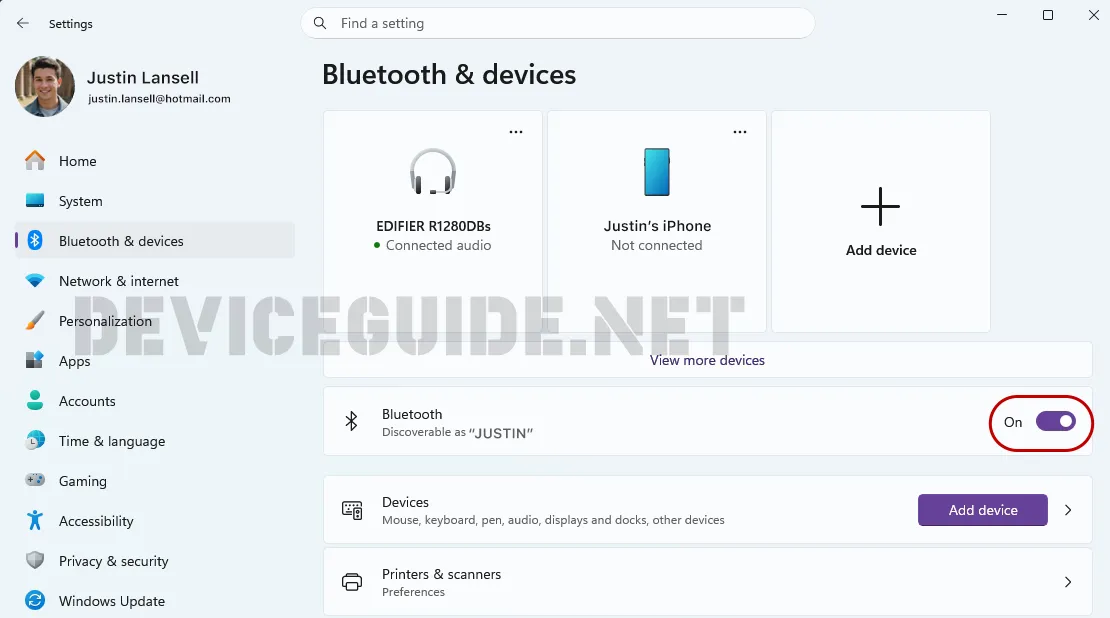
- Access Bluetooth Settings: On your laptop, click the Start menu and select Settings > Devices > Bluetooth & devices. Toggle Bluetooth to the “On” position if it is not already active.
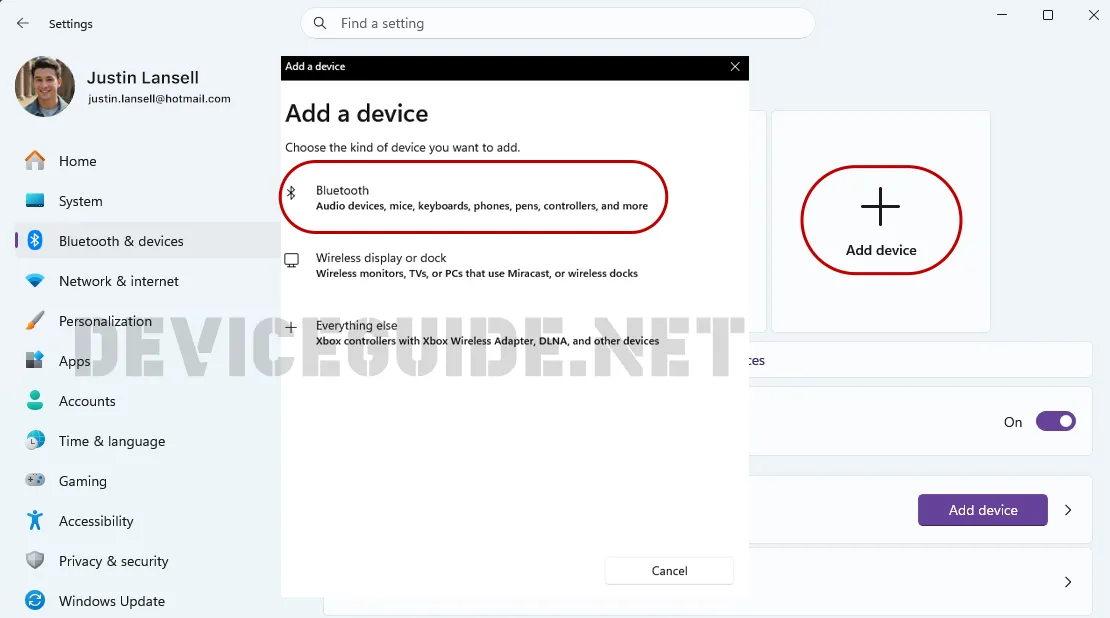
- Add New Device: Click Add Bluetooth or other device, then select Bluetooth from the options menu.
- Select Your Earbuds: Locate your specific Sudio model (e.g., “Sudio T2” or “Sudio E2”) in the list of available devices. Click on the device name to initiate pairing.
- Confirm Connection: Wait for the status to change to “Connected.” A confirmation tone will play through the earbuds, indicating successful pairing.
For macOS Users
- Enable Discovery Mode: Remove the earbuds from the case and press both touch controls until the LEDs flash blue and white, indicating pairing mode is active.
- Open System Settings: Click the Apple menu and select System Settings (or System Preferences on older macOS versions). Navigate to the Bluetooth section.
- Locate Your Device: Find your Sudio earbuds in the Devices list. They will appear under their model name.
- Complete Pairing: Click Connect next to the Sudio device name. Once the status changes to “Connected,” your earbuds are ready for use.
Troubleshooting Common Connection Issues
If you encounter difficulties during the pairing process, apply these professional solutions:
- Device Not Appearing in Bluetooth List: Reset your earbuds by placing them in the charging case, closing the lid for 10 seconds, then removing them and re-entering pairing mode. Additionally, verify that your laptop’s Bluetooth adapter is enabled and functioning.
- Intermittent Audio or Dropouts: Maintain a clear line of sight between your earbuds and laptop. Remove potential sources of wireless interference, such as USB 3.0 devices, microwave ovens, or other Bluetooth gadgets operating nearby.
- No Sound After Connection: Check your laptop’s audio output settings. On Windows, click the volume icon in the taskbar and select your Sudio earbuds as the output device. On macOS, hold Option and click the menu bar volume icon to verify the output selection.
Advanced Tips: Multi-Point Connection
Some Sudio models, like the B3, support Multipoint connectivity. This allows you to connect to two devices at the same time, such as your laptop and phone, and seamlessly switch between them. Check your model’s specifications to see if it supports this feature.
If you’re still having trouble, you can visit the official Sudio support website and search for your specific earbud model for more detailed instructions. Hope this helps you get your earbuds connected!
Optimizing Your Connection
To ensure consistent performance after initial setup:
- Set as Default Device: Designate your Sudio earbuds as the default audio output in your laptop settings to enable automatic connection when removed from the case.
- Firmware Updates: Periodically check the Sudio app (if applicable to your model) for firmware updates that improve connectivity stability.
- Memory Management: If your laptop connects to multiple Bluetooth devices, remove unused pairings from your Bluetooth settings menu to prevent connection conflicts.
Conclusion
Understanding how to connect Sudio earbuds to laptop systems removes the friction from your wireless audio setup. By following the platform-specific steps outlined above, you establish a reliable connection that supports professional communication and media consumption.
Once paired, your Sudio earbuds should automatically reconnect to your laptop whenever you remove them from the charging case, provided your laptop’s Bluetooth remains enabled. Should you upgrade devices or experience persistent connectivity issues, consult Sudio’s official support documentation for model-specific guidance.